.png?width=283&height=51&name=Admincontrol_Logo-RGB_Reverse%20(1).png "Admincontrol_Logo-RGB_Reverse (1)")
Closing the survey
In order to close the survey, click Close survey. A survey can be closed anytime before or after the due date. Also, you can close a survey if not all recipients have responded. 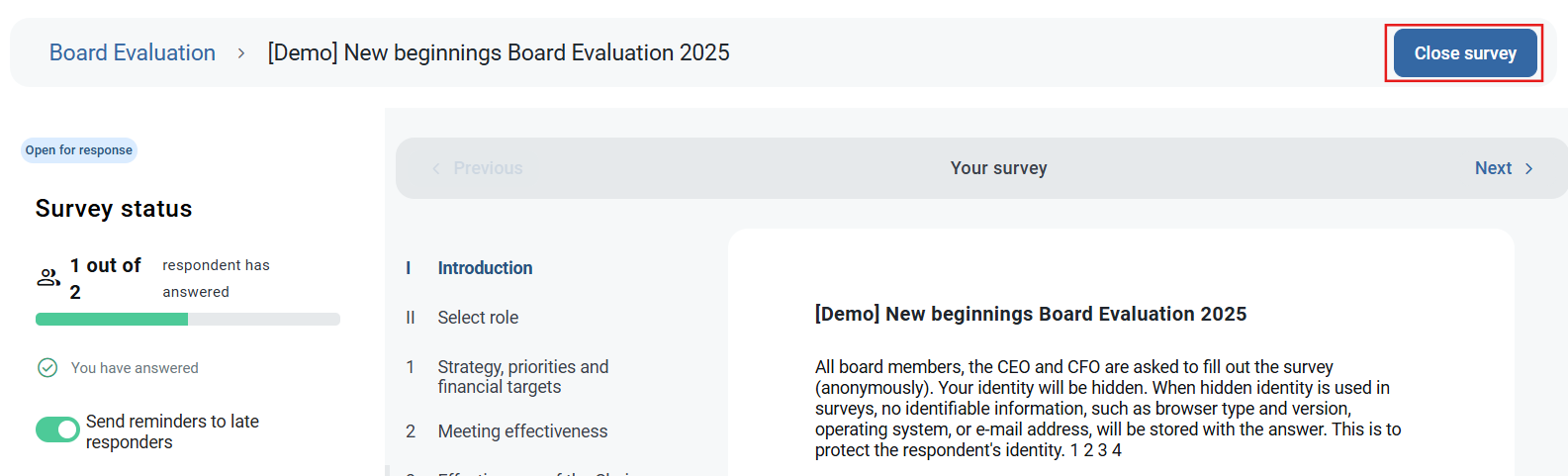
Create a report
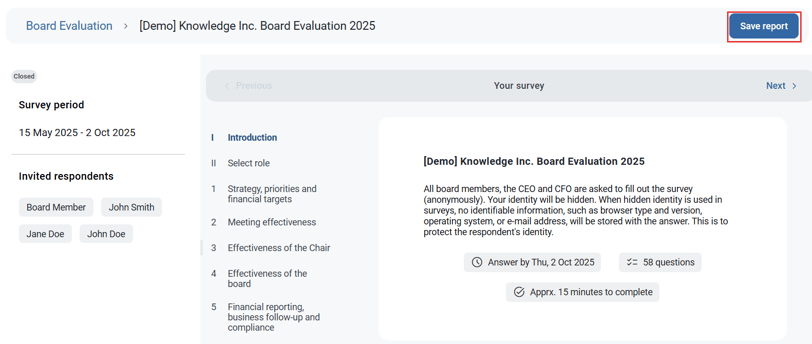
To create a report of the Board Evaluation click "Save report"
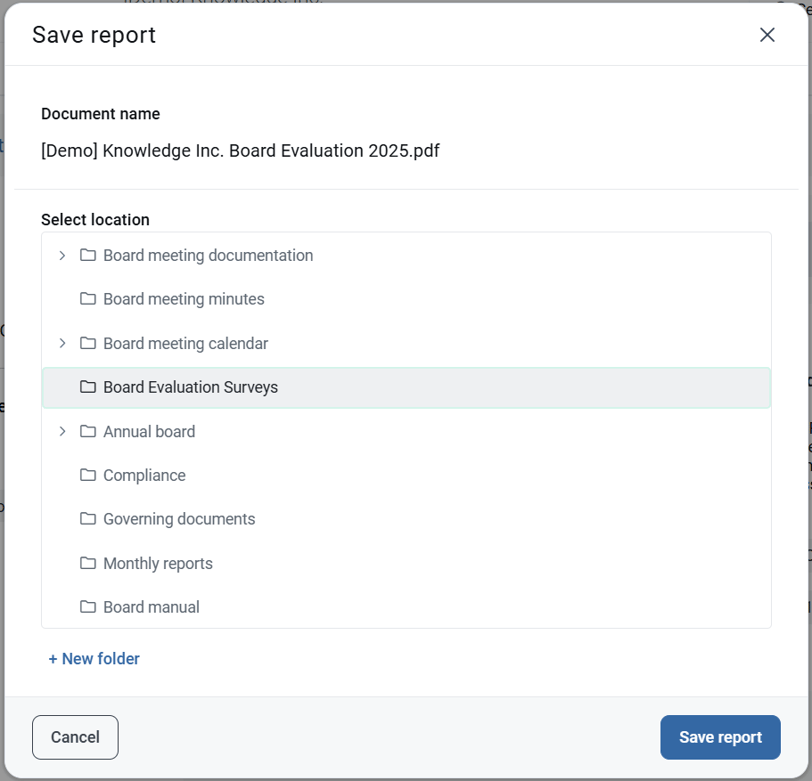
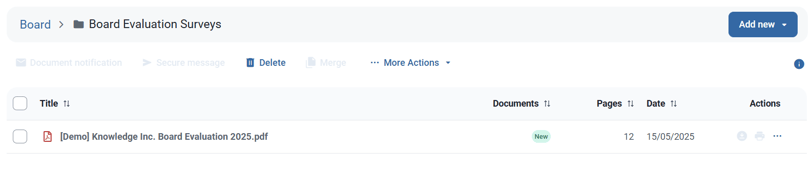
When closing a survey you also have to select a folder to save the report. You can either use an existing folder or create a new folder.
A report will be automatically generated and ready to use. The report consists of summary slides and an overview of each step of the survey. Comments are also included.
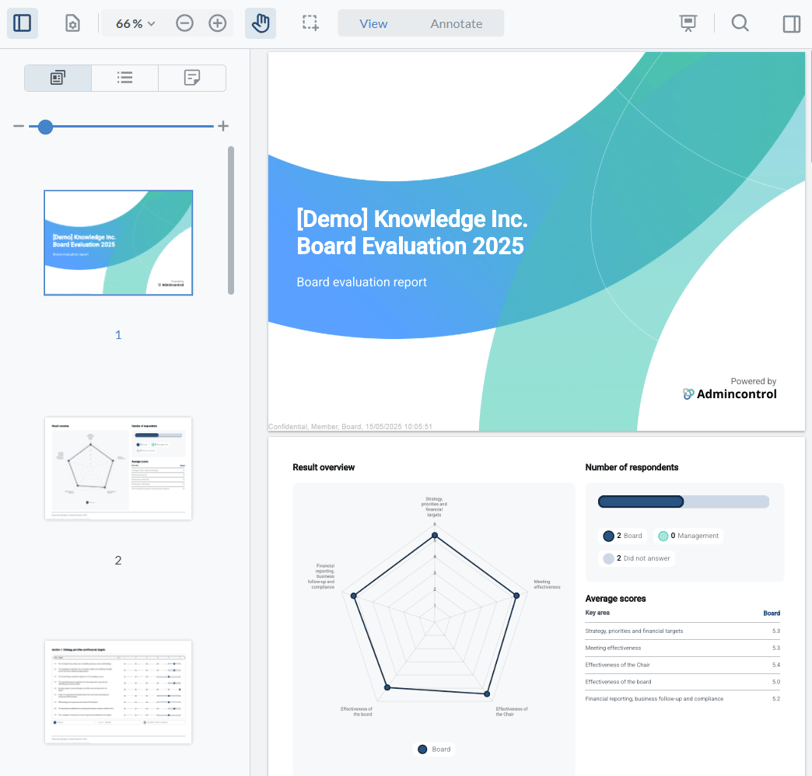
The report can be found in the selected folder within your board portal. You can at any time download the report as a PDF file.
Year-over-year comparison
If you have conducted a survey the year before you can create insightful reports by comparing data year-over-year between two selected reports.
1. Complete and Save the Survey
Complete and close this years survey.
2. Select Report Destination
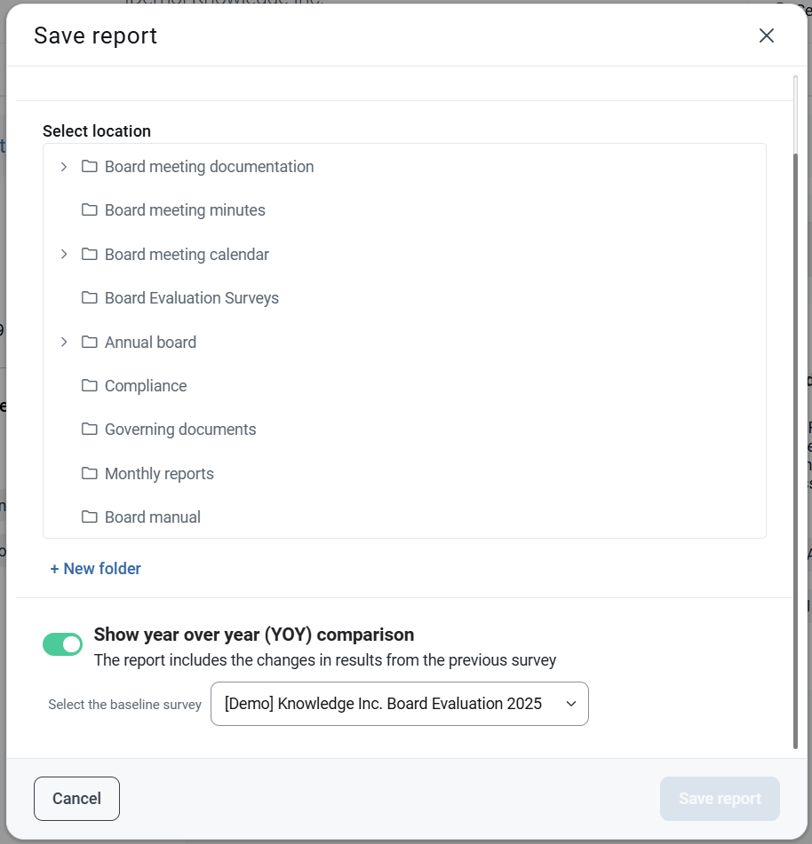
When saving the report, choose the folder where you'd like it to be stored.
3. Enable YOY Comparison
Check the option for "Show Year-Over-Year (YOY) Comparison."
Select the prior report you wish to compare with the current one.
4. Finalize the Report
Click Save Report.
The report will now be generated with year-over-year comparisons, including the following details:
- Results Overview: Displays the average scores and YOY comparisons for key areas.
- Detailed Breakdown: Provides a YOY comparison for each survey question.
- Performance Insights: Highlights the board's highest and lowest scores.