.png?width=283&height=51&name=Admincontrol_Logo-RGB_Reverse%20(1).png "Admincontrol_Logo-RGB_Reverse (1)")
Before You Begin
When you export data from your Board Portal, it will be packaged into an encrypted .zip archive for maximum security.
🛑 Important: The encryption level we use (AES-256) may not be compatible with the built-in ZIP software on Windows and macOS. To access your files, you'll need third-party ZIP software like 7zip or WinRAR.
Creating Your Export
Step 1: Navigate to Export Settings
Go to `Settings > Export`. Here, you'll see a history of past exports and how many exports you have left. By default, the portal is allocated five exports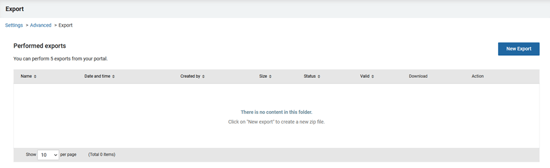
Step 2: Initiate a New Export
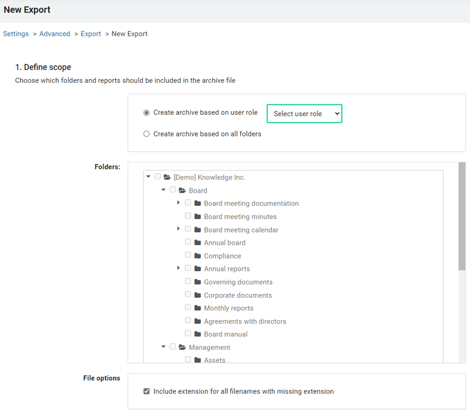
Click on `New Export`. You'll see options to tailor your export:
- Create archive based on user role: Ideal for sharing specific documents accessible to a user role, such as documents for a buyer.
- Create archive based on all folders: Select this to include all folders, or choose specific folders to tailor the contents of your export.
Step 3: Select Reports
Decide which reports to include. If you are closing the portal we recommend to include all reports to ensure that you have access to all your data
.png?width=435&height=579&name=image%20(1).png)
Step 4: Select Recipients
Select the individuals who should receive the export.
.png?width=550&height=333&name=image%20(2).png)
Step 5: Complete the Export
Finalize by clicking `Export`. Your selected users will be notified via email once the export is ready for download.
.png?width=550&height=92&name=image%20(3).png)
Downloading Your Export
Upon completion, an email with a link to the archive will be sent to the chosen recipients. Follow the link to download a zip-file containing the archive.
.png?width=550&height=365&name=image%20(4).png)
Accessing the Export
To access the .zip archive:
- Show Password: Click `Show` to reveal the password needed for extraction—remember to save this password immediately.
- Download: Use the link to download your .zip archive. Optionally, download a PDF confirmation of content.
🔔 Remember: Save your password securely. It cannot be retrieved once the download link expires after 3 days.
.png?width=470&height=331&name=image%20(5).png)
Extracting files
Use the earlier selected third-party software (e.g., 7zip) with the provided password. For best results, extract files directly to the root of your hard drive (C:\) to avoid issues with long filenames.