.png?width=283&height=51&name=Admincontrol_Logo-RGB_Reverse%20(1).png "Admincontrol_Logo-RGB_Reverse (1)")
Where to find the survey
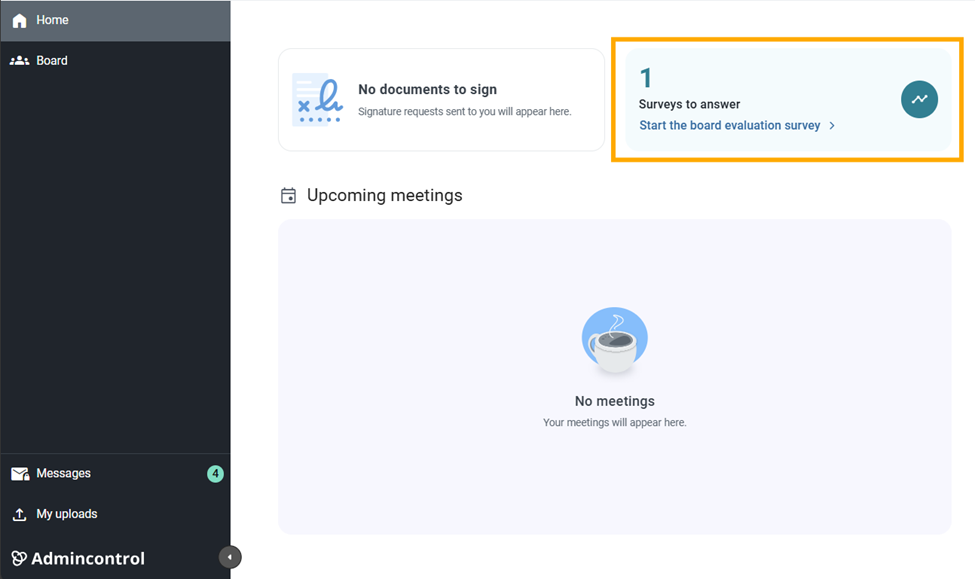
In the Admincontrol Web application, any surveys that you have been invited to participate in, will be shown on the dashboard of the Home page in your portal. To navigate to the survey, click on Start the board evaluation survey.
How to respond to a Survey
Step 1: Start the Survey
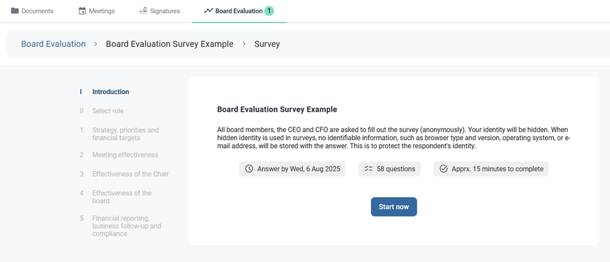
Before starting the survey you will be presented with the Introduction page which will show key information about the specific survey, including the due date, the number of questions to be answered and the approximate time to complete the survey in total. When you are ready to start the survey, click on the Start now button.
Step 2: Select your role
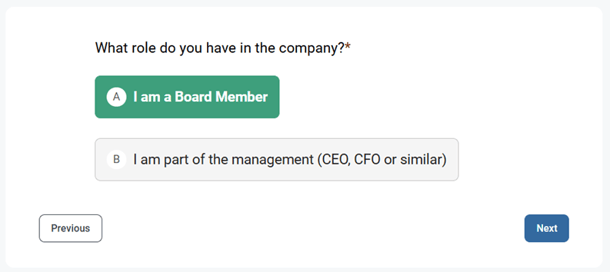
At the beginning of the survey, you are asked to choose your role. Select your correct role and click Next. Please note that you cannot choose more than one role.
Step 3: Answering questions
1. Rating scale
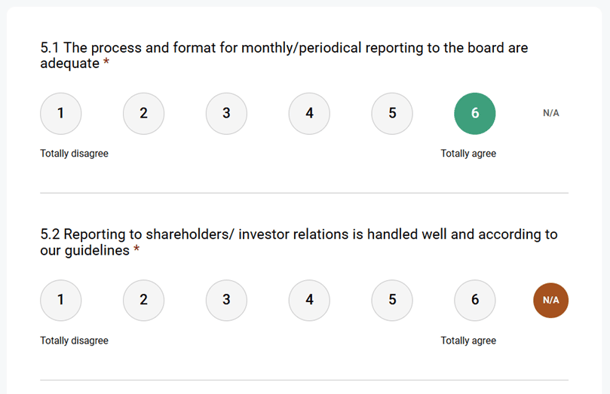
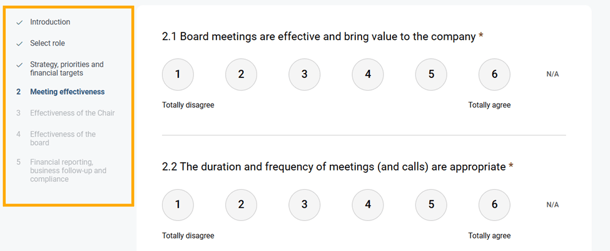
The rating scale questions ask you to select a value from 1 to 6 based on how much you agree with the statement presented.
To respond, click on the rating that best reflects your opinion before moving on to the next question.
If a statement does not apply to you or your role, you can select N/A (Not Applicable). This option is always available on the right-hand side of the rating scale.
2. Written response
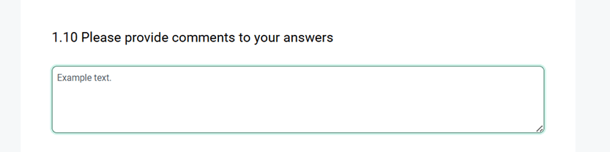
To some statements you have the possibility to add comments to your answer. When that is the case you will be presented with a text box. Click inside the text box and enter your written response.
Moving between sections
The survey is split into sections, where each section has one or more questions. To proceed to the next section, all questions must be answered. After answering all the questions, click on the Next button at the bottom of the section to continue.
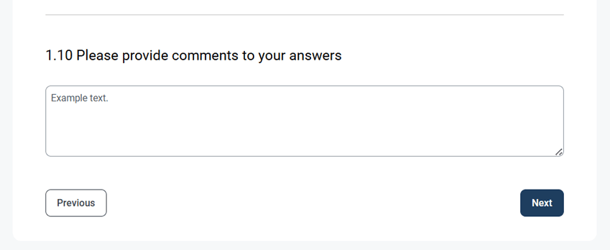
To navigate to previous sections, you can use the Previous button at the bottom of the section or click on the correct section in the sidebar. This sidebar will also indicate your progress and highlight which section you are currently answering.
Submitting the survey
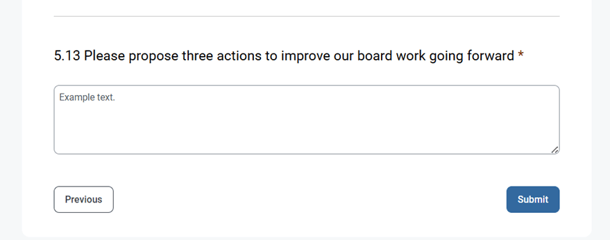
Once you have answered all the questions, you will see a Submit button at the bottom of the final section. Simply click on the button to complete your survey.
Please note that once you have submitted your survey, you can not go back and edit your response.
Continue the survey later
If you leave the survey tab before submitting the survey, your progress will be saved automatically. The survey will remain visible and accessible from the Home page. When you return, you can continue right where you left off. The survey will be marked as In Progress on your dashboard until submitted.