.png?width=283&height=51&name=Admincontrol_Logo-RGB_Reverse%20(1).png "Admincontrol_Logo-RGB_Reverse (1)")
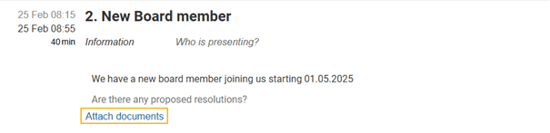
To add attachments to an agenda item, click on Attach documents under the agenda item you wish to add attachments to.
Add existing documents as attachments
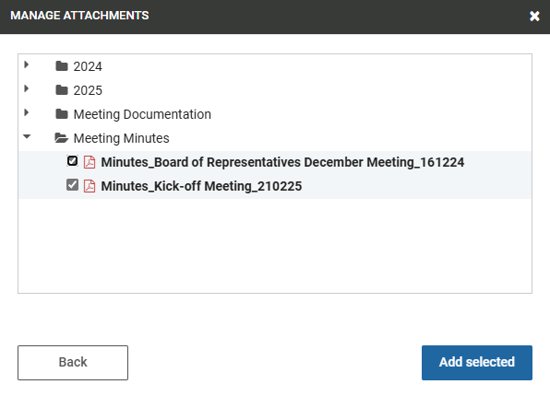
To add existing documents click on the Add existing button. In the manage attachments window you will see the folder structure of the area the meeting has been created in. To select a document tick the checkbox to the left of the document title. After selecting the desired documents click on the Add selected button.
Upload a new document
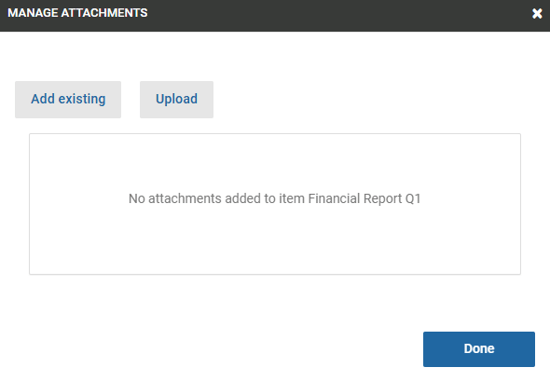
To upload a new document from your computer as an attachment you can click on the Upload button. You can choose to select files or drag and drop them into the indicated field.
Under Select document properties you can select the document properties for the documents that will be uploaded.
Remember to make sure that added documents are print enabled if printing the Board Book should be allowed and download enabled if downloading the Board Book should be allowed. Once the attachment is added/visible in the Meeting attachments window, it is connected to the agenda item and you may close the window.
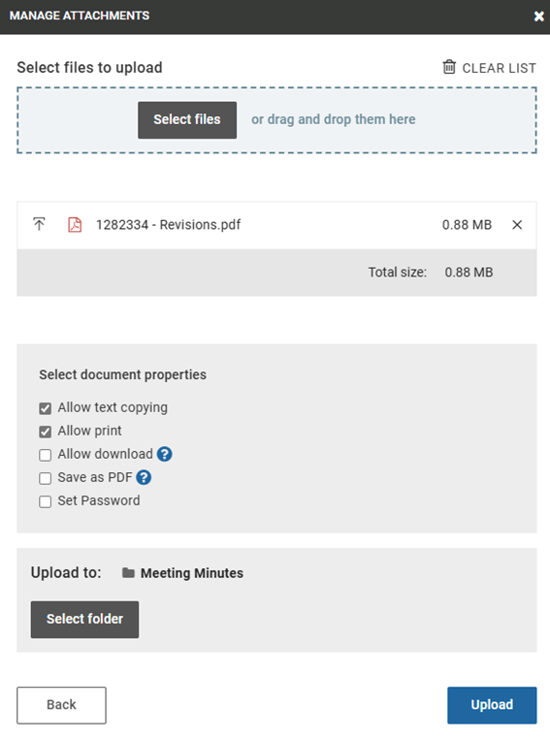
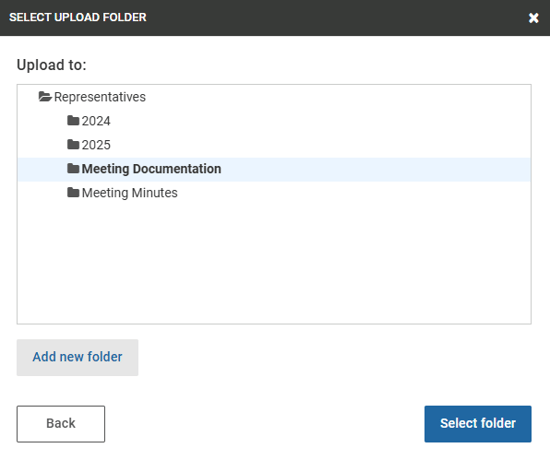
When uploading a document as an attachment you will need to select a desired folder for the document to be stored in. You may choose an existing folder or create a new folder for the document(s) to be saved in.