.png?width=283&height=51&name=Admincontrol_Logo-RGB_Reverse%20(1).png "Admincontrol_Logo-RGB_Reverse (1)")
Enhance Your Agenda with Customized Numbering
A well-structured agenda sets the tone for an efficient meeting. By adding a suitable numbering format, you can ensure clarity and organization. Here’s a guide to help you configure agenda numbering:
Accessing Numbering Options
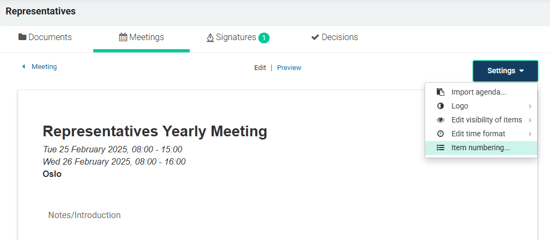
You can find the Numbering option in the Settings menu > Item numbering. Use it to set or customize how your agenda items are numbered.
Choose the Starting Number for Agenda Items
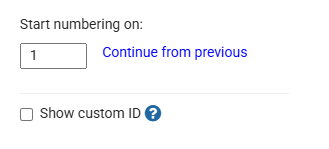
Decide the number from which your agenda items will begin. Simply type it manually or choose the Continue from previous option. If you opt for Continue from previous, numbering will automatically carry over from the last meeting.
Create Custom Numbering
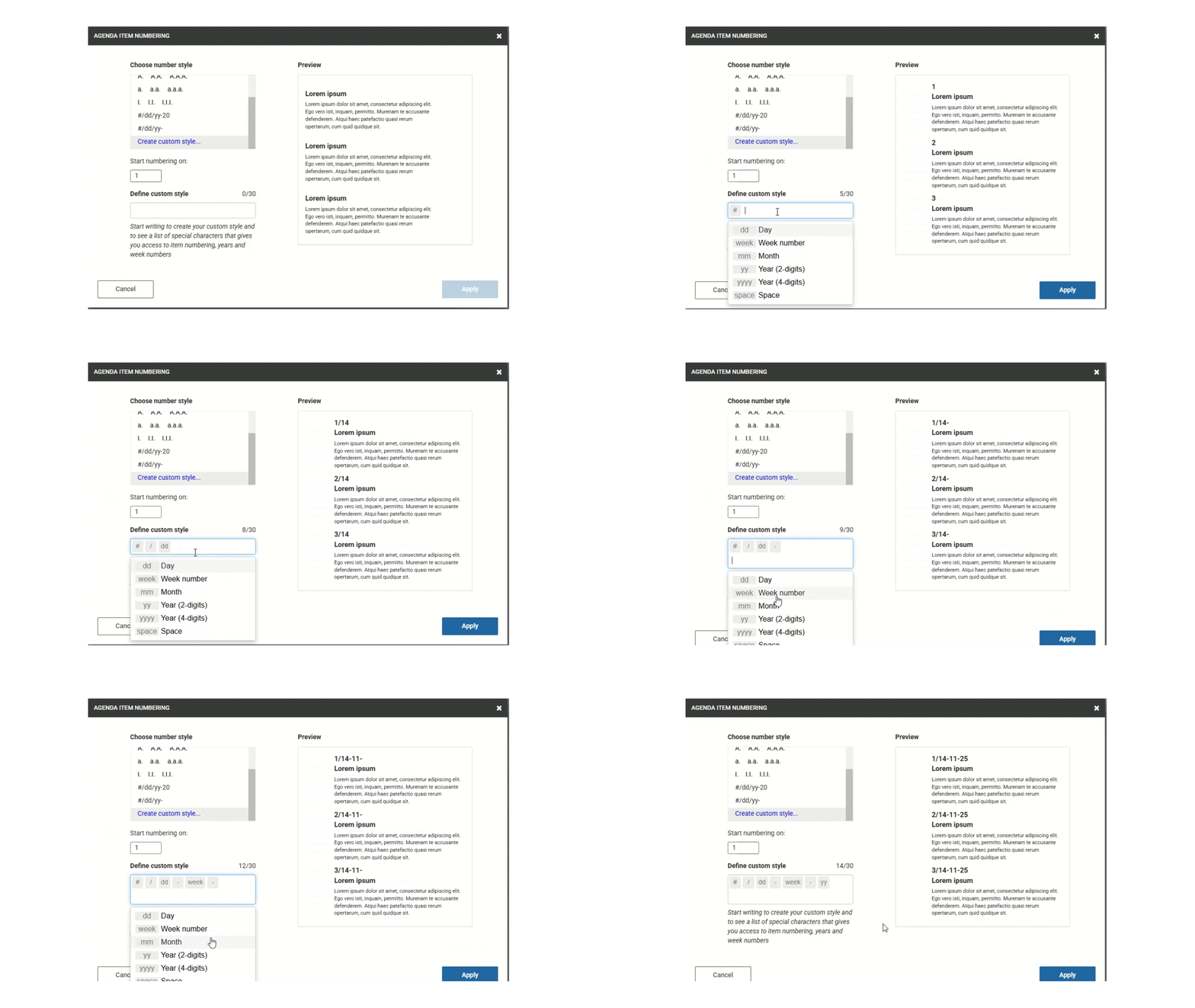
Our Create custom style feature lets you go beyond the standard options. Mix text with templates to add elements like the date or month to your agenda items. When adding free text, simply add the text by typing it into the define custom style field and press enter to insert the text.
The format you select will be saved and applied to your next meeting, making it easy to maintain consistency.
Manual Numbering
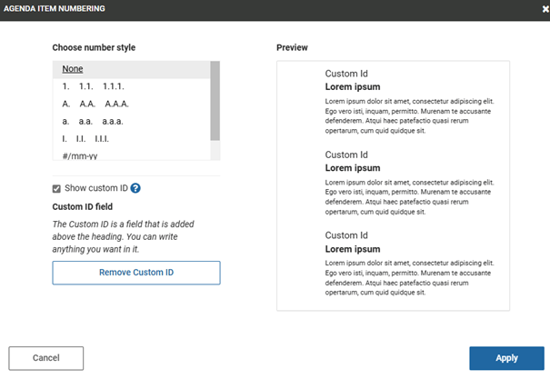
If continuous numbering doesn't suit your needs, you can manually set a number for each agenda item. Enable this by selecting Show custom ID, then click on Activate custom ID. This gives you complete control over the numbering of your agenda.
Start using these features today to create a clearly structured agenda that enhances your meeting's productivity and flow.