.png?width=283&height=51&name=Admincontrol_Logo-RGB_Reverse%20(1).png "Admincontrol_Logo-RGB_Reverse (1)")
Add attachments to an existing meeting
To add attachments to an existing meeting, click on Add attachments. Please note that you can only have either a meeting with attachments or a meeting with a meeting book.
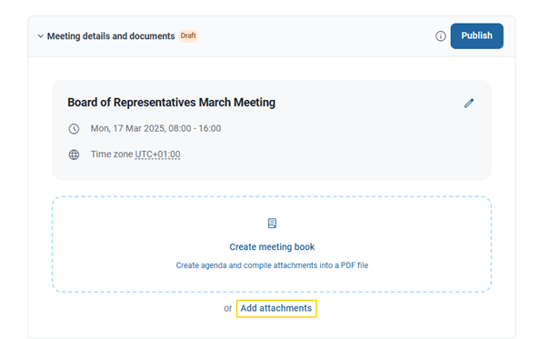
Add attachments
In the Add attachments window, you can select files and folders that you wish to add as attachments to the meeting. When adding a folder as an attachment, any documents that are uploaded into the folder will automatically be added as an attachment to the meeting.
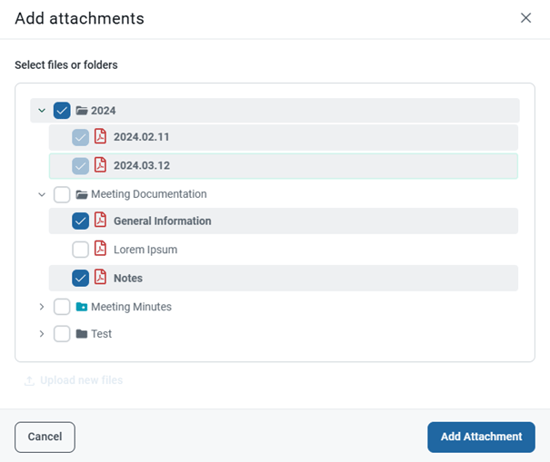
Manage attachments
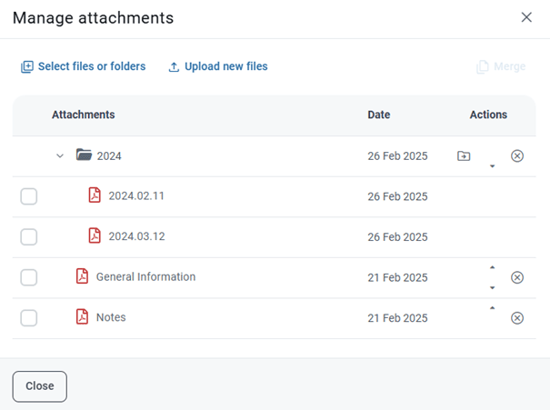
After you have added attachments, you can manage your attachments in the Manage attachments window.
- Add new attachments: To continue adding attachments you can click on either the Select files or folders prompt or the Upload new files prompt.
- Remove an attachment: To remove an attachment you can click on the ⨂ icon to the right of the attachment you wish to remove. Please note that this will only remove the document as an attachment to the meeting, the document will still be saved in the folder where the document is located.
- Rearrange the attachments: To rearrange the order of the attachments you can move an attachments placement in the list by using the arrows under Actions.
Create a new meeting from a folder with attachments
You can create a new meeting from a folder to automatically link the documents in the folder as attachments to the meeting.
To create a new meeting from a folder, go to the folder you wish to link with the meeting and click on the Add new button and choose Meeting.
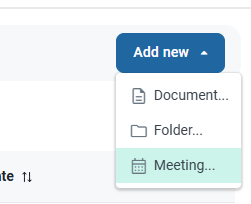
The folder that you create the meeting from will automatically attach to the meeting that is created.
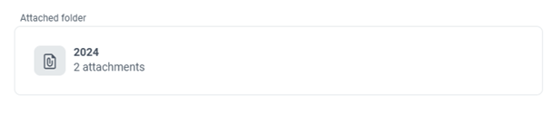
Any documents that are uploaded into the folder will automatically be added as an attachment to the meeting.