.png?width=283&height=51&name=Admincontrol_Logo-RGB_Reverse%20(1).png "Admincontrol_Logo-RGB_Reverse (1)")
The Folder Wizard allows administrators and content administrators to pick between best practice templates and create a new folder structure within an empty area of use in just a few clicks.
The templates can be modified once chosen, or you may choose to create your own folder structure in a simple and intuitive way.
Step-by-Step: Creating Your Folder Structure
1. Open the Folder Wizard
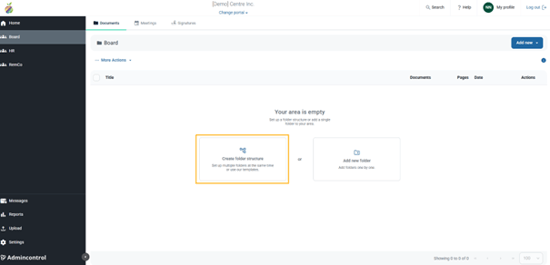
Start in a new, empty area of your portal. Select Create folder structure to set up multiple folders at the same time or use one of our templates.
2. Pick a Template
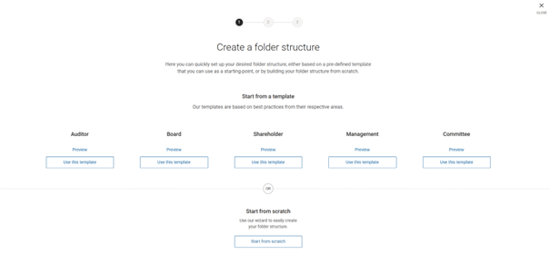
Choose the template that matches your needs-or select “from scratch” for full customization.
3. Edit Your Structure
- Move folders
- Add new folders
- Rename them
- Delete folders you don’t need
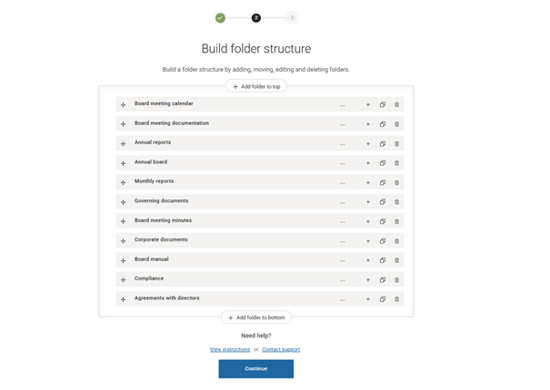
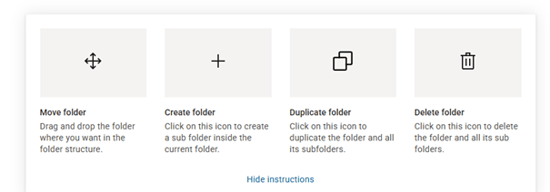
To view instructions within the folder wizard, you can click on View instructions under Need help?
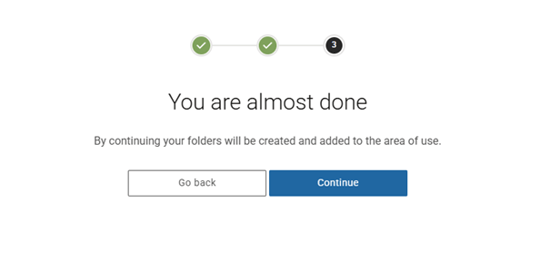
4. Click Continue
Finalize and apply your new structure to the portal.
5. Start Uploading
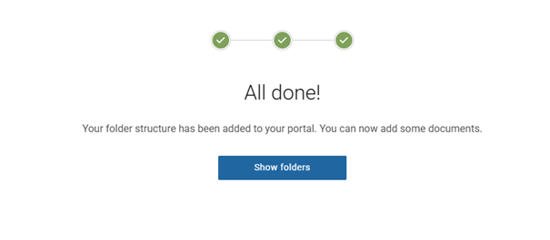
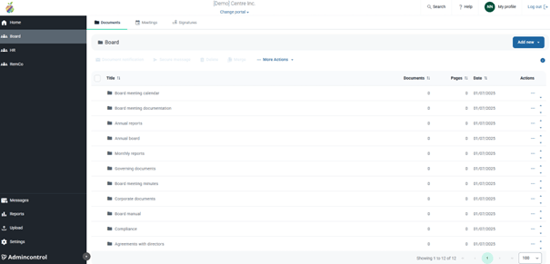
Your folder structure is now ready- you can upload documents immediately.