.png?width=283&height=51&name=Admincontrol_Logo-RGB_Reverse%20(1).png "Admincontrol_Logo-RGB_Reverse (1)")
Create Meeting Minutes
Meeting Minutes is a built-in solution that makes minute taking much easier, quicker and more secure. This is how you create Meeting Minutes.
To create Meeting Minutes, open the meeting page and select Create meeting minutes.
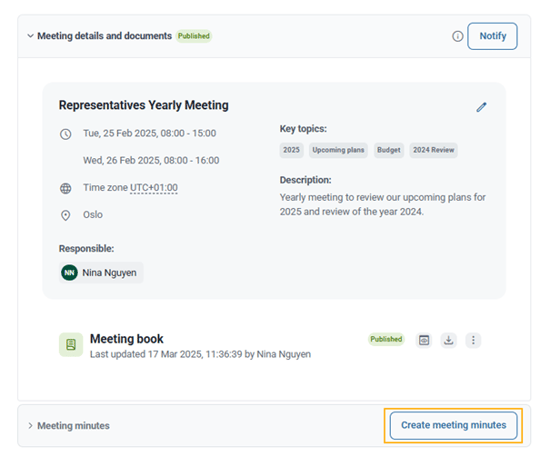
To save you time, meeting details, attendees and the agenda items are prefilled. You can easily amend this content, delete and add elements in the Meeting Minutes. Everything will be autosaved as you go.
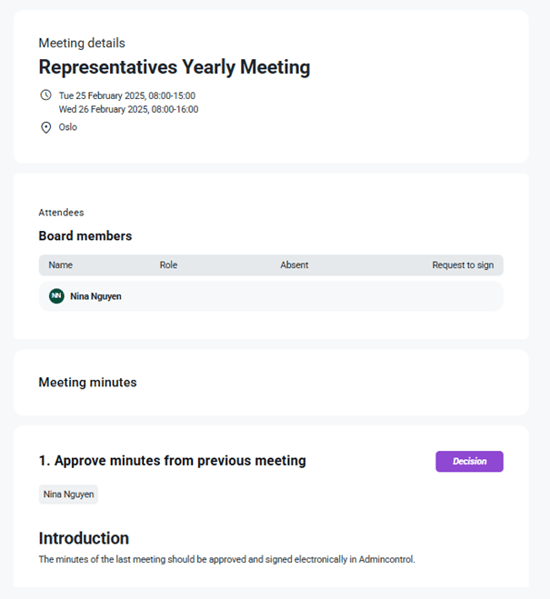
Customize the Meeting Minutes
Add the logo
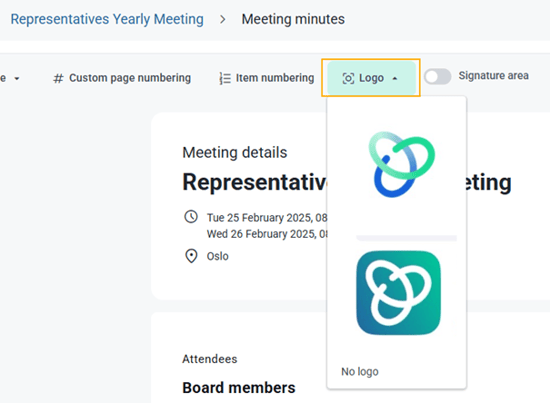
You can add the logo to the Meeting Minutes from the top section menu bar. Click Logo and select your logo.
Item numbering
The item numbering in the Meeting Minutes will automatically be the same as the item numbering selected in the Meeting Book / Agenda. If you wish to change the item numbering in the Meeting Minutes, click Item numbering from the top section menu bar.
Custom page numbering
You can set custom page numbering in your Meeting Minutes by clicking on Custom page numbering from the top section menu bar.
Here you will be able to decide what numbering to start on:
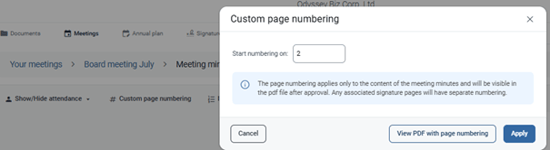
If you click View PDF with page numbering, you will open a preview window of the meeting minutes displaying the numbering you set:
NOTE: If minutes are signed electronically, the signature page will not include this numbering.