.png?width=283&height=51&name=Admincontrol_Logo-RGB_Reverse%20(1).png "Admincontrol_Logo-RGB_Reverse (1)")
The new dashboard allows you to customize what content you want to display in the overview.
Activating Customization Features
To begin customizing your dashboard overview, follow these simple steps:
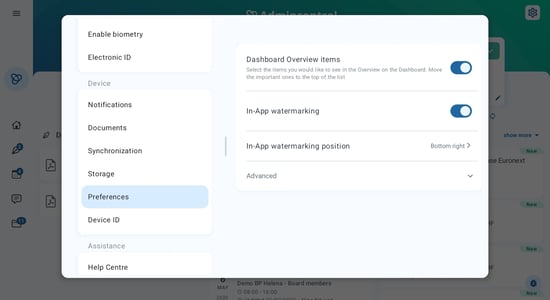
- Navigate to Settings > Preferences.
- Look for the option titled "Dashboard overview items" and switch it on.
With customization enabled, your dashboard will now show an edit-icon
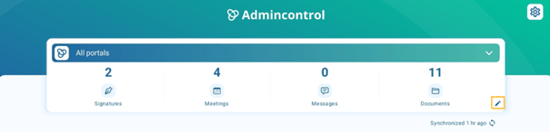
Click on the edit icon to customize your dashboard with the following options:
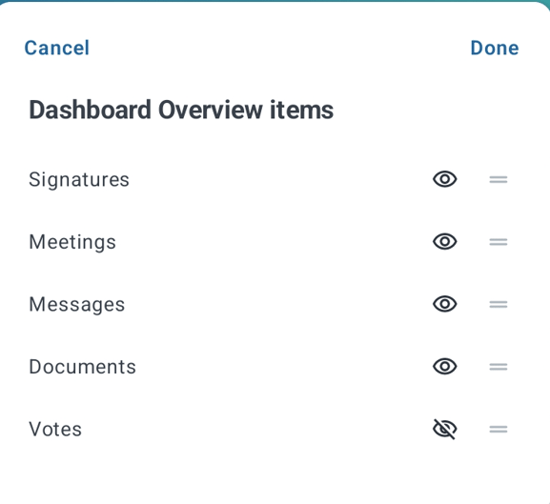
Show/Hide Items
Pressing the edit-icon lets you select which items you want to be visible on your dashboard. Hide the ones you don’t need and keep the essentials in view for quick access.
Reorder Items
Beyond visibility, you can also rearrange the order of items displayed. This allows you to customize your preferences, ensuring the most relevant content is always the first thing you see.