.png?width=283&height=51&name=Admincontrol_Logo-RGB_Reverse%20(1).png "Admincontrol_Logo-RGB_Reverse (1)")
How to enable the dashboard widget on your Android device.
Add the dashboard widget to the home screen
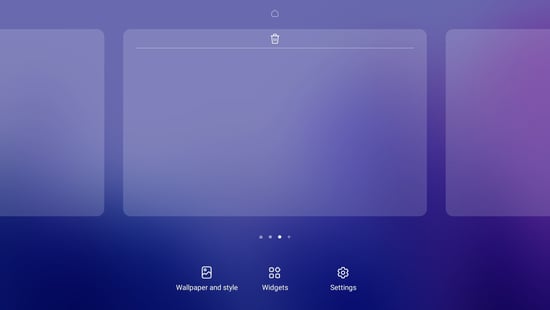
1. Enter Edit Mode
- Begin by pressing down on an empty area of your home screen until the "edit home screen" feature activates. This will allow you to customize your home screen.
2. Open the Widget Gallery
- Once in edit mode, tap the "Widgets" option located in the center at the bottom of your screen. This opens the widget gallery, where you can browse all available widgets for your device.
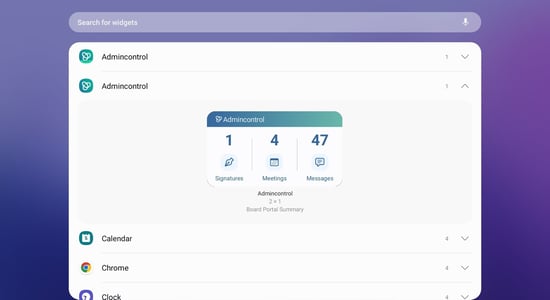
3. Locate the Admincontrol Widget
- If the Admincontrol app is installed on your device, it will appear in the list of available apps on the Widget list.
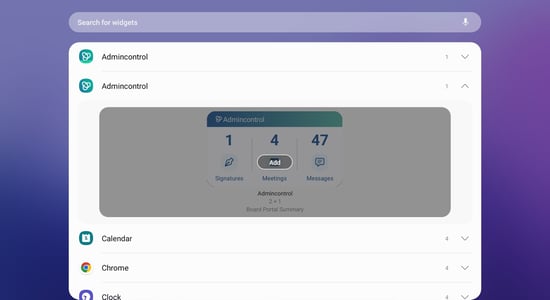
4. Add the Widget to Your Home Screen
- Click on the Admincontrol widget and click “Add” to add the widget to your home page.
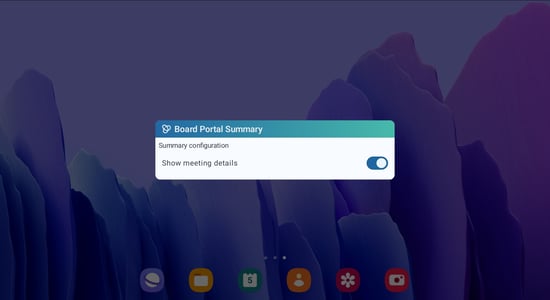
5. Choose Your Preferred Summary Type
- Choose your preferred summary type for meeting details.
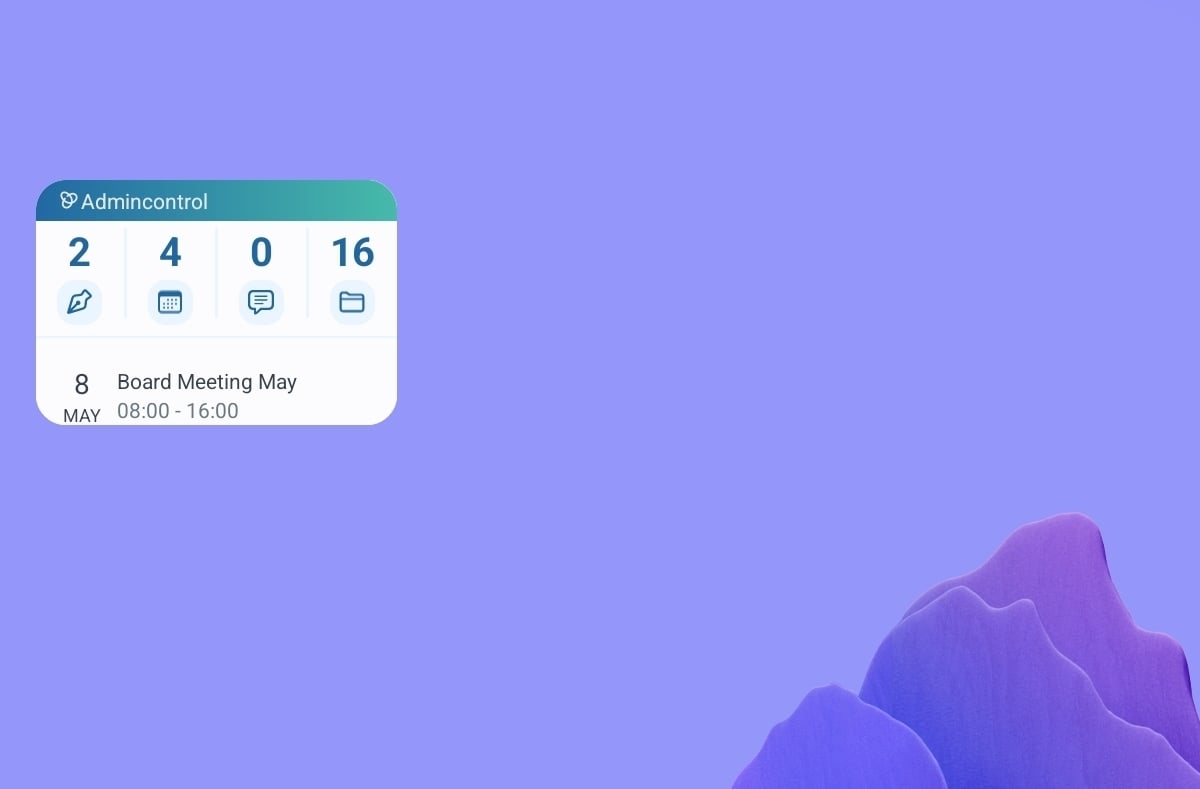
6. View Your New Dashboard Widget
- After selecting your preferred summary type, it will be added to your dashboard, offering you an at-a-glance view of the important information without needing to open the full app.