.png?width=283&height=51&name=Admincontrol_Logo-RGB_Reverse%20(1).png "Admincontrol_Logo-RGB_Reverse (1)")
Quick Overview from Your Dashboard
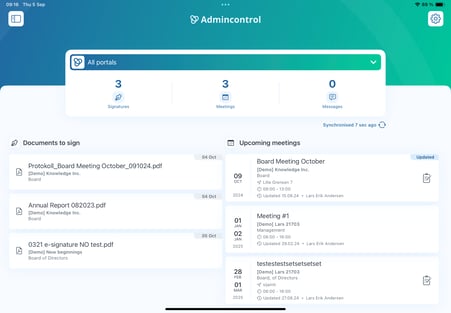
When you log in, your dashboard front page greets you with an organized list of documents awaiting your signature. This list is your go-to for quickly identifying which documents need your immediate attention.
How to Access Your Signature Requests
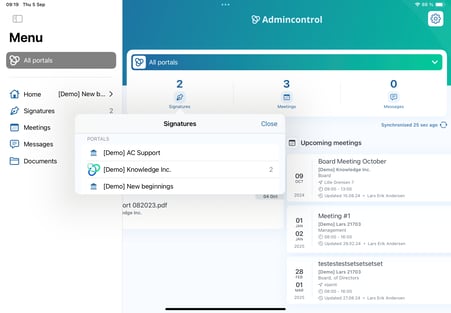
1. Locate the Signature Icon: Click on the signature icon visible on your dashboard. This reveals a list of all your portals, alongside a number indicating the quantity of documents available for signing.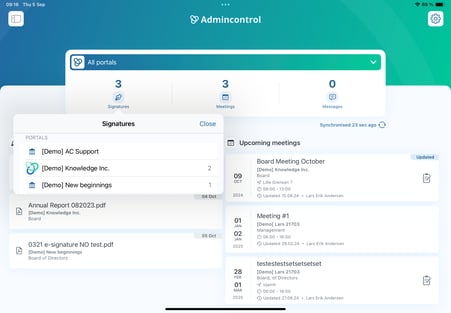
2. Select Your Portal: By selecting a portal, you're taken directly to the awaiting signature requests specific to that portal. Here, the choice is yours to sign documents one by one or utilize the "Sign Multiple" option, if available, for batch processing.
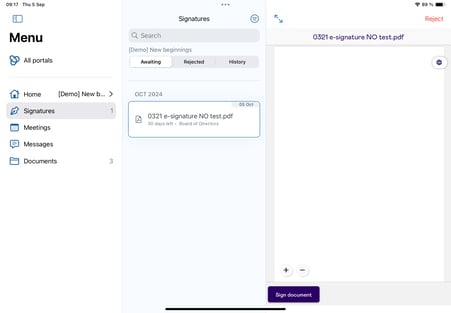
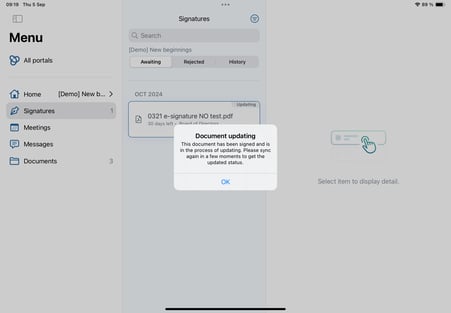
3. Syncing and Accessing Signed Documents: Once a signature is complete, the app begins to sync the document status. During this sync, the request may still appear listed. Should you try to access a document that’s already been signed, a prompt will inform you of its completed status.
Signing Across Multiple Portals
For those who manage documents across various portals:
Navigate to "All Portals" via the side menu. This action redirects you back to the dashboard, enabling you to switch between different portals where additional signature requests may be waiting.