.png?width=283&height=51&name=Admincontrol_Logo-RGB_Reverse%20(1).png "Admincontrol_Logo-RGB_Reverse (1)")
Administrators of a board portal can restrict a user’s access to a subfolder the user would normally be able to access. Examples of when this can be required is due to conflict of interest or discussion on remuneration.
Manage a folders access permissions
- If the folder does not already exist, navigate to the folder you wish to place the subfolder in and click on the blue Add new button > Folder to create a new folder.
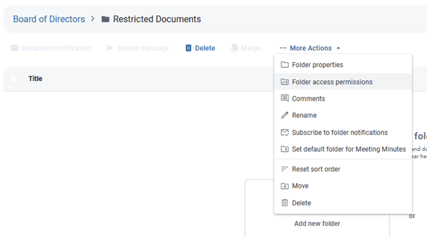
- On the subfolder you wish to restrict access to, select the subfolder and go to More actions > Folder access permissions.
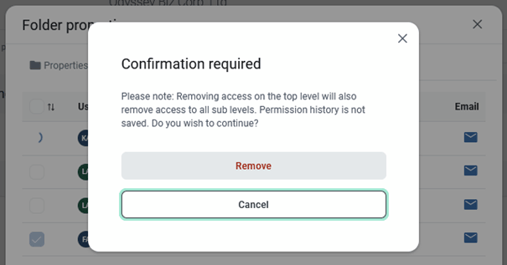
- Untick the users who should not have access to the folder and its documents. To confirm changes, click Remove. Users with an empty tick box will now not be able to see the folder in their folder structure and will not be able to access any documents or subfolders within the folder.
Documents within a restricted folder
Add the relevant document(s) to the restricted folder. You can attach these documents from the restricted folder to the correct agenda item in the meeting book. The restricted users will only see the agenda item, but without attachments.
Manage a user’s existing folder exceptions
As an administrator in the portal, you can manage a user’s existing folder exceptions by navigating to Settings > Manage users and permissions. Click directly on the first or last name of a user to open the user’s profile. Under Permission exceptions you can view a list of all folder exceptions given to the user.
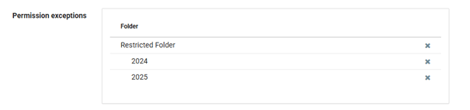
You may remove a folder exception by clicking on the x icon to the right of the folder name in the list.