.png?width=283&height=51&name=Admincontrol_Logo-RGB_Reverse%20(1).png "Admincontrol_Logo-RGB_Reverse (1)")
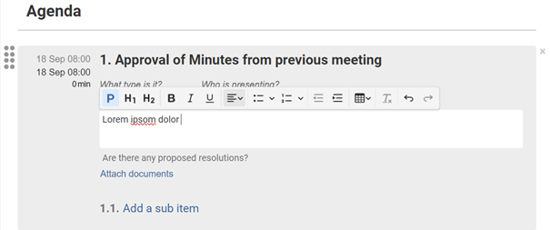
If you're finding that the spell check feature (indicated by a red curly line) is interrupting you while editing an agenda or meeting minutes, it might be enabled in your web browser. Here’s how you can turn it off.
Steps to Disable Spell Check
Access the Language Settings
To disable spell check, navigate to the language settings in your browser. You can do this by following these steps:
1. Go to Settings > Languages in your web browser.
Alternatively, you can directly access the language settings using these links:
 For Chrome users, enter: chrome://settings/languages in the address bar.
 For Edge users, enter: edge://settings/languages in the address bar.
Adjusting Spell Check Preferences
Once in the language settings:
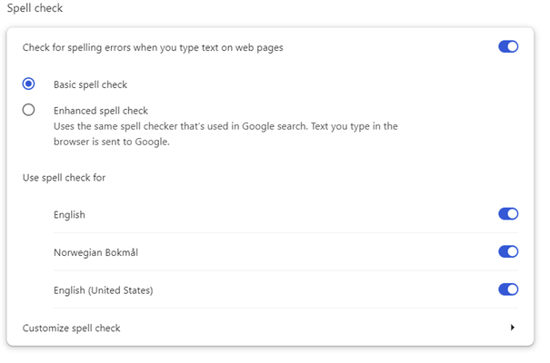
- Look for the “Spell Check” section.
- Here, you can choose to disable spell check entirely or just for specific languages, depending on your preference.