.png?width=283&height=51&name=Admincontrol_Logo-RGB_Reverse%20(1).png "Admincontrol_Logo-RGB_Reverse (1)")
Making Notes and Annotations on PDFs
While viewing a PDF document in the app, you can easily add notes and annotations to prepare for your meeting. This feature enriches your document with personal insights or questions, making your meeting preparation both efficient and thorough
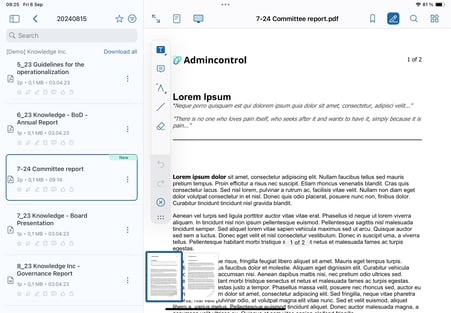
Accessing More Annotation Tools
For additional note-taking options like underline or freeform highlight, press and hold the highlight or drawing tools.
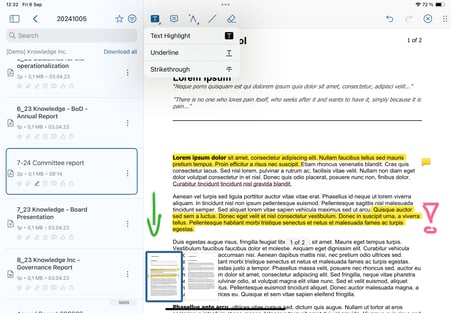
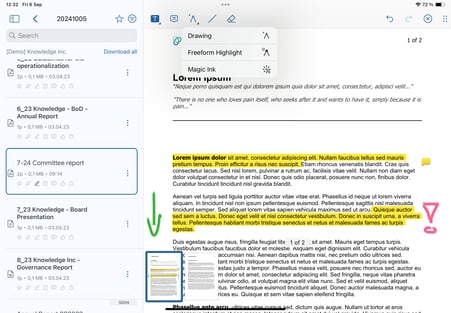
Customizing the Annotation Menu Placement
The annotation menu is conveniently located on the left-hand side of the document by default, providing easy access to various tools for marking up your document. If you prefer a different position, you can easily adjust this.
To move the annotation menu, simply place your finger on the drag handle. You can then drag it to your preferred location, indicated by the areas marked in blue. Whether you’d like it at the top or on the right-hand side, you have the freedom to choose what works best for you.
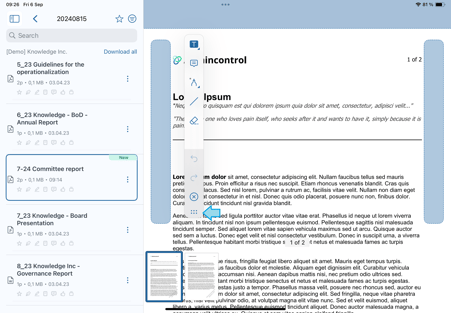
Once moved, the app automatically saves your preferred location for the annotation menu. This means the next time you open a PDF document, the menu will be right where you left it, ready for use.
Accessing Your Notebook
While the annotation tool is exclusive to PDF files, the notebook feature is available in all file types viewed through the app. To access your notebook, go to the top menu of any file/document. The notebook allows you to jot down thoughts, summaries, or detailed notes, making it an invaluable companion for all your document interactions.
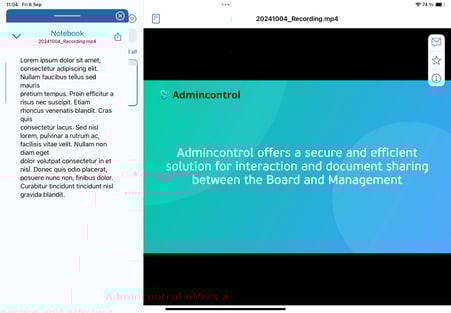
Note: Notes and annotations are synced across all your devices. Annotations are personal, and will only be visible by you. If you wish to share annotations with other users, you can share them in in a secure message. Read more about this feature here.