.png?width=283&height=51&name=Admincontrol_Logo-RGB_Reverse%20(1).png "Admincontrol_Logo-RGB_Reverse (1)")
See upcoming meetings
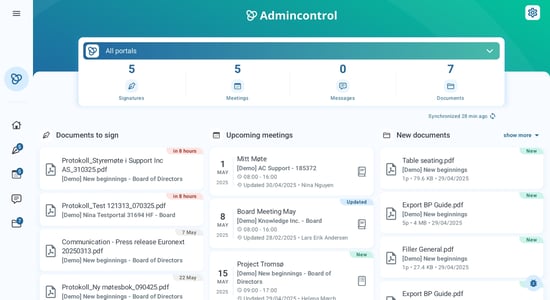
If your administrator has prepared and published meeting(s), you can find an overview of these upcoming meetings on the Home page under Upcoming meetings. You can click directly on a meeting in the list to open the meeting.
If you have all portals selected, this overview will show you the upcoming meetings for all the portals you have access to. You can click on the portal selection drop down to change between portals that you have access to.
Synchronizing the app
If you have received a notification regarding a meeting, but you are unable to see this meeting in the upcoming meetings list - your app might not be fully synchronized. To trigger resynchronization you can:
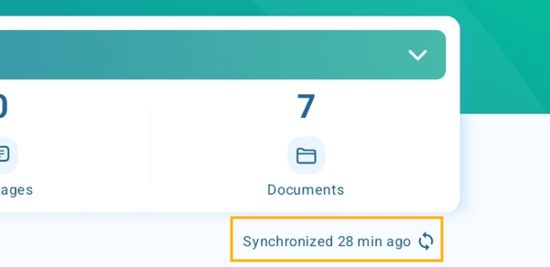
1. Click on the blue Synchronised (🕓) ago.
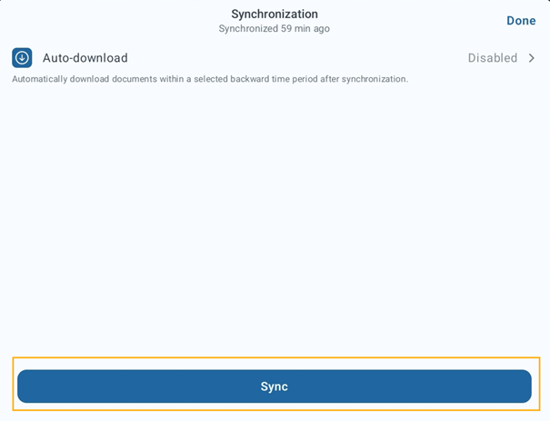
2. Click on the blue Sync button
3. When the app has successfully synchronized, you will be able to see that the time since the last synchronization will be updated.
Navigate to the meetings tab
To navigate to the meetings tab, click on the Meetings icon in the menu list. In the meetings tab, you will see an overview of the meetings in the portal. You can click directly on a meeting in the list to open the meeting.
Filtering by area
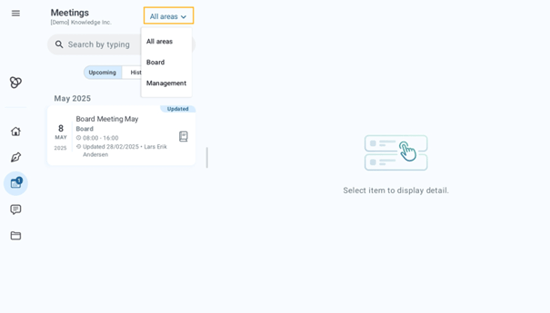
You can choose to filter the meetings list by areas in the portal by clicking on All areas and choosing which area you would like to view the meetings for.
Additional filter settings
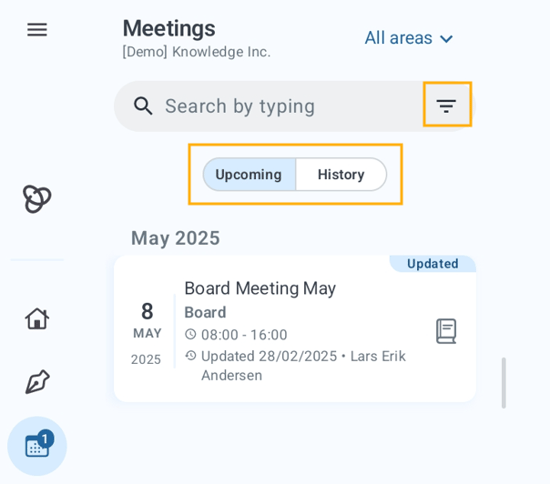
You can find additional filter settings allowing you to further customize the meeting list results by clicking on the filter icon located to the left within the search bar. You can also filter the list of meetings Upcoming or History.
Viewing and working in a meeting
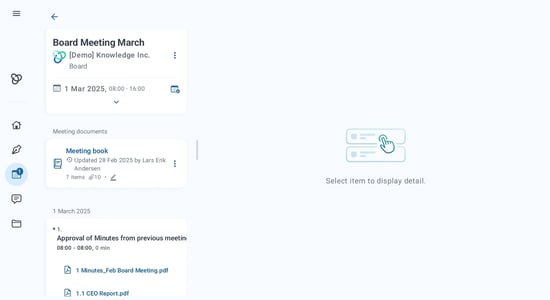
To open a meeting, click directly on the meeting in the meeting list.
Here you can view the meeting details of the meeting. If meeting documents have been added, you can view these under Meeting documents.
If an agenda have been created, the agenda can easily be navigated using the outlines of the agenda that will list all the agenda items and their attachments.
Take notes
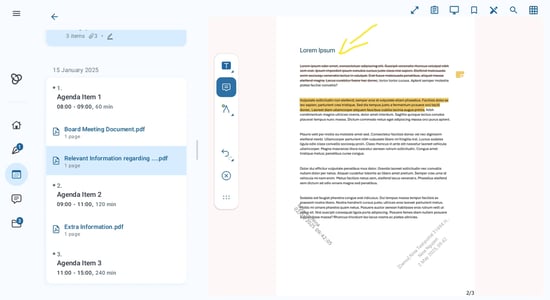
You can also take personal notes in the document by clicking on the annotation tool in the toolbar. The annotation tool is indicated by a pen icon in the toolbar.

These notes are only visible to you and other members will not see your personal notes even if they have access to the same document.