.png?width=283&height=51&name=Admincontrol_Logo-RGB_Reverse%20(1).png "Admincontrol_Logo-RGB_Reverse (1)")
How to reactivate or remove a user from a signature request if a user rejects the request.
As an administrator, you will receive a notification email if a signer has rejected a signature request.
To handle the rejection you can follow the instructions below.
1. Navigate to the Signatures tab and locate the signature request
Please navigate to Signatures > Signature requests. Under the signature requests area, you should see that the signature request has a changed status to Decision required.

2. Handle the rejection
By clicking the status-text Decision required, you will be able to make changes to the request.
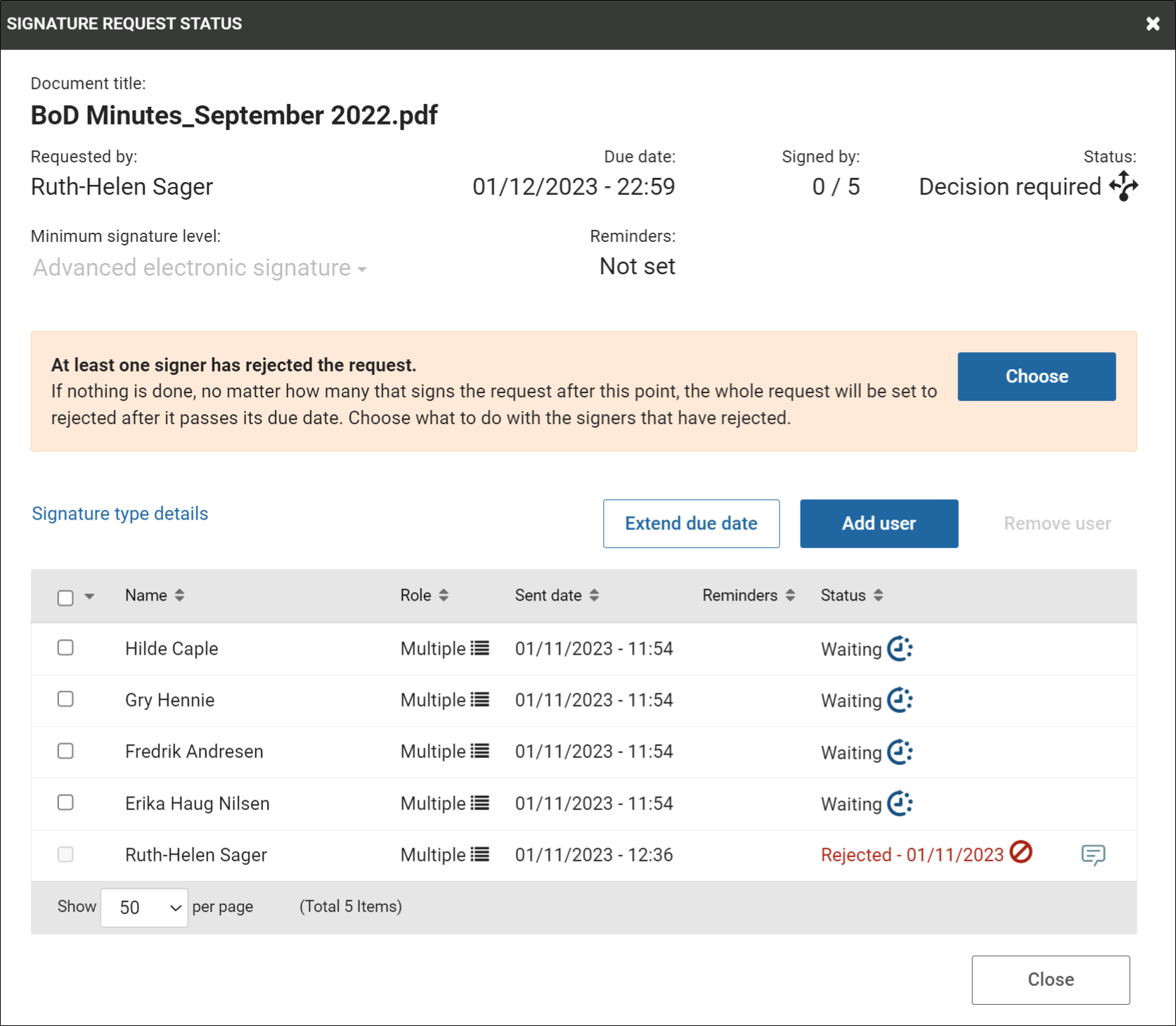
The user(s) that have rejected the signature request will be listed along with the time of rejection. You can choose what to do with the signers that have rejected by pressing the button Choose.
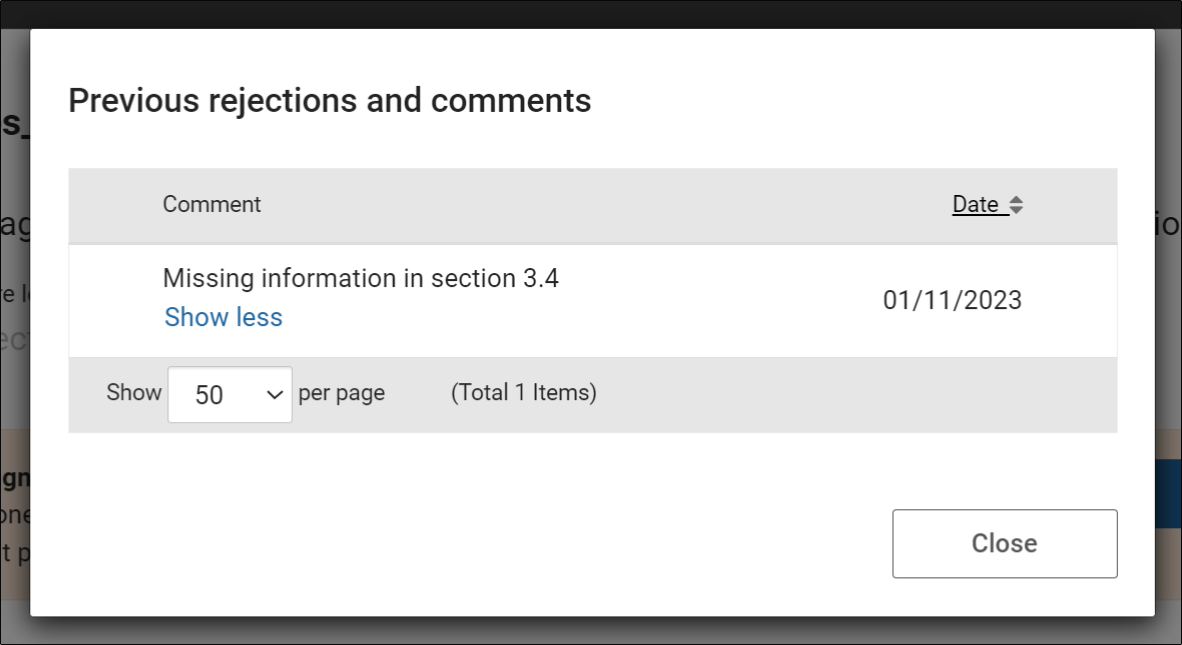
View the user’s rejection comment
When users have rejected, they are forced to write in a comment. If you click the speech bubble icon, you will be able to read their reason for rejection.
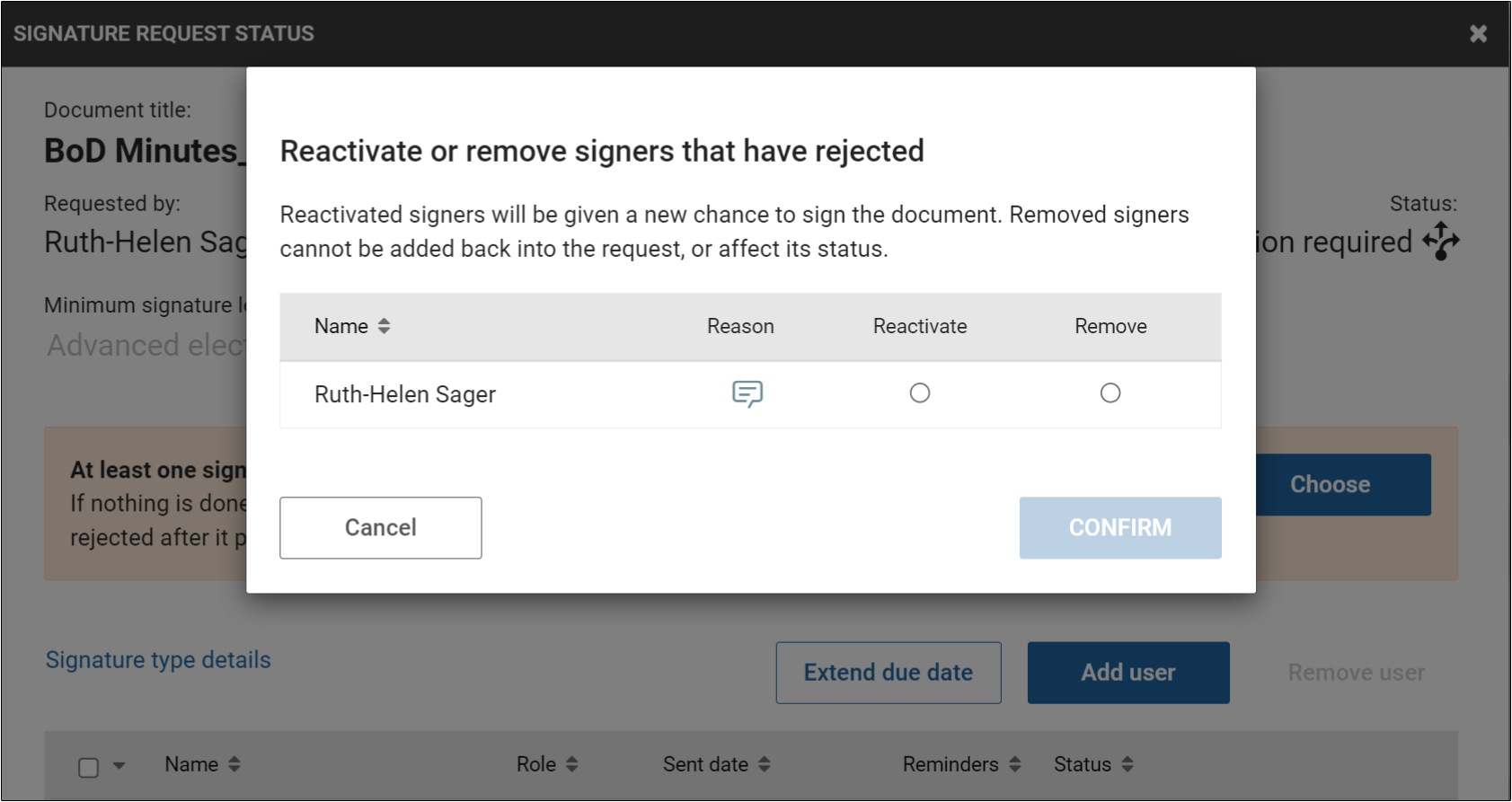
Reactivate or remove user
You can choose to either reactivate or remove the user from signature. If you reactivate the user, they will be able to sign the same document again.
If you remove the user from the request, they will not be able to sign the document. However, the other users can continue to sign.
If you remove the user from the signature request, you will NOT be able to add them back to the same request. In that case, the request needs to be cancelled and sent out again.
If you as an administrator choose not to do anything with the rejected signature request, the request will expire without accepting any signatures to the document. The rejection is accepted as a veto for the signature request to be incomplete.