.png?width=283&height=51&name=Admincontrol_Logo-RGB_Reverse%20(1).png "Admincontrol_Logo-RGB_Reverse (1)")
Secure Messaging in Admincontrol provides management and the board with a protected communication channel, ideal for sharing, discussing, and collaborating on sensitive information.
Accessing Your Inbox
Location: Access your secure conversations via `Messages` located in the left sidebar on the home page. A badge will indicate the number of conversations with new (unread) messages.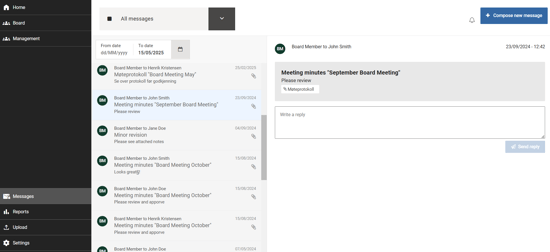
Navigating the Inbox
Conversation Order: Conversations are listed chronologically, with the most recent activity (either sent or received) appearing at the top.
Changing Views: Click the arrow icon next to `All messages` at the top of the inbox to change your view. The dropdown menu allows you to filter by all messages, unread messages, or drafts.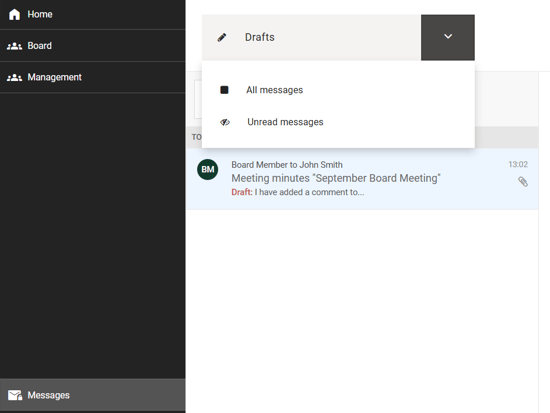
Indicators and Icons:
- Draft messages or replies will have an indicator showing they've been started but not sent.
- Conversations with attachments will display a paper clip icon on the right.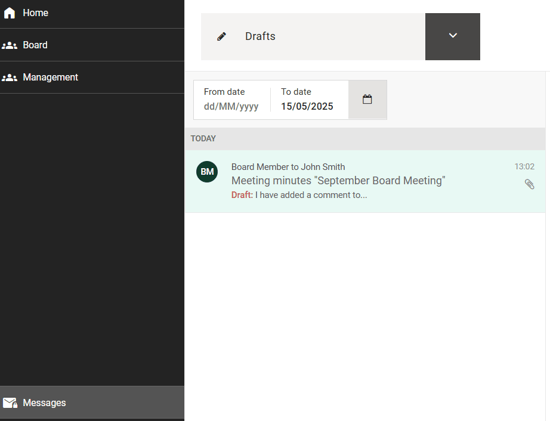
Meeting Minutes Messages
Integration with Minutes: Conversations related to Meeting Minutes appear in the inbox and can also be accessed directly from the Minutes themselves. Users have the flexibility to respond either through the Inbox or from the Minutes preview.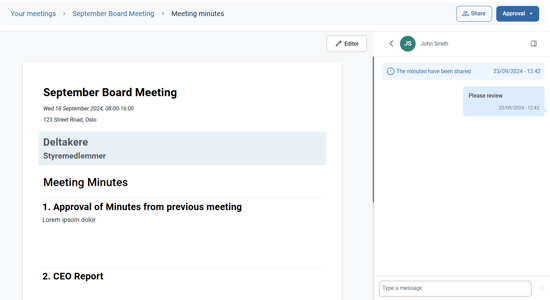
Document Conversations
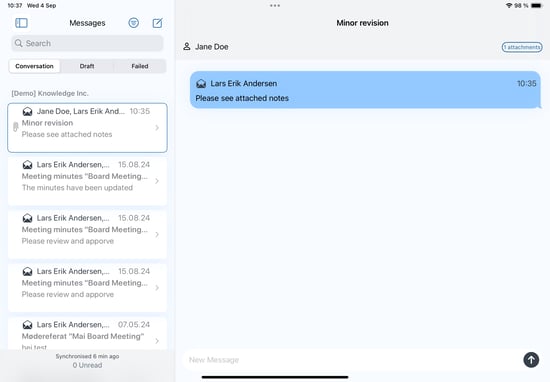
Interactions with iOS App: Any documents and annotations shared via the iOS app can be opened, viewed, and responded to within the web application.