.png?width=283&height=51&name=Admincontrol_Logo-RGB_Reverse%20(1).png "Admincontrol_Logo-RGB_Reverse (1)")
Initial Setup Steps
When you first set up the app, you'll go through a simple onboarding process:
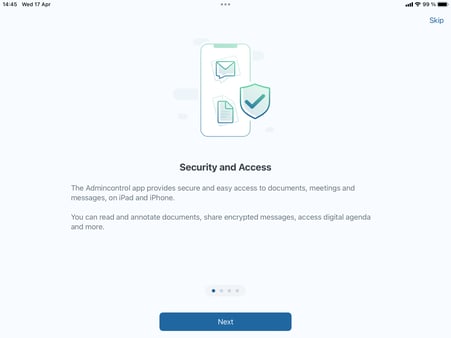
- Information Slides: You'll be greeted with four informative slides. You can navigate through them by pressing "Next", or if you prefer, press "Skip" to go directly to the login page.
1. Logging In
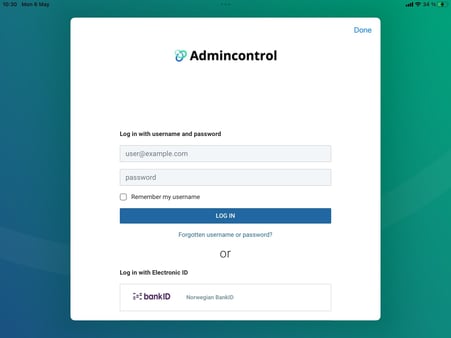
- Access the Login Page: The login page is similar to what you are familiar with when logging in through a web browser.
- Login Methods: Use either your username and password or your electronic ID to log in.
2. Setting Up Security
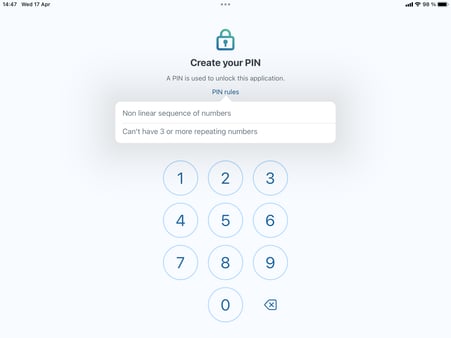
- Passcode Setup: After a successful login, you'll be asked to set up and verify a passcode, which must be 4 digits long.
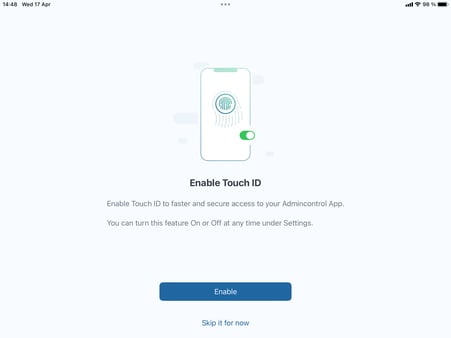
- Touch ID/Face ID: Following the passcode setup, you have the option to enable Touch ID or Face ID for added security. If you would prefer not to use this feature, simply skip this step.
3. Enabling Notifications and Synchronizing Content
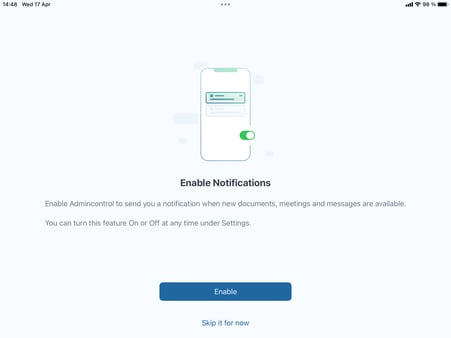
- Enable Notifications: You'll then be prompted to enable notifications for the app.
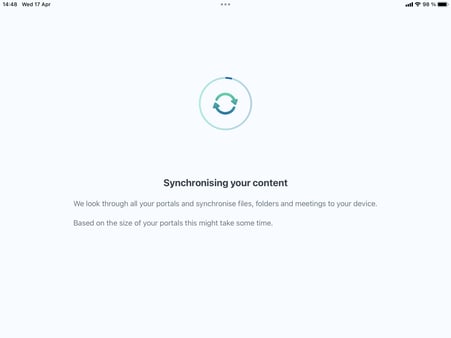
- Synchronization: The app will now begin synchronizing your content. Once the sync is complete, you'll be taken to the app's overview, displaying all the content from the multiple portals you have access to.
Note: You can always enable FaceID/TouchID and Notifictions later in the Settings menu if you choose to skip them during onboarding.