.png?width=283&height=51&name=Admincontrol_Logo-RGB_Reverse%20(1).png "Admincontrol_Logo-RGB_Reverse (1)")
Welcome to the guide on customizing your app experience through the settings menu. Here, you'll discover how to personalize your settings to enhance your app usage.
Changing Your Security Settings
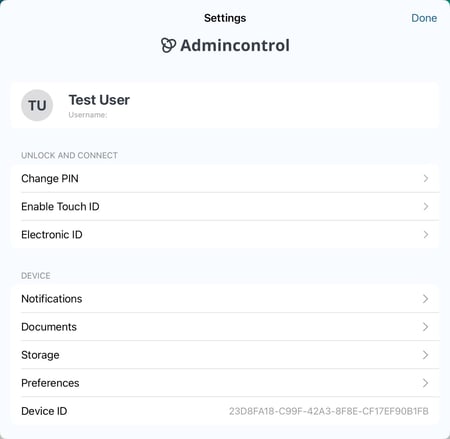
Change Your PIN
To ensure your app remains secure, you can update your PIN-code:
- Go to Settings > Change PIN.
- Follow the prompts to set a new PIN. Remember, a PIN is essential for unlocking and using the app.
Enable TouchID or FaceID
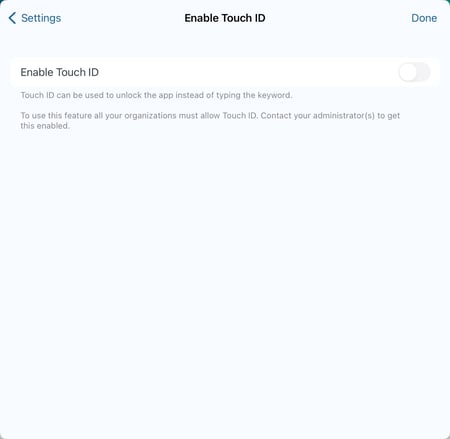
For a quicker unlock experience, turn on biometric authentication:
- Navigate to Settings > Enable TouchID.
- Toggle the feature on/off. It works seamlessly with both TouchID and FaceID.
Customizing Document Preferences
Document Settings
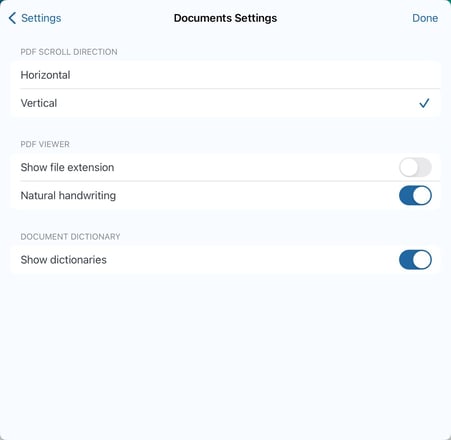
Personalize how documents are viewed by adjusting these options:
- Head to Settings > Documents.
- You can enable features like scroll direction, display file extensions, and dictionary usage for a better reading experience.
Additional Security and Troubleshooting
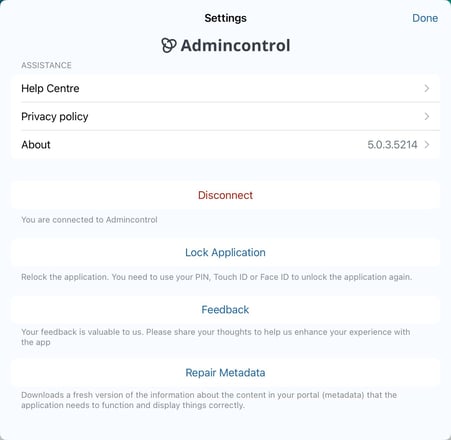
Disconnecting the App
- Scroll to the bottom of the settings page and select Disconnect.
- This will switch the app to offline mode, pausing data synchronization. Any data added while offline, such as annotations, will sync automatically once back online.
Lock the Application
Lock your app for immediate security:
- Choose Lock Application to go to the lock screen.
- Use TouchID or your PIN-code to unlock.
Repair Metadata
- Use Repair Metadata to refresh the data available from your portal. This can help resolve synchronization problems.