.png?width=283&height=51&name=Admincontrol_Logo-RGB_Reverse%20(1).png "Admincontrol_Logo-RGB_Reverse (1)")
This article discuss how to share annotations via iOS app. If you wish to see how to do this via web, you can visit this article
How to share annotations via secure message in the app:
1. Initiating a New Message
To share your annotations via a secure message, start by tapping on the envelope icon. This action initiates the creation of a new message.
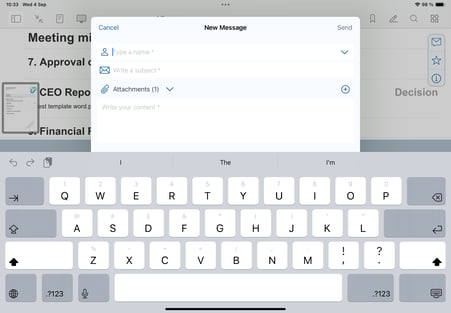
2. Selecting a Recipient
Begin typing the name of your desired recipient in the recipient field. As you type, a dropdown menu will appear, listing users who have access to the same document.
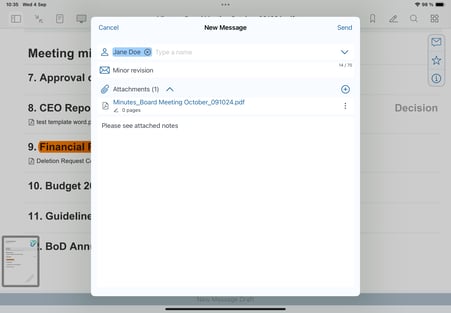
3. Sending Your Message
Once you’ve selected your recipient and attached your annotations, sending the message will place it under the "Messages" section. Here, you can track your conversation and reference this dialogue for future needs.
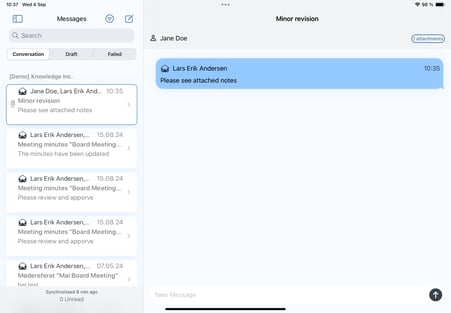
4. Attaching Additional Documents
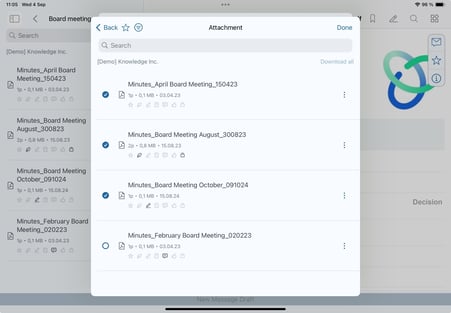
If you need to include more than just annotations, you can attach other documents to your message. By tapping the "+" icon, you are able to select and include additional documents stored in the same folder. This feature allows for a more comprehensive and contextual exchange of information.
If you encounter any difficulties or have further questions, feel free to reach out to our support team for assistance.