.png?width=283&height=51&name=Admincontrol_Logo-RGB_Reverse%20(1).png "Admincontrol_Logo-RGB_Reverse (1)")
If you have a folder with multiple documents or a complete folder structure with documents locally on your PC, you can upload this to Admincontrol using our zip-upload feature.
Steps to Upload a Local Folder Structure using a Zip-Archive:
Step 1: Prepare the Zip-Archive
Place your entire folder structure in a .ZIP-archive locally on your computer.
Step 2: Navigate to the Upload Directory
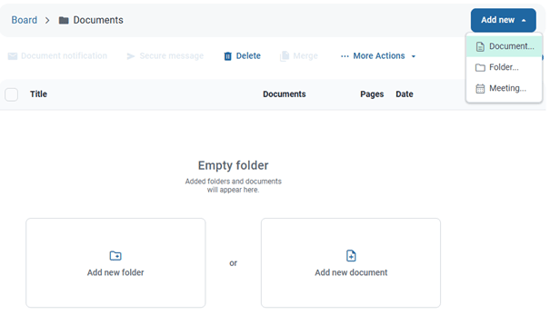
Navigate to the folder you wish to populate in Admincontrol and click on Upload. Here you will need to select Add new document. When you select your zip-archive, you will be asked if you want to perform a simple upload, or to extract the contents of the zip-file.
Step 3: Extract the Contents
Select the option "Extract Contents" to unpack the zip-archive and populate the portal area of use with its files and folders.
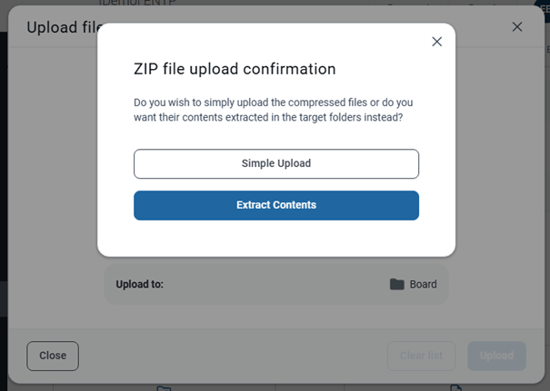
If you select Simple upload you will instead upload the content as an independent .zip file without extraction. This is useful for uploading files that a not supported for upload in Admincontrol
Step 4: Monitoring the Upload Process
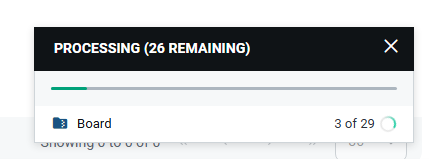
Your upload will continue in the background. Based on the size of the zip-archive, it may take some time to populate all files. In the bottom right corner, you will see the progress of the upload. During this time, you can freely navigate through the board portal.
Step 5: Completion and Verification
After the upload is complete, a new folder is created, where you can see the content of the zip file including the folder structure.
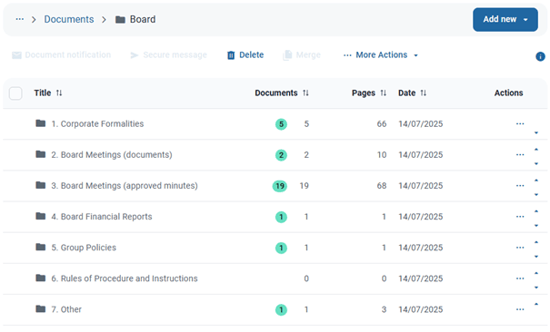
After Upload: Moving the uploaded structure.
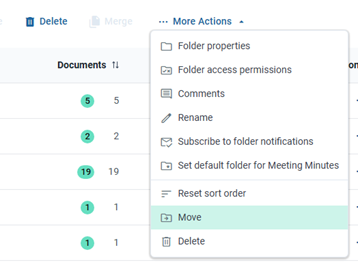
If you want to move the uploaded folder to a higher level in your existing Admincontrol structure you can use the Move option located under More Actions.