.png?width=283&height=51&name=Admincontrol_Logo-RGB_Reverse%20(1).png "Admincontrol_Logo-RGB_Reverse (1)")
Navigate to Settings > User roles to find an overview of user roles in the portal.
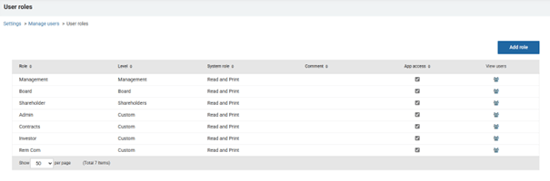
In the overview you can view the role name, the level of the user role, any comment you have added to the user role and whether the user role grants app access to the areas of use that the user role gives access to.
View users
To view which users that have been assigned the user role you can click on the View users icon to the right of the user role.
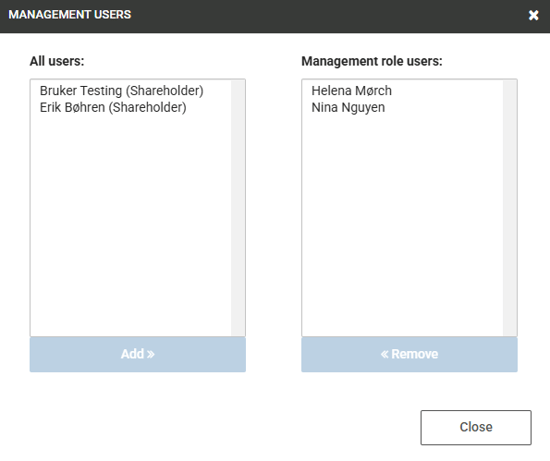
Add or remove users
To add a user to the selected user role, you can select the user from the list of All users and click on the blue Add >> button.
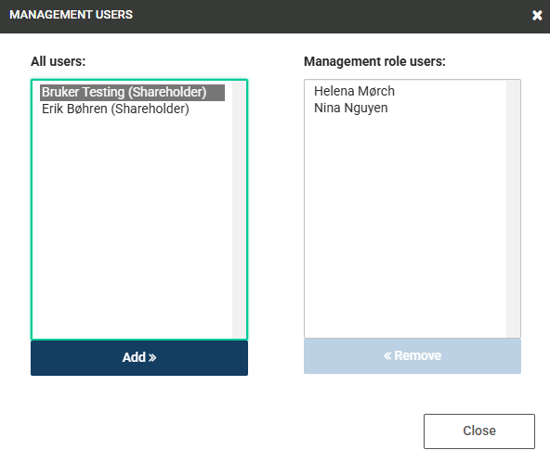
To remove a user from the selected user role, you can select the user from the list of role users and click on the blue << Remove button.
You can select multiple users in the list by holding CTRL and selecting multiple users.
Adding a new user role
To create a new user role click on the blue Add role button.
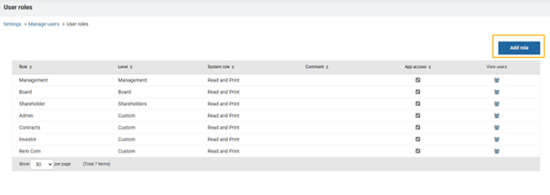
In the Add role window, fill out the name of the user role, choose a level and a system role for the new user role.
The system role you select for the user role will be selected by default when you add a new user and assign them the user role. You can amend the default system role assigned to the user when creating the invitation.
If you wish for the user role to grant App access to the folders it gives access to you can enable App access for the role.
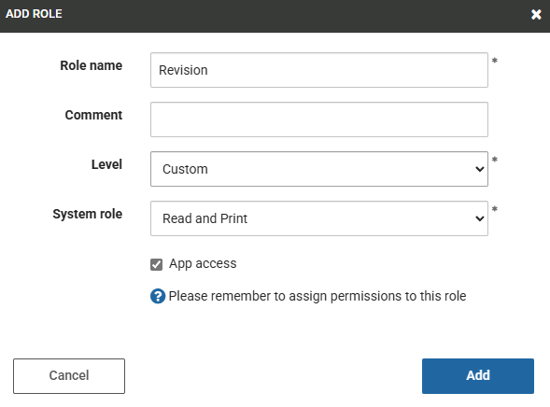
After you have added a new user role, please remember to assign folder permissions to the user role. You can read more about folder permissions here.