.png?width=283&height=51&name=Admincontrol_Logo-RGB_Reverse%20(1).png "Admincontrol_Logo-RGB_Reverse (1)")
In the Admincontrol data room, folder access is controlled through user roles. A user role represents a group of users who share the same access level, typically aligned with the same company or transaction side. By default, there are two user roles: Seller and Buyer. You can create additional roles as needed, although we recommend establishing one role per company.
Important: The Q&A module is unique to each buyer role, meaning that different buyer roles cannot access each other's Q&A content. However, seller-side users have the ability to view all questions from all buyer roles.
How to Add a User Role
1. Access User Roles
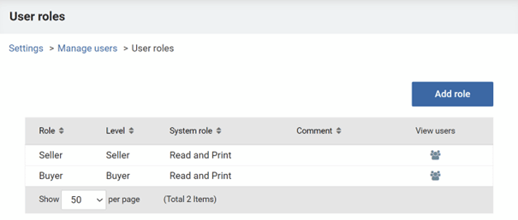
- Navigate to Settings > User Roles and click Add Role.
2. Configure the Role
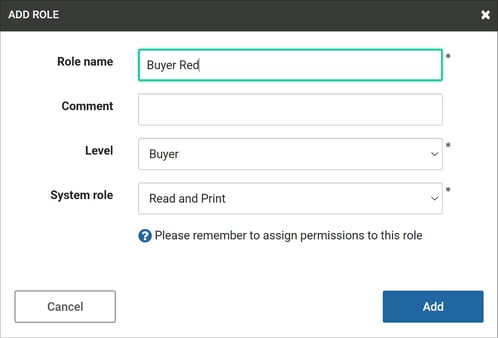
- Enter a name and select a level (Seller or Buyer) for the role.
- The chosen system role will serve as the default when adding users, but this can be altered during the user addition process.
3. Manage Multiple Roles
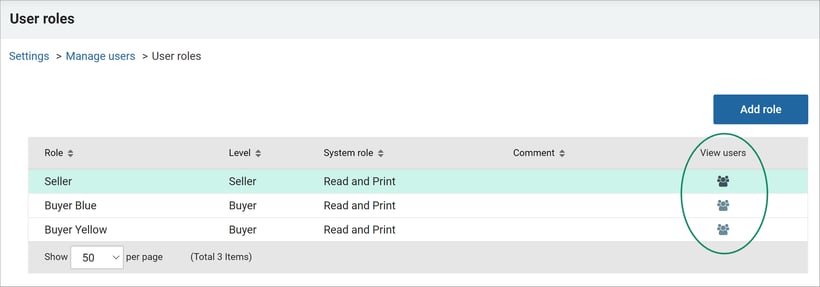
- Repeat these steps to add more roles as necessary.
- To add or remove users from roles, click the `View Users` icon located on the right side.
After setting up all user roles, you can assign access to various folders within the data room. For detailed instructions, please refer to the article regarding roles and folder permissions