.png?width=283&height=51&name=Admincontrol_Logo-RGB_Reverse%20(1).png "Admincontrol_Logo-RGB_Reverse (1)")
To add a user, navigate to Settings > Add Users. By default, the Add Multiple Users option is selected. In the email field, enter a single email address or paste a semicolon-separated (;) list of email addresses. Ensure all email addresses are valid. Use only semicolons (;) to separate the addresses. Select the appropriate user role (Buyer or Seller) from the list.
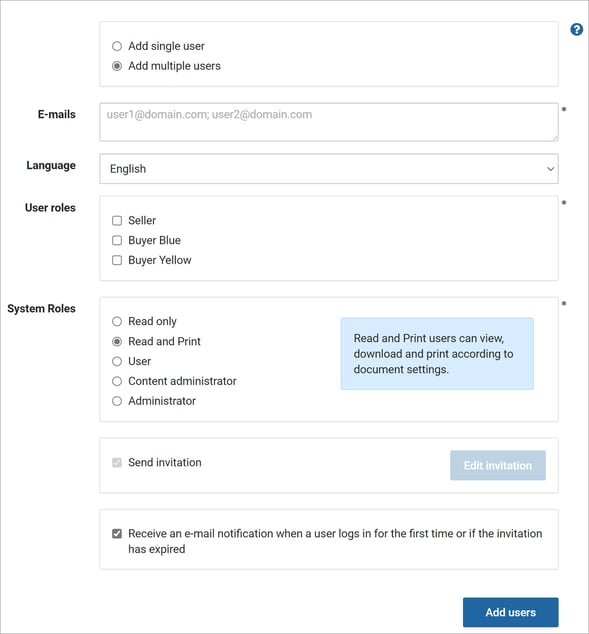
Select a System Role
- Read only: Can view documents in the viewer. Download and print are restricted for all documents.
- Read and Print Users: Can view, download, and print according to document settings.
- Users: Can view, download, and print according to document settings. Can also contribute by uploading files and changing their own content.
- Content Administrators: Have full control over all content in accessible folders. Cannot change users’ access and roles.
- Administrators: Have full control over content and settings. Can add and change users’ access and roles.
Click Add user to send the invitation(s). The new user(s) will receive an e-mail with an invitation to register and log in. Users will be listed under "Unregistered users" in Settings > Manage users and permissions until they have registered.