.png?width=283&height=51&name=Admincontrol_Logo-RGB_Reverse%20(1).png "Admincontrol_Logo-RGB_Reverse (1)")
Effectively assign and monitor the uploading and reviewing of documentation with our Tasks feature.
Setting Up Task Management
Default Settings
Tasks are enabled by default in all new data rooms. Administrators can make adjustments to the task settings through the Task management page. Administrators are also automatically set as task manager.
Task Management Settings
Administrators have the authority to enable or disable the Tasks feature and grant users the ability to assign tasks.
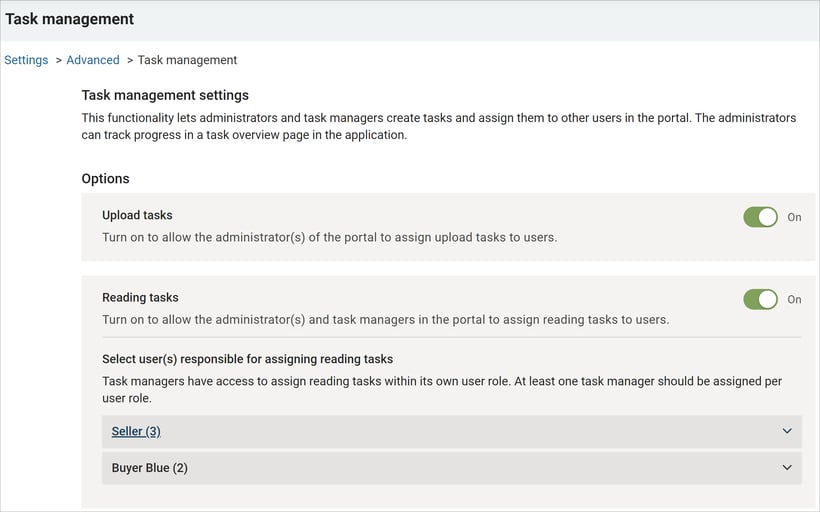
- When inviting a new user, you can select if the user should be a task manager. The user will then have this access automatically upon registration.
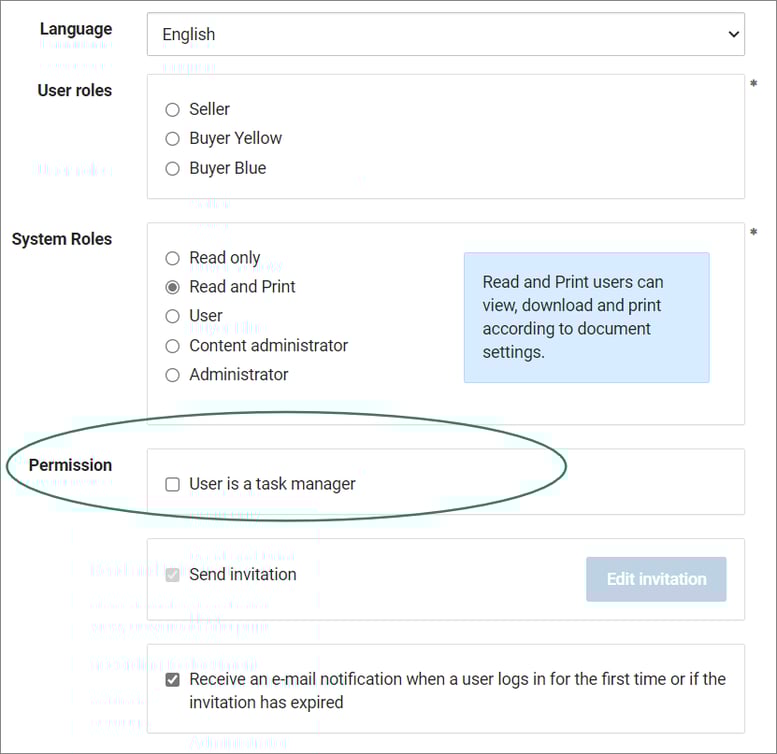
- You can also manage task managers under Settings>Task Management. Her you will be able to enable/disable task managers in different user groups. You can also edit this under Settings>Manage users and permissions, and select/de-select the "TM" box.
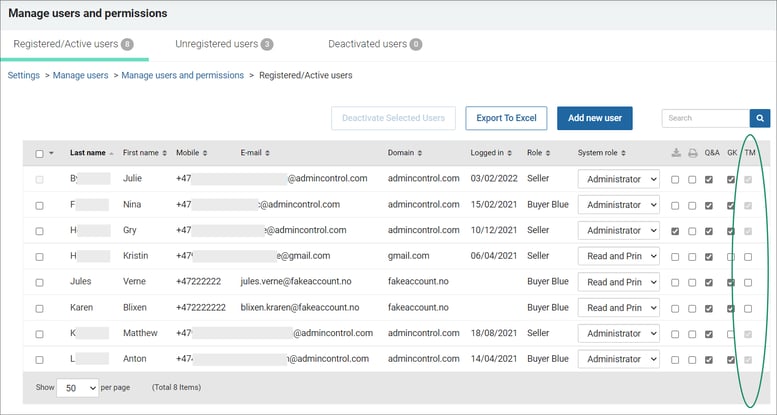
- Administrators can not be removed as task managers.
Task Notifications
Upon your first visit to the task module, you'll be encouraged to subscribe to task notifications. This ensures you're updated whenever a new task is assigned or there's a status change on tasks you've assigned.
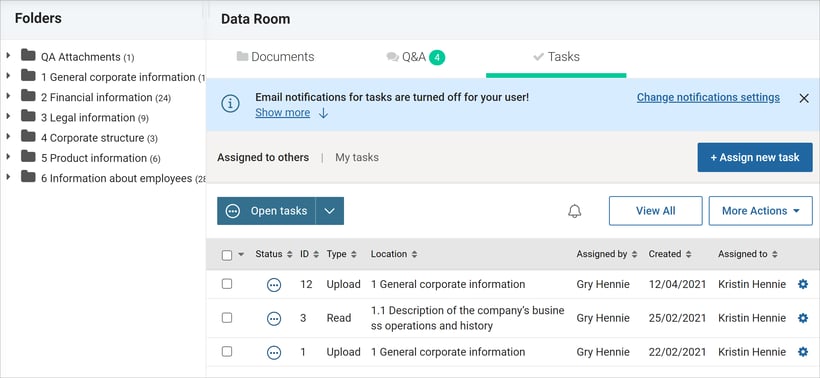
How to Assign Tasks
As an administrator or task manager, you have the ability to assign tasks to users within your team (user roles). 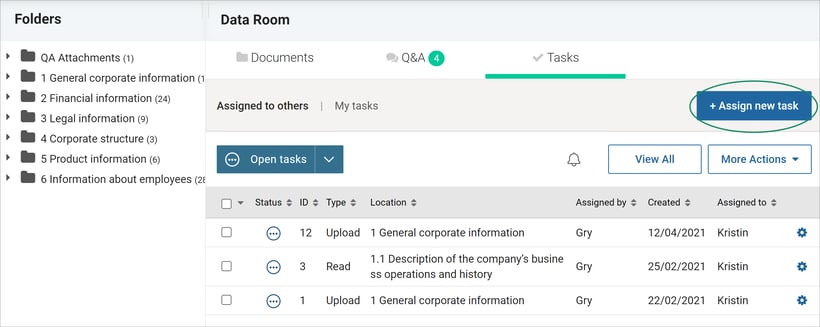
Choosing a Task Type
- Upload Task: Choose a folder for the task. The assigned user is responsible for ensuring all necessary documents are uploaded to the designated folder.
- If multiple folders are involved, you can assign tasks in bulk. Select all desired folders, and one task per folder will be created. - Reading Task: Specify to either review all files in a folder or select specific files. Optionally, future uploads can automatically be added to the reading task.
- Assign tasks in bulk for multiple folders and files, creating one task per folder.
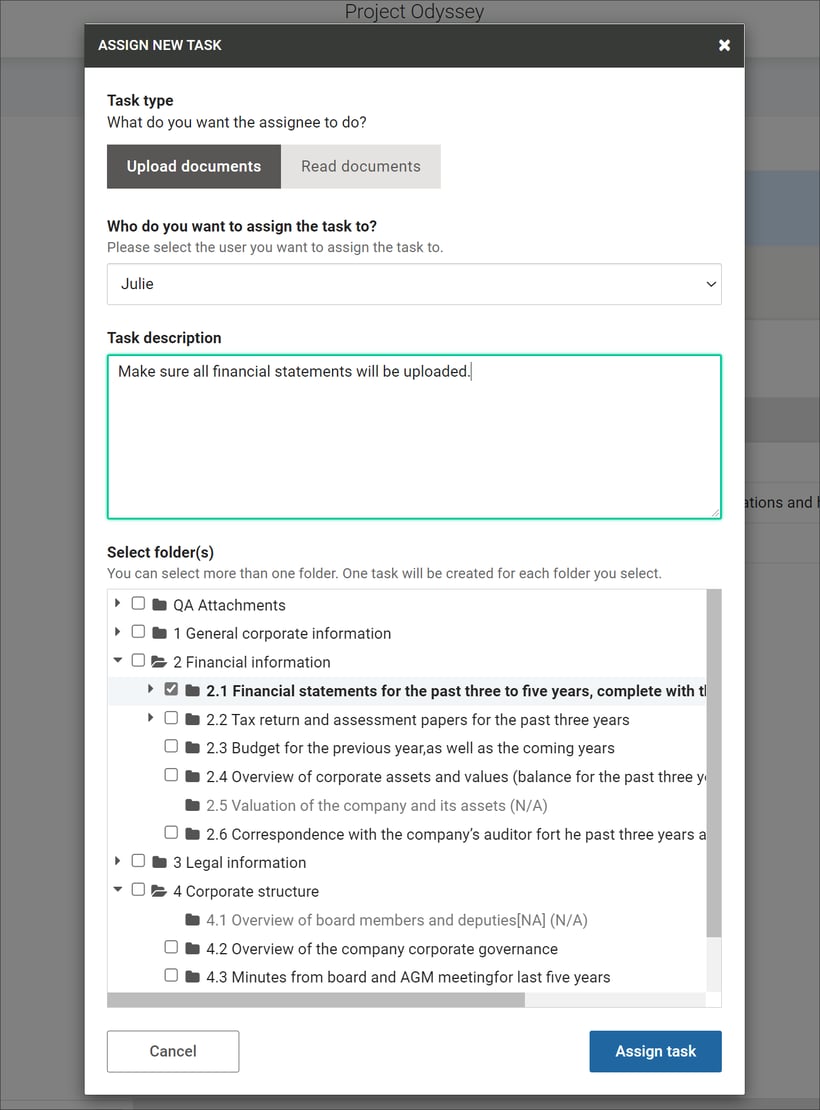
Tasks can be assigned to multiple users for the same folders.
Managing Tasks Assigned to Others
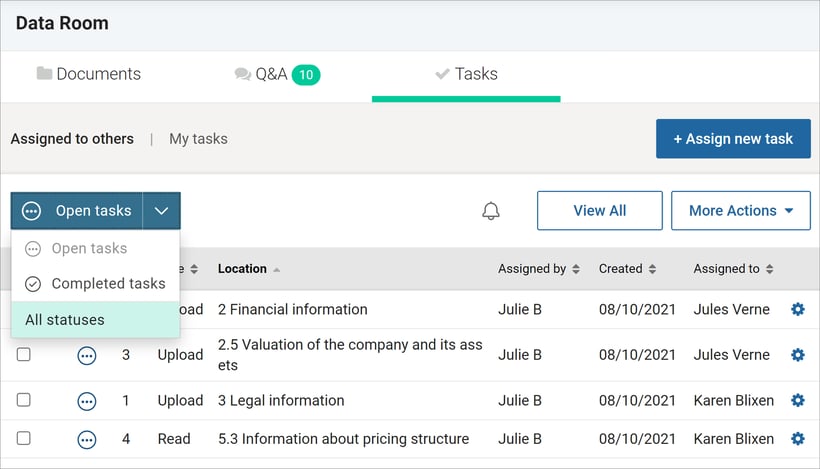
Administrators can access the task list from the dashboard to view the status of open tasks.
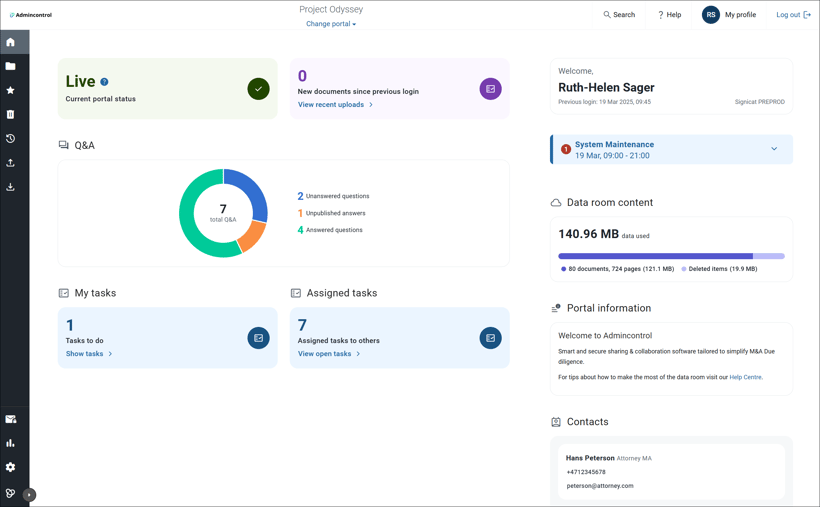
- View Task List: Choose between viewing your tasks or all tasks assigned to others.
- Task Actions: Edit, cancel, complete, or reopen tasks. Use the More Actions menu to change the status of multiple tasks simultaneously.
- Task Status Options: Open, Complete, Cancelled
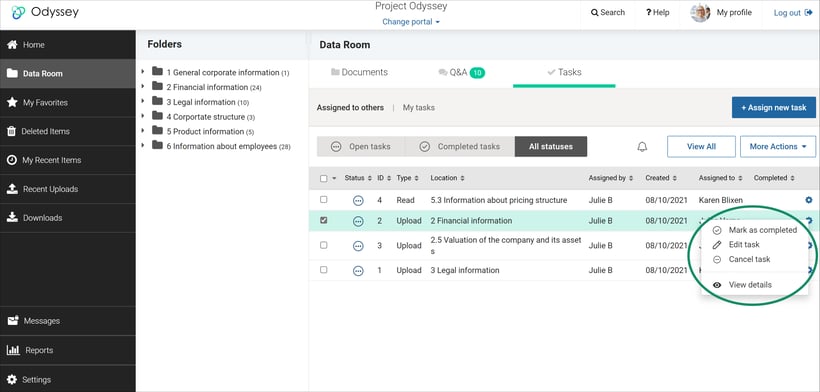
Changes in task status notify users, provided they are subscribed to notifications.
Overview of All Tasks
For an overview, click "View All" and use sorting and filters (Open, Completed, All statuses) to organize tasks by folder structure.
Reports
Access upload and reading task management reports in the report section. These reports are also included in the data room export for comprehensive documentation.
By following these guidelines, you can effectively manage tasks within your data room. For any further assistance, feel free to reach out to support.