.png?width=283&height=51&name=Admincontrol_Logo-RGB_Reverse%20(1).png "Admincontrol_Logo-RGB_Reverse (1)")
If you have a new phone number, you can change this on your Admincontrol user under My Profile>Edit User.
To change the phone number registered to your account, follow these steps:
Step 1: Log in to your account
Go to https://login.admincontrol.net/ and enter your login details.
(If you do not have access to your currently registered phone number, you may not be able to login. If that is the case, you can contact your portal administrator or Admincontrol Support)
Step 2: Edit your profile
Navigate to 'My profile' and select 'Edit Profile'
Step 3: Update your phone number
Enter your new phone number in the 'Phone number' field and click 'Save'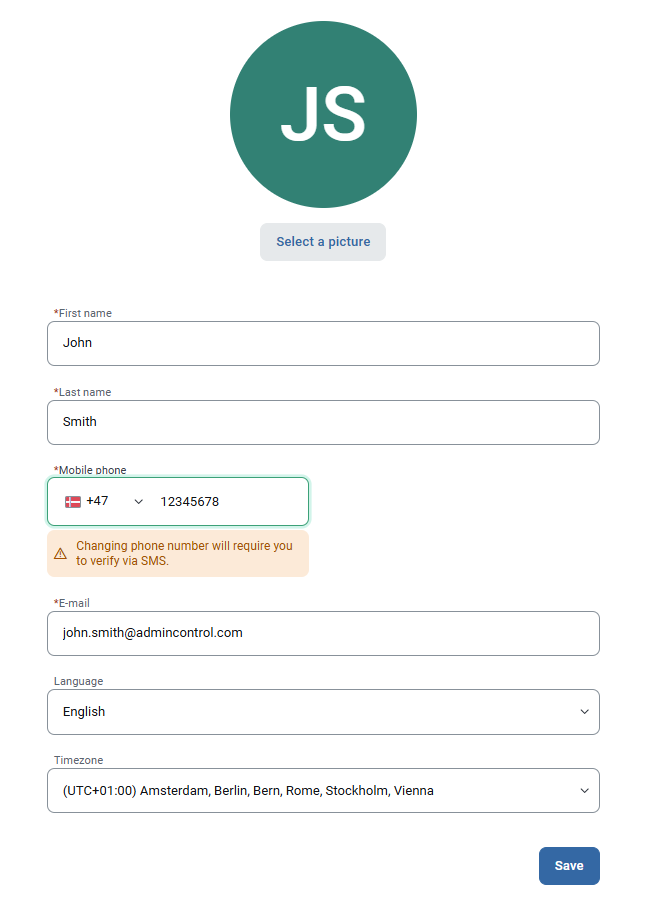
Step 4: Verify the new phone number
The new phone number has to be verified for the change to take place.
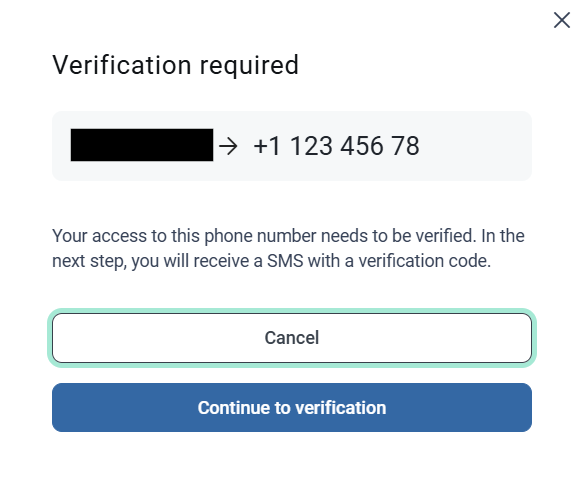
The new phone number will receive a 2FA token via SMS. Enter the code and click 'Verify'
.png?width=731&height=278&name=image%20(1).png)