.png?width=283&height=51&name=Admincontrol_Logo-RGB_Reverse%20(1).png "Admincontrol_Logo-RGB_Reverse (1)")
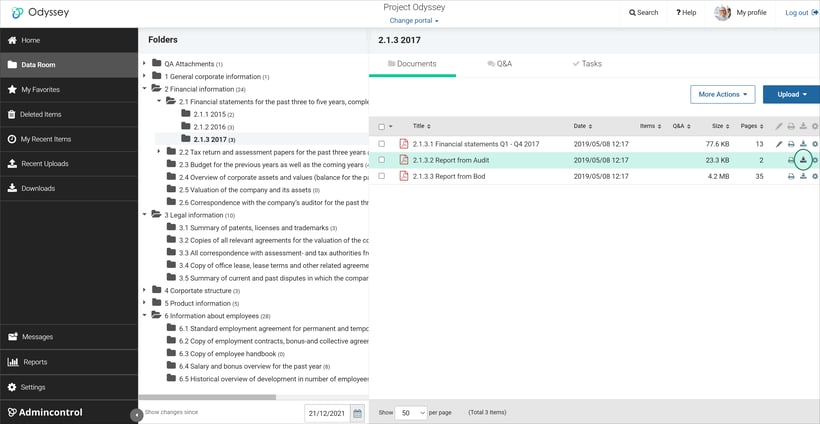
Users with download permissions can access files that the data room administrator has designated as available for download. Eligible files are indicated with a download icon in the document list. You may download individual files separately or multiple files contained within a folder.
Downloading a single file
Navigate to the file you want to download, and press download icon. The file will download to your computer.
Note that If the file is not set to downloadable, the download icon will not be shown.
Download multiple files
To download multiple files, open a folder – if you want to download all files in the folder, open the More actions menu and choose Download all files. All files that are set to downloadable in the specific folder will be downloaded.
If you want to download specific files in the folder, select the files you want to download - open the More actions menu and choose Download selected files.
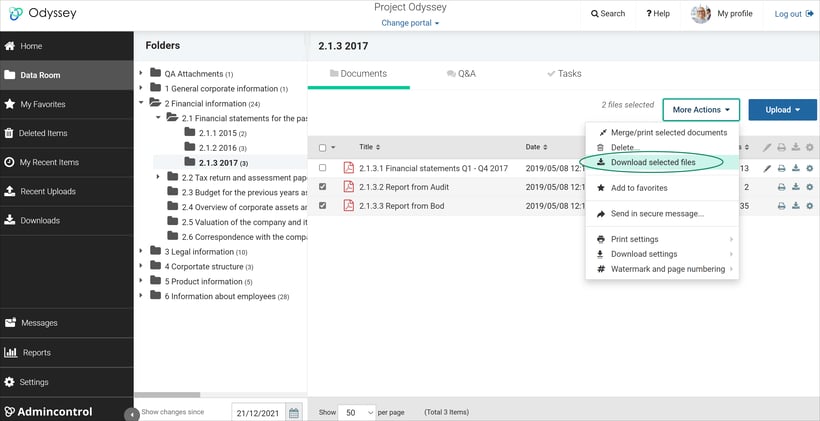
You will be notified by email when your download package of files is ready to be downloaded. If you choose to download a huge number of files, the packing process can take a while.

Not seeing the Download all files option?
For the “Download all files” option to be available, the data room administrator must activate this feature for users. If the functionality is enabled but you do not see the option, your user account likely does not have download permissions. Please contact your data room administrator to request access.
Keeping full overview
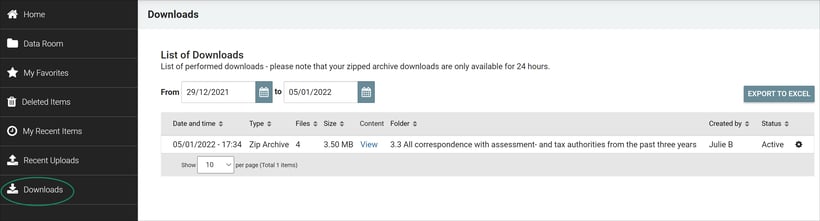
All downloads will be available in a table: Downloads
Users will see their own downloads in the lists of downloads. A Download of multiple files via Zip Archive will be available in the download list for 24 hours.
The administrators of the portal can see all download performed by all users in the portal.