.png?width=283&height=51&name=Admincontrol_Logo-RGB_Reverse%20(1).png "Admincontrol_Logo-RGB_Reverse (1)")
You have two options to access your Admincontrol account: using your username and password or through Electronic ID. Follow these steps to log in smoothly.
Log In with Username and Password
1. Visit the Log In Page
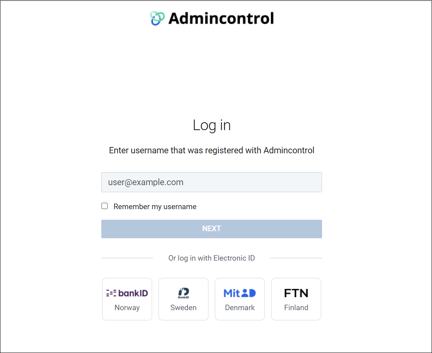
2. Enter Your Username
Type in your registered Admincontrol username and click "Next."
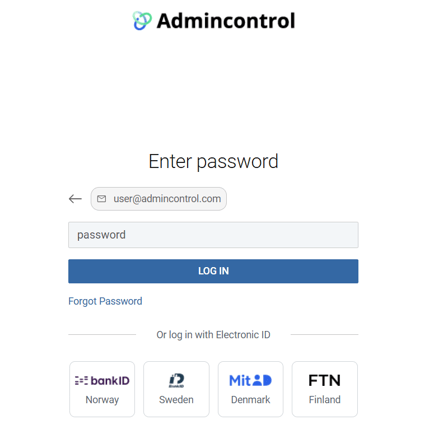
3. Enter Your Password
Type in your password and press Log In.
4. Forgotten Your Password?
Click the Forgot Password option or visit this page.
5. Two-Factor Authentication
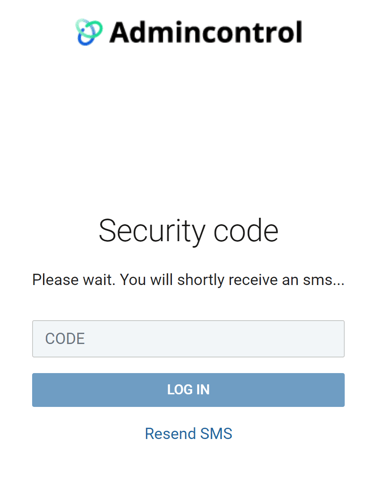
If two-factor authentication is enabled for your account or portal, you'll be prompted to enter an authorization key on the next screen.
Not receiving the SMS code?
- If you don't receive the SMS within a few seconds, click the "Resend SMS" button to try an alternative route.
- If you click “Resend SMS” for a third time, you'll receive a phone call where the key will be read to you in English.
- Should you still experience problems receiving the authorization key? Go here for further troubleshooting.
After your first login it is possible to configure your user profile so that you receive the 2FA-code through an Authenticator app. See this article for how to set it up.
Log In with Electronic ID
1. Linking Your Electronic ID
The first time you log in with Electronic ID, you'll need to link it with your Admincontrol account to confirm your identity. Once linked, you can choose either login method.
2. Methods Available
- Norwegian BankID
- Swedish BankID
- Danish MitID
- Finnish BankID
3. Experiencing Issues?
If you encounter problems logging in using your Electronic ID, it could be that you Electronic ID provider is experiencing a system issue. If that is the case they will have an active incident on their support pages:
- Norwegian BankID
- Swedish BankID
- Danish MitID
- Finnish BankID – contact your bank
For further assistance, please contact Admincontrol support.