
 Boards & Governance
 M&A & Transactions

.png)


.png)
 Board Management Software
 Customer stories
 Insights
 Events & Webinars
 Security & Privacy
 Product updates

.jpg)




-Jul-03-2026-06-32-50-9626-AM.png)
 Login
Login
Overview
In this article, you’ll find a step-by-step guide on how to set up Microsoft Entra ID Single Sign-On (SSO) towards Admincontrol for your tenant/company.
Microsoft Entra ID, formerly known as Azure Active Directory (Azure AD), is a cloud-based identity and access management service that allows seamless integration of applications through SSO, enhancing security and user experience.
The setup takes places in the Entra ID portal, and also the Admincontrol AD Integration setup page.
Entra ID portal
An Enterprise application is created and properties are collected/created here and also in the belonging App registrations application.
Admincontrol AD Integration setup page
Here you will insert credentials, get the redirect URI and at the end activate the SSO.
Please follow this step by step guide to activate Entra ID SSO:
1 Log in to Entra ID portal
Log into your Entra ID admin account, as "Cloud Application Administrator" or higher.
2 Go to Enterprise applications
Search for Enterprise applications in the top bar and select it under services%20with%20Microsoft%20Entra%20ID/Go%20to%20Enterprise%20application.png?width=496&height=104&name=Go%20to%20Enterprise%20application.png)
3 Click "New application"
On the Enterprise applications page, click "New application"
%20with%20Microsoft%20Entra%20ID/Select%20new%20application.png?width=496&height=166&name=Select%20new%20application.png)
4 Click "Create your own application"
On the following page, click "Create your own application"
%20with%20Microsoft%20Entra%20ID/Select%20Create%20your%20own%20application.png?width=496&height=204&name=Select%20Create%20your%20own%20application.png)
5 Name it "Admincontrol"%20with%20Microsoft%20Entra%20ID/Name%20application%20Admincontrol.png?width=496&height=87&name=Name%20application%20Admincontrol.png)
6 Select third option, non-gallery
Enter Admincontrol, select the last option "Integrate any other application you don't find in the gallery (Non-gallery)" and click "Create"
%20with%20Microsoft%20Entra%20ID/Select%20Integrate%20any%20other%20application%20you%20dont%20find%20in%20the%20gallery%20(Non-gallery).png?width=496&height=119&name=Select%20Integrate%20any%20other%20application%20you%20dont%20find%20in%20the%20gallery%20(Non-gallery).png)
7 Click "Create"
%20with%20Microsoft%20Entra%20ID/7.%20Click%20create.png?width=496&height=238&name=7.%20Click%20create.png)
8 Go to "App Registrations"
Go to "App Registrations" by searching for it in the top bar as shown in the screenshot below.%20with%20Microsoft%20Entra%20ID/2.%20Go%20to%20app%20registrations.png?width=496&height=99&name=2.%20Go%20to%20app%20registrations.png)
9 Click "All applications"
Its the first of the 3 tabs on the App registrations page
%20with%20Microsoft%20Entra%20ID/Select%20All%20applications.png?width=496&height=66&name=Select%20All%20applications.png)
10 Click "Admincontrol"
Locate the App registration named "Admincontrol" and click it.
%20with%20Microsoft%20Entra%20ID/42%20Click%20Admincontrol.png?width=496&height=213&name=42%20Click%20Admincontrol.png)
11 Collect Application (client) ID
Copy the value into a temporary document, reference it as "OIDC client ID"
%20with%20Microsoft%20Entra%20ID/Collect%20application%20(client)%20ID.png?width=496&height=156&name=Collect%20application%20(client)%20ID.png)
12 Click "Add a certificate or a secret"
On the same page, click the link shown below
%20with%20Microsoft%20Entra%20ID/Add%20a%20certification%20or%20a%20secret.png?width=426&height=63&name=Add%20a%20certification%20or%20a%20secret.png)
13 Click "New client secret"
Locate the button and click it
%20with%20Microsoft%20Entra%20ID/Select%20New%20client%20secret.png?width=200&height=65&name=Select%20New%20client%20secret.png)
14 Enter description and expiry length
Write "Admincontrol" in description and select 730 days as expires length.
%20with%20Microsoft%20Entra%20ID/Enter%20description%20and%20expiry%20length.png?width=496&height=243&name=Enter%20description%20and%20expiry%20length.png)
IMPORTANT: Please set a timely alert to ensure the renewal and update of this secret, as it will expire in two years. You can configure the alert using a method that suits your needs. Currently, Microsoft does not support a built-in alert method in the Entra ID portal. Instructions for updating the secret are provided in a separate section on this page.
15 Click "Add"
%20with%20Microsoft%20Entra%20ID/15.%20click%20add.png?width=496&height=170&name=15.%20click%20add.png)
16 Collect secret
Copy by clicking the copy-button after Value and paste it into a temporary document, reference it as "OIDC Client Secret"
%20with%20Microsoft%20Entra%20ID/16.%20Collect%20secret.png?width=496&height=43&name=16.%20Collect%20secret.png)
NOTE: After you navigate away from this page the secret will not be visible ever again. If you need it for anything else at some point later, please store it in a secure tool/location. Alternatively a new secret can be created and used.
17 Go to Overview in the Admincontrol App registration
Locate the "Overview" as shown below and click it.
%20with%20Microsoft%20Entra%20ID/17.%20Go%20to%20Overview%20in%20the%20Admincontrol%20App%20registration.png?width=317&height=211&name=17.%20Go%20to%20Overview%20in%20the%20Admincontrol%20App%20registration.png)
18 Collect tenant id and save it as OIDC Issuer Url
In your temporary document, you will now be storing a third value, reference it as OIDC Issuer Url.
Copy the value of "Directory (tenant) ID" into https://login.microsoftonline.com/[tenant-id]/v2.0 and compose a url.
%20with%20Microsoft%20Entra%20ID/18.%20Copy%20the%20value%20of%20Directory%20(tenant)%20ID.png?width=496&height=42&name=18.%20Copy%20the%20value%20of%20Directory%20(tenant)%20ID.png)
The output will be like this.
https://login.microsoftonline.com/00000000-0000-0000-0000-000000000000/v2.0
Store it in your temporary document, reference it as "OIDC Issuer Url".
19 Click "Api Permissions"
%20with%20Microsoft%20Entra%20ID/Click%20API%20permissions.png?width=316&height=581&name=Click%20API%20permissions.png)
20 Click "Add a permission"
In the middle of the page, click the "Add a permission" button
%20with%20Microsoft%20Entra%20ID/10.%20Click%20add%20a%20permission.png?width=239&height=164&name=10.%20Click%20add%20a%20permission.png)
21 Click "Microsoft Graph"
In the following modal, click the top API suggestion, "Microsoft Graph"
%20with%20Microsoft%20Entra%20ID/Select%20Microsoft%20Graph.png?width=398&height=337&name=Select%20Microsoft%20Graph.png)
22 Click "Delegated permissions"
In the following view, click "Delegated permissions"
%20with%20Microsoft%20Entra%20ID/Select%20delegated%20permissions.png?width=496&height=116&name=Select%20delegated%20permissions.png)
23 Select "email", "openid" and "profile"
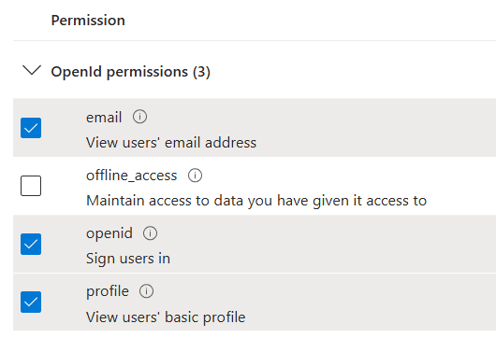
A new section of the view appears, here you need to go down to the "OpenId permissions" section and check "email", "openid" and "profile".
24 Click "Add permissions"
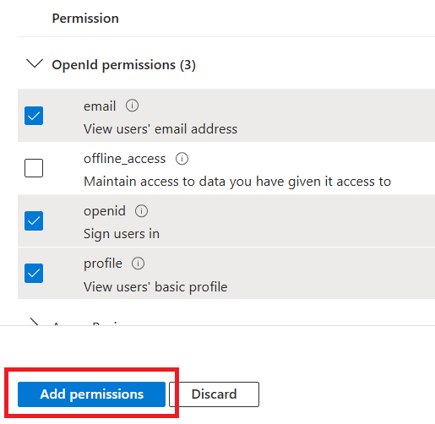
Below the checked boxed, you will find the "Add permissions" button, click it.
25 Click "Grant admin consent for Admincontrol"
In the middle of the page, locate this button and click it.
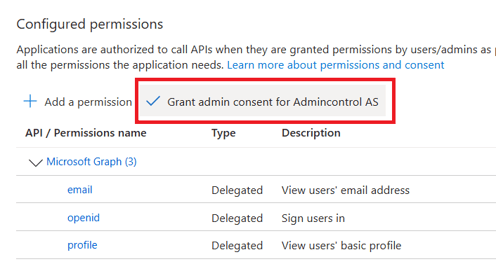
26 Go to Enterprise applications
Search for "Enterprise applications" in the top search bar in Entra ID portal, and select it
%20with%20Microsoft%20Entra%20ID/26.%20Go%20to%20enterprise%20applications.png?width=496&height=96&name=26.%20Go%20to%20enterprise%20applications.png)
27 Click on the "Admincontrol" Enterprise application
Search for "Admincontrol" and click on the application found.
%20with%20Microsoft%20Entra%20ID/Search%20for%20Admincontrol.png?width=496&height=427&name=Search%20for%20Admincontrol.png)
28 Go to "Users and groups"
Expand the "Manage" area and click on "Users and groups".
%20with%20Microsoft%20Entra%20ID/Expand%20the%20Manage%20area%20and%20click%20on%20Users%20and%20groups..png?width=319&height=576&name=Expand%20the%20Manage%20area%20and%20click%20on%20Users%20and%20groups..png)
29 Add users and groups
Here you need to add all users/groups that should have access to Admincontrol login.
To minimize maintenance its recommended to add groups, not single users, but you are free to do anything that makes sense for your company's usage here.
IMPORTANT: Any user in your tenant that needs access to Admincontrol needs to be here. If a user is not included by user or group the login to Admincontrol will be denied. (This only applies to the registered domain(s), other users that might be in the portal with different username domains will log in like before without Entra ID)
Adding users is a broader area and if you need directions please take a look at the Microsoft documentation: https://learn.microsoft.com/en-us/entra/identity/enterprise-apps/assign-user-or-group-access-portal?pivots=portal
30 Enable Microsoft Entra multifactor authentication
Create a Conditional Access policy and enable Microsoft Entra multifactor authentication for all users of the Admincontrol Enterprise Application. This is a requirement in order to use Entra ID SSO with Admincontrol.
Please follow the documentation from Microsoft: https://learn.microsoft.com/en-us/entra/identity/authentication/howto-mfa-getstarted#plan-conditional-access-policies
31 Contact Admincontrol, acquire AD Integration
Reach out to your Admincontrol contact to enable AD Integration for for your domain(s).
32 Go to Admincontrol AD Integration setup page
Navigate to https://login.admincontrol.net/settings/adintegration
33 Log in to Admincontrol AD Integration setup page
You will log in with the username provided by Admincontrol at the point of the acquirement of the AD Integration. After login you will see this page:
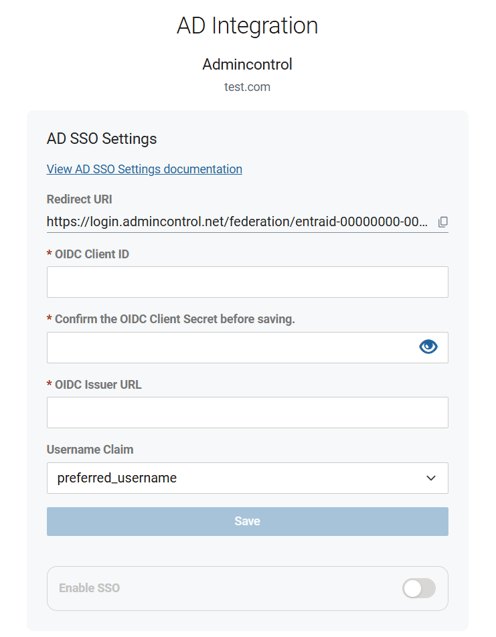
NOTE: Please note that this page has a short session duration. You will be automatically logged out after 15 minutes of inactivity.
34 Paste in your OIDC Client ID
The OIDC Client ID is located in your temporary document, collected in step 11, referenced as "OIDC Client ID". Paste it into the first text input field, with the matching name.
%20with%20Microsoft%20Entra%20ID/34.%20Paste%20in%20your%20OIDC%20Client%20ID.png?width=496&height=72&name=34.%20Paste%20in%20your%20OIDC%20Client%20ID.png)
35 Paste in your OIDC Client Secret
The OIDC Client Secret is located in your temporary document, collected in step 16, referenced as "OIDC Client Secret". Paste it into the second text input field, with the matching name.

36 Paste in your OIDC Issuer Url
The OIDC Issuer Url is located in your temporary document, collected in step 18, referenced as "OIDC Issuer Url". Paste it into the third and last text input field, with the matching name.
%20with%20Microsoft%20Entra%20ID/36%20Paste%20in%20your%20OIDC%20Issuer%20Url.png?width=496&height=75&name=36%20Paste%20in%20your%20OIDC%20Issuer%20Url.png)
37 Select username claim
Here you will need to decide what to match the Admincontrol user against in your Entra ID tenant. The default and recommended option is preferred_username, so if you are unsure, just leave it unchanged. If you would like to link against upn or email, select one of them.
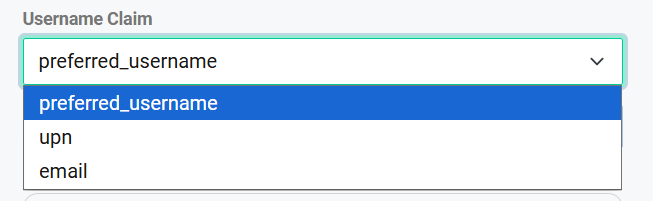
38 Click "Save"
Values will be saved, but SSO is still not enabled.
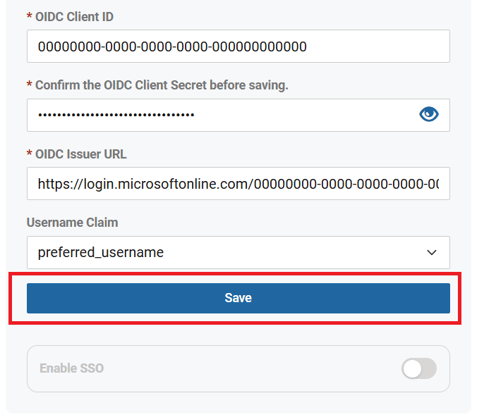
39 Collect the "Redirect URI"
Click the copy button you see below and paste it into your temporary document. Reference it as "Redirect URI".
%20with%20Microsoft%20Entra%20ID/38%20Click%20the%20copy%20button%20you%20see%20below%20and%20paste%20it%20into%20your%20temporary%20document.%20Reference%20it%20as%20Redirect%20URI.png?width=496&height=153&name=38%20Click%20the%20copy%20button%20you%20see%20below%20and%20paste%20it%20into%20your%20temporary%20document.%20Reference%20it%20as%20Redirect%20URI.png)
40 Go to Entra ID portal
41 Go to "App Registrations"
Go to "App Registrations" by searching for it in the top bar as shown in the screenshot below.
42 Click "All applications"
Its the first of the 3 tabs on the App registrations page.
43 Click "Admincontrol"
Locate the App registration named "Admincontrol" and click it.
44 Click "Authentication" in the "Manage" section
In the Admincontrol App registration left menu, expand "Manage" and click Authentication
%20with%20Microsoft%20Entra%20ID/43%20Click%20Authentication%20in%20the%20Manage%20sections.png?width=310&height=505&name=43%20Click%20Authentication%20in%20the%20Manage%20sections.png)
45 Click "Add a platform"
Click the button as specified in the screenshot below
%20with%20Microsoft%20Entra%20ID/44%20Click%20Add%20a%20platform.png?width=496&height=413&name=44%20Click%20Add%20a%20platform.png)
46 Select "Web"
In the modal, select "Web" as shown below.
%20with%20Microsoft%20Entra%20ID/45%20Select%20Web.png?width=496&height=265&name=45%20Select%20Web.png)
47 Paste in your Redirect URI and press Configure
The Redirect URI is located in your temporary document, collected in step 39, referenced as "Redirect URI". Paste it into the text input field for Redirect URI.
%20with%20Microsoft%20Entra%20ID/46%20Paste%20in%20your%20Redirect%20URI%20and%20press%20Configure.png?width=496&height=333&name=46%20Paste%20in%20your%20Redirect%20URI%20and%20press%20Configure.png)
48 Go to Admincontrol AD Integration setup page
Navigate to https://login.admincontrol.net/settings/adintegration
49 Log in to Admincontrol AD Integration setup page
You will log in with the username provided by Admincontrol at the point of the acquirement of the AD Integration. After login you will see this page:
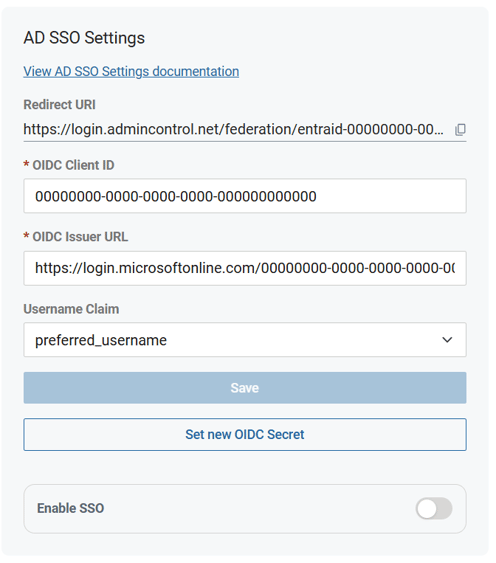
50 Enable SSO
Toggle the Enable SSO ON by pressing the toggle as shown below. This is how it looks after pressed.
%20with%20Microsoft%20Entra%20ID/49%20Toggle%20the%20Enable%20SSO%20ON.png?width=496&height=169&name=49%20Toggle%20the%20Enable%20SSO%20ON.png)
You are DONE, all Admincontrol logins on our domains are now done with your Entra ID tenant.
Login - changes affected after completed setup
After the setup is done, your end users will be redirected to your tenant for login, this is based on the domain of the username.
%20with%20Microsoft%20Entra%20ID/Login%20tenant%20user%20Admincontrol.png?width=496&height=431&name=Login%20tenant%20user%20Admincontrol.png)
After successful Entra ID login, the user will be logged into their matching Admincontrol user.
How to update expired app registration oidc client secret
This needs to be done before the current OIDC client secret expires. Once you have created a new secret in the Entra ID portal, you can set it to be used. Multiple secrets can coexist, so there is no need to wait for the exact expiration date. Please follow the steps to complete the change to the new OIDC client secret.
1 Go to Entra ID portal
2 Go to "App Registrations"
Go to "App Registrations" by searching for it in the top bar as shown in the screenshot below.%20with%20Microsoft%20Entra%20ID/How%20to%20update%20expired%20app%20registration%20oidc%20client%20secret/2.%20Go%20to%20app%20registrations.png?width=496&height=99&name=2.%20Go%20to%20app%20registrations.png)
3 Click "All applications"
Its the first of the 3 tabs on the App registrations page.
%20with%20Microsoft%20Entra%20ID/How%20to%20update%20expired%20app%20registration%20oidc%20client%20secret/3.%20Click%20all%20applications.png?width=496&height=66&name=3.%20Click%20all%20applications.png)
4 Click "Admincontrol"
Locate the App registration named "Admincontrol" and click it.
%20with%20Microsoft%20Entra%20ID/How%20to%20update%20expired%20app%20registration%20oidc%20client%20secret/4.%20Click%20Admincontrol.png?width=496&height=213&name=4.%20Click%20Admincontrol.png)
5 Expand "Manage" and click "Certificates & secrets"
Click "Certificates & secrets" in the left menu, under the "Manage" section.
%20with%20Microsoft%20Entra%20ID/How%20to%20update%20expired%20app%20registration%20oidc%20client%20secret/5.%20Click%20Certificates%20%26%20secrets%20in%20the%20left%20menu%2c%20under%20the%20Manage%20section.png?width=303&height=547&name=5.%20Click%20Certificates%20%26%20secrets%20in%20the%20left%20menu%2c%20under%20the%20Manage%20section.png)
6 Click "New client secret"
In the "Client secrets" tab, click "New client secret
%20with%20Microsoft%20Entra%20ID/How%20to%20update%20expired%20app%20registration%20oidc%20client%20secret/6.%20Click%20New%20client%20secret.png?width=496&height=171&name=6.%20Click%20New%20client%20secret.png)
7 Enter description and expiry length
Write "Admincontrol" in description and select 730 days as expires length.
%20with%20Microsoft%20Entra%20ID/How%20to%20update%20expired%20app%20registration%20oidc%20client%20secret/7%20Enter%20description%20and%20expiry%20length.png?width=496&height=243&name=7%20Enter%20description%20and%20expiry%20length.png)
IMPORTANT: Please set a timely alert to ensure the renewal and update of this secret, as it will expire in two years. You can configure the alert using a method that suits your needs. Currently, Microsoft does not support a built-in alert method in the Entra ID portal. Instructions for updating the secret are provided in a separate section on this page.
8 Click "Add"
%20with%20Microsoft%20Entra%20ID/How%20to%20update%20expired%20app%20registration%20oidc%20client%20secret/8%20Click%20add.png?width=496&height=170&name=8%20Click%20add.png)
9 Collect secret
Copy by clicking the copy-button after Value and paste it into a temporary document, reference it as "OIDC Client Secret"
%20with%20Microsoft%20Entra%20ID/How%20to%20update%20expired%20app%20registration%20oidc%20client%20secret/9.%20Collect%20secret.png?width=496&height=43&name=9.%20Collect%20secret.png)
NOTE: After you navigate away from this page the secret will not be visible ever again. If you need it for anything else at some point later, please store it in a secure tool/location. Alternatively a new secret can be created and used.
10 Go to Admincontrol AD Integration setup page
Navigate to https://login.admincontrol.net/settings/adintegration
11 Log in to Admincontrol AD Integration setup page
You will log in with the username provided by Admincontrol at the point of the acquirement of the AD Integration. After login you will see this page:
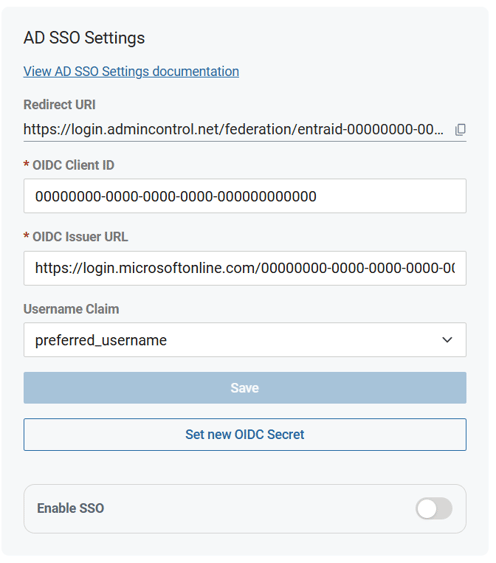
12 Click "Set new OIDC Secret"
Locate the button "Set new OIDC Secret" and click it.
%20with%20Microsoft%20Entra%20ID/How%20to%20update%20expired%20app%20registration%20oidc%20client%20secret/12.%20Click%20Set%20new%20OIDC%20Secret.png?width=496&height=71&name=12.%20Click%20Set%20new%20OIDC%20Secret.png)
13 Paste in your new "OIDC Client Secret"
The OIDC Client Secret is located in your temporary document, collected in step 9, referenced as "OIDC Client Secret". Paste it into the text input field as shown below.
%20with%20Microsoft%20Entra%20ID/How%20to%20update%20expired%20app%20registration%20oidc%20client%20secret/Reset%20OIDC%20Client%20Secret.png?width=496&height=219&name=Reset%20OIDC%20Client%20Secret.png)
14 Press Save
The following confirmation is displayed.
%20with%20Microsoft%20Entra%20ID/How%20to%20update%20expired%20app%20registration%20oidc%20client%20secret/14.%20Save%20confirmation.png?width=496&height=245&name=14.%20Save%20confirmation.png)
We are now using the new secret.
Good to know
User provisioning is currently not supported, meaning Admincontrol will not be aware of the user's status in Entra ID, except during the login process itself. Consequently, users might appear active within the solution even if their AD account is deactivated or removed.
Offboarding is still supported for authentication, as new logins will be blocked by AD. However, if the user needs to be shown as inactive for admins in the Admincontrol portal, the admin must also deactivate the user there.
Electronic ID logins will not be possible for end users if their account belongs to a domain requiring Entra ID login. This is because Admincontrol cannot determine the current status of the AD user, and we need to prevent any potential backdoor access for offboarded AD users.
Onboarding with an Entra ID user is supported, but an invite is required, and the signup forms needs to be submitted before the user start logging in with Entra ID.
Error situations
- User is told that electronic id login is not allowed - This is correct, login must be done with Entra ID
- Errors like this on Entra ID login: "The user account does not exist in the tenant Admincontrol and does not have access to the application xxx in this tenant. The account must be added as an external user in the tenant first. Please use a different account." Normally this is solved by one of the two following solutions:
- If user should have access to any Admincontrol portal with this user, the user needs to exist both in the tenant and in the userlist of the Admincontrol Enterprise application.
- It could be that this user is registered with a different username in Admincontrol, and if this is the case the user needs to do a login with that username instead
- No Admincontrol user is found. Two possible fixes:
- Get an invite to a portal for this user
- Log in with a different user
- Entra ID login is not working for any reason, and users are blocked to log in - Turn off SSO in settings on Admincontrol setup page, or contact support to disable it.