
 Boards & Governance
 M&A & Transactions

.png)

.png)
 Board Management Software
 Customer stories
 Insights
 Events & Webinars
 Security & Privacy
 Product updates

.jpg)




-Jul-03-2026-06-32-50-9626-AM.png)
 Login
Login
Getting Started with Board Competence Assessments
Admincontrol’s Competence Assessment tool is designed to help banks and organizations evaluate board suitability according to EBA guidelines and CRD6 requirements. This guide will walk you through the entire process, from creating an assessment to succession planning.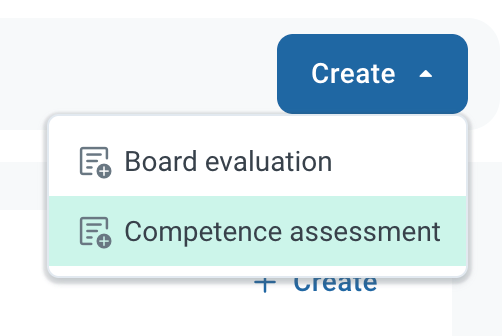
Step 1: Create the Assessment
To begin, navigate to the Competence Assessment module and select Create New.
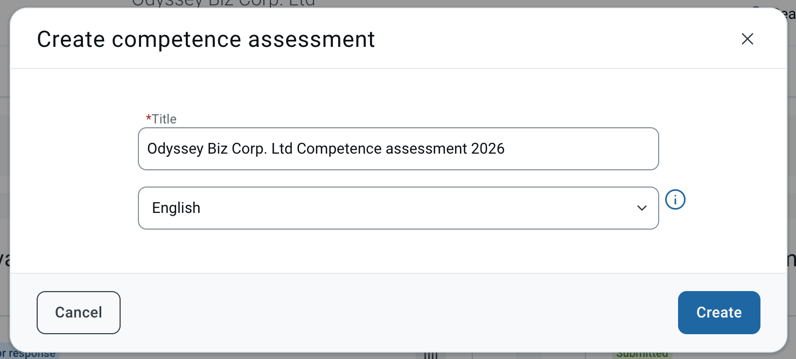
- Language Selection: Select the primary language for the assessment. This is set manually by the admin (rather than following the user’s profile language) to ensure that custom questions and competence areas remain consistent and don’t appear as a mix of languages to the end-users.
- Assessment Details: Enter the title, due date, and a custom introduction.
- Note: These details can be modified at any time, even after respondents have started submitting their answers.
Step 2: Tailor the Questionnaire
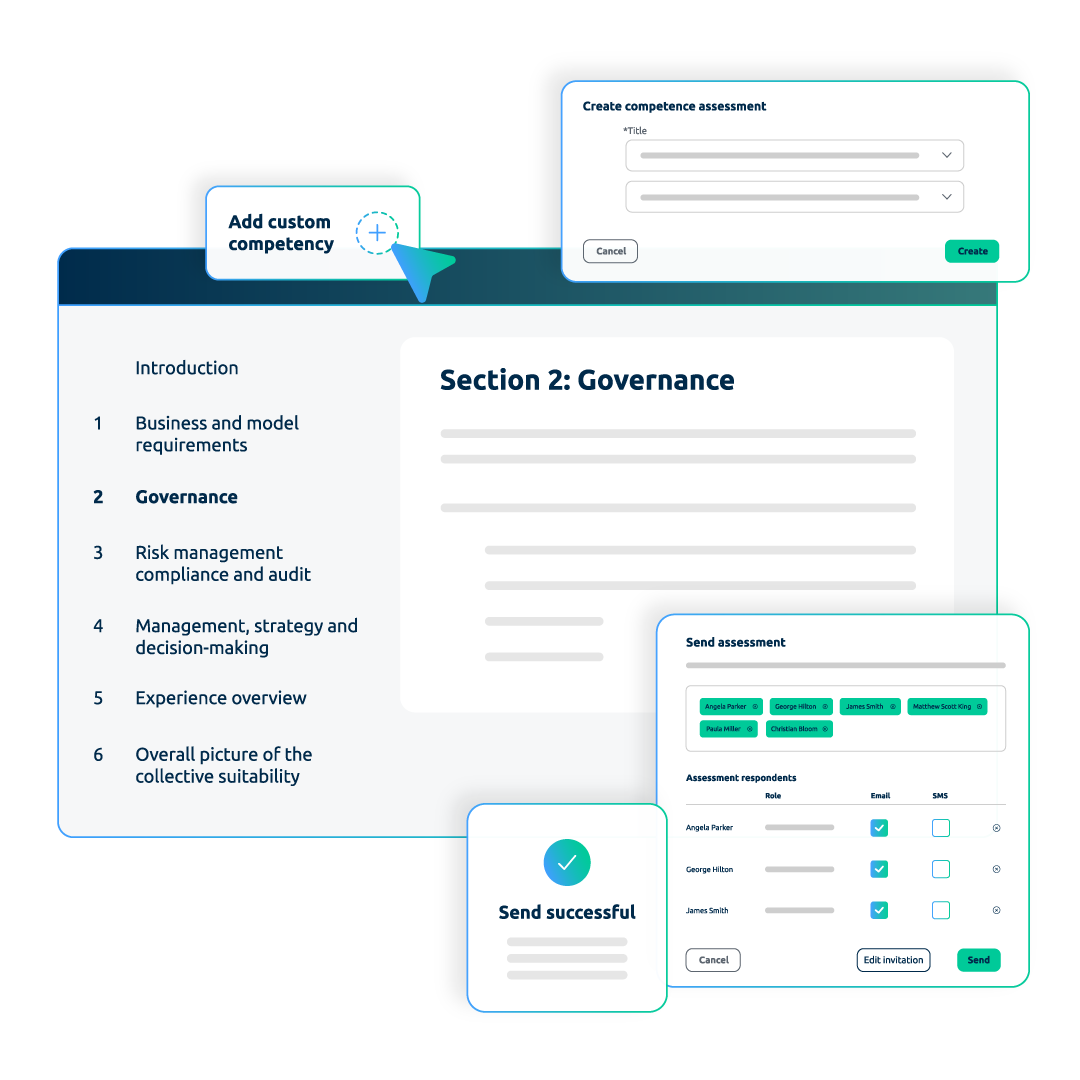
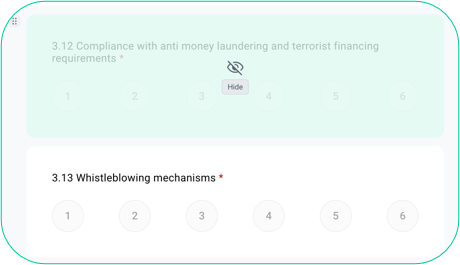
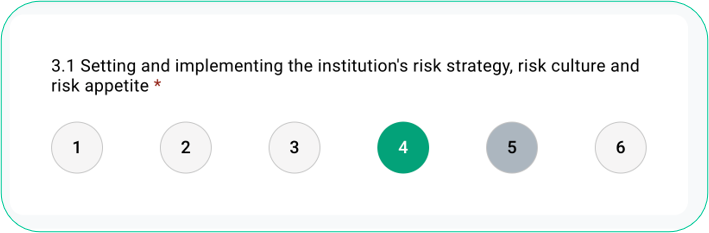
The assessment is divided into six flexible sections based on EBA guidelines. You can hide entire sections, reorder them, or adjust titles to suit your organization’s specific needs.
-
Section 1: Custom Content: Add up to 100 customer-defined competence areas. This section remains hidden if no custom questions are added.
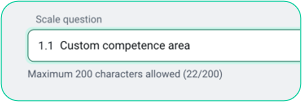
- Sections 2–4: Prepopulated Competence Areas: These are prepopulated based on EBA guidelines. They are fully customizable—you can hide, reorder, or add new areas.
- Section 5: Experience & Mandate: Track board mandate renewal years and professional experience.
- Section 6: Overall Assessment: Includes open-ended questions regarding collective suitability.
Step 3: Send the Assessment
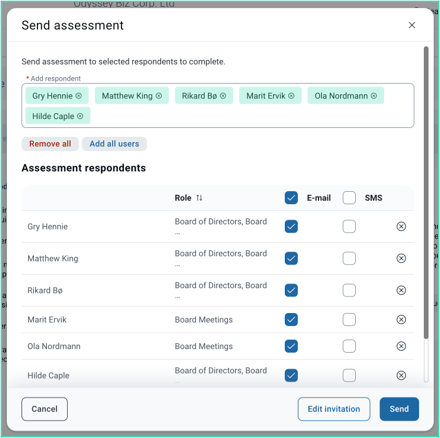
Once your questionnaire is ready, select the relevant users. The assessment is sent out via the standard Admincontrol notification system, ensuring respondents receive a secure link to the task.
Step 4: Completing the Assessment (User Perspective)
Board members can complete the assessment by logging in via the web platform (App support coming in a future update).
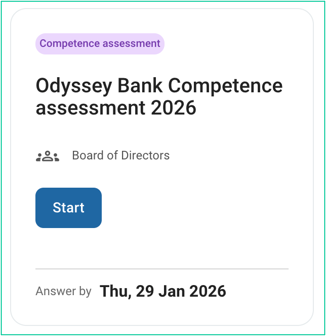
- Access: Users can find pending assessments on their Dashboard or under the Competence Assessment tab.
- Autosave: Progress is saved automatically, allowing members to complete the assessment over multiple sessions.
- Transparency: Unlike Board Evaluations (BES), these assessments are not anonymized, as the Assessment Owner must be able to identify specific skills and gaps.
- Flexibility: Respondents can change and resubmit their answers even after the initial submission.
Step 5: Reviewing Results in Real-Time
As soon as a board member submits their response, the results dashboard updates automatically. By default, only the Assessment Owner has access to these results.
The Dashboard includes:
-
Collective Scores: View highest, lowest, and average scores per competence area.
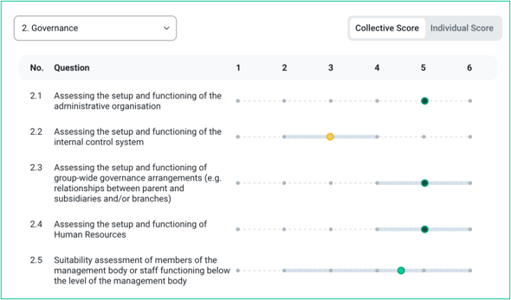
- Individual Responses: Drill down into specific answers from each member.
-
Skills Matrix: A color-coded visualization that highlights strengths and critical gaps.
-
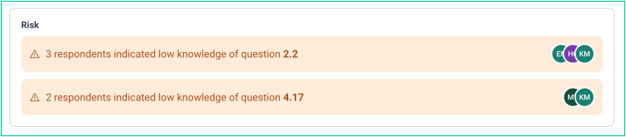
Risk Flagging: Areas with low averages and no high individual scores are automatically flagged as risks.
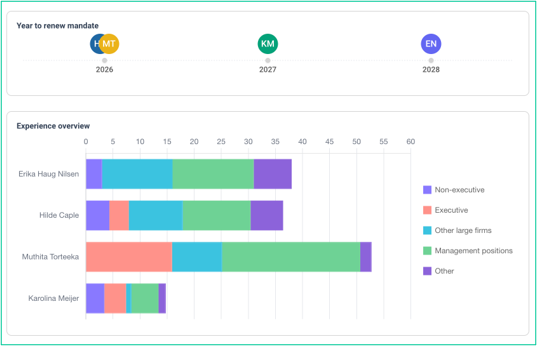
- Timeline & Charts: Visualize mandate renewal dates and experience levels via bar charts.
Step 6: Generating Reports
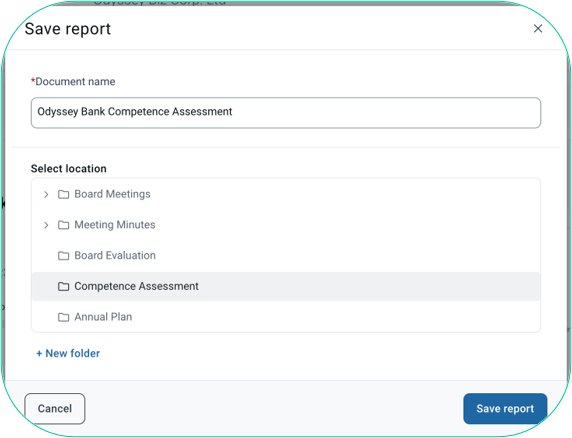
Once the assessment is complete (or at any milestone), the Assessment Owner can save the results as a PDF.
-
Snapshots: Because respondents can update their answers later, each PDF acts as a "snapshot" of the data at that specific moment. You can generate multiple reports over time to track changes.
-
Filtered Reports: You can generate reports that include or exclude employee-elected board members, allowing for a clear view of shareholder-elected vs. collective suitability.
Step 7: Updating Responses (CRD6 Compliance)
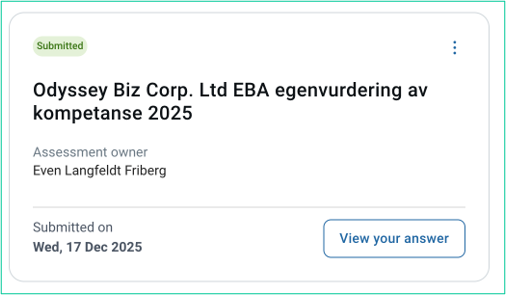
In accordance with CRD6, assessments should be kept up to date. Our tool allows respondents to update their scores after submission for several reasons:
- Skill Development: A member has completed a course or gained new experience.
- Alignment: Following a conversation with the Chair or Election Committee, a member may realize they were too modest or too confident in their initial self-assessment.
- Organizational Changes: Requirements for the board have changed.
-
Note: The Assessment Owner will be notified whenever a user changes and resubmits their scores.
Step 8: Succession Planning & Simulations
This feature allows the Assessment Owner (or the Election Committee) to simulate future board compositions.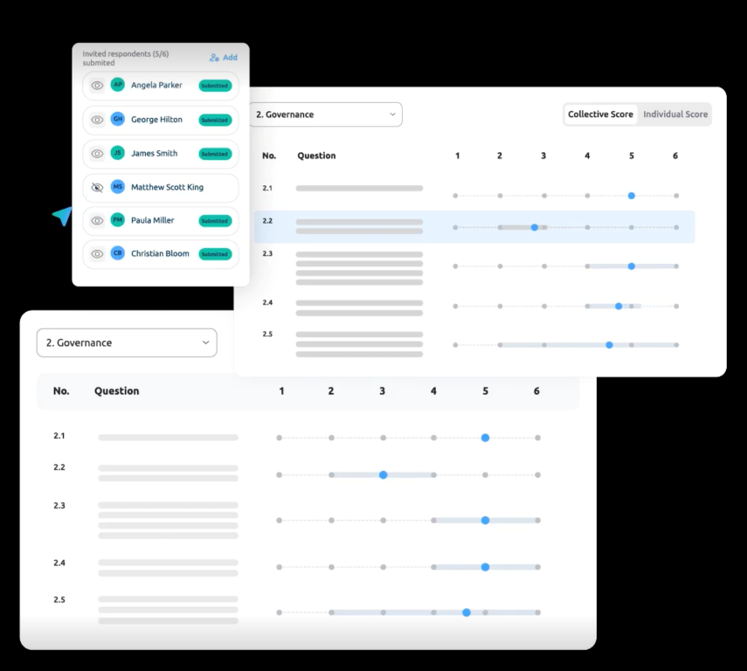
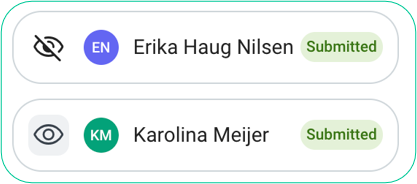
- "What-if" Scenarios: Toggle specific respondents "out" to see how the collective knowledge and suitability of the board would be affected if they left.
- Identify Hiring Needs: Use these simulations to visualize exactly what competencies a new member must possess to fill a gap.
- Filtered PDF Exports: Save these simulated "future state" reports as PDFs to share with stakeholders.