Boards & Governance

Admincontrol gives boards, chairs, and governance teams the tools to run structured meetings, make documented decisions, and stay secure.

product-banner-boardportal
Better Board Decisions, Less Admin

Enhanced with AI features to simplify workflows, surface key insights, and keep your board ahead of the curve.

surveys
Enhance your Board with Actionable Insights

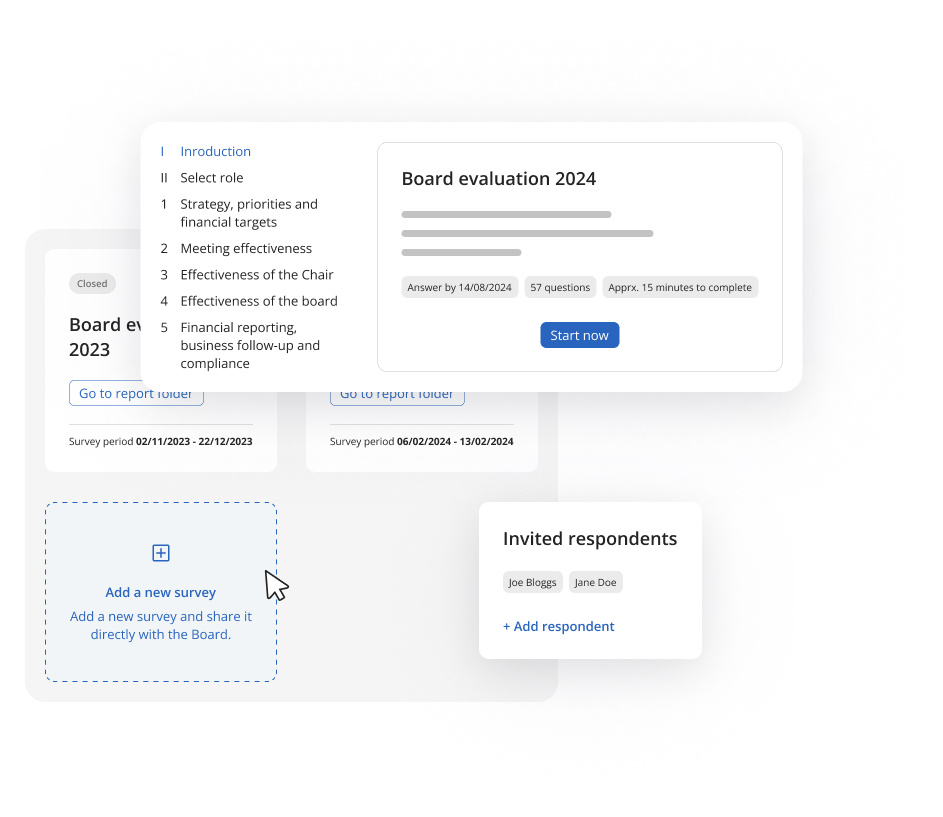
Effortlessly distribute surveys, track participation and gain valuable insights to optimise your board's effectiveness.

AMC2256_Board-portal_Animation-SQUARE_260126-1
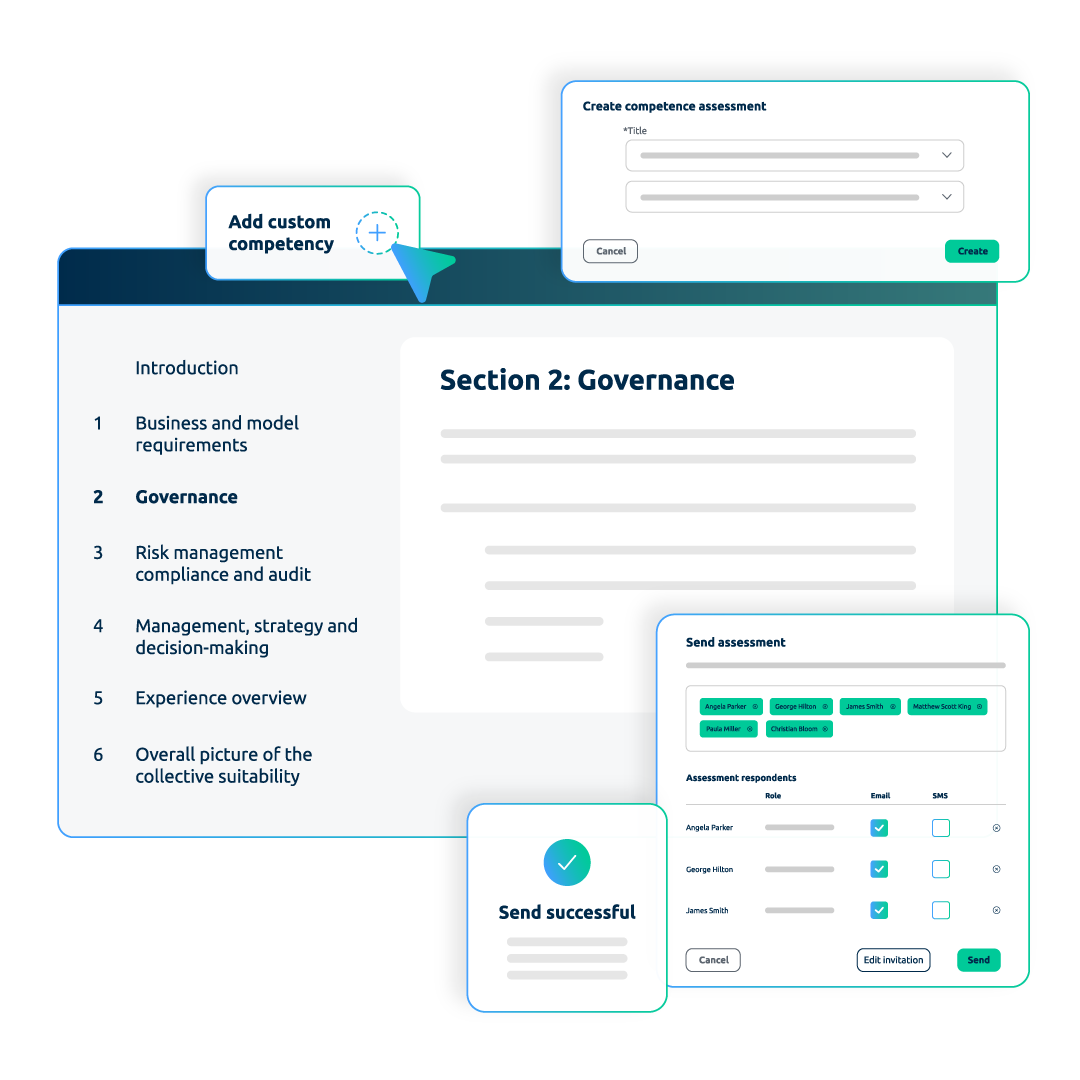
A Smarter Way to Evaluate Board Collective Suitability

Go beyond compliance and unlock strategic value. No more spreadsheets or consultants.

BM_Illustration_Asset_Ext (1)

Recently released

M&A & Transactions

Manage due diligence with precise control over who sees what, less manual admin, and 24/7 support.

05 investor decision making
Due Diligence Optimised

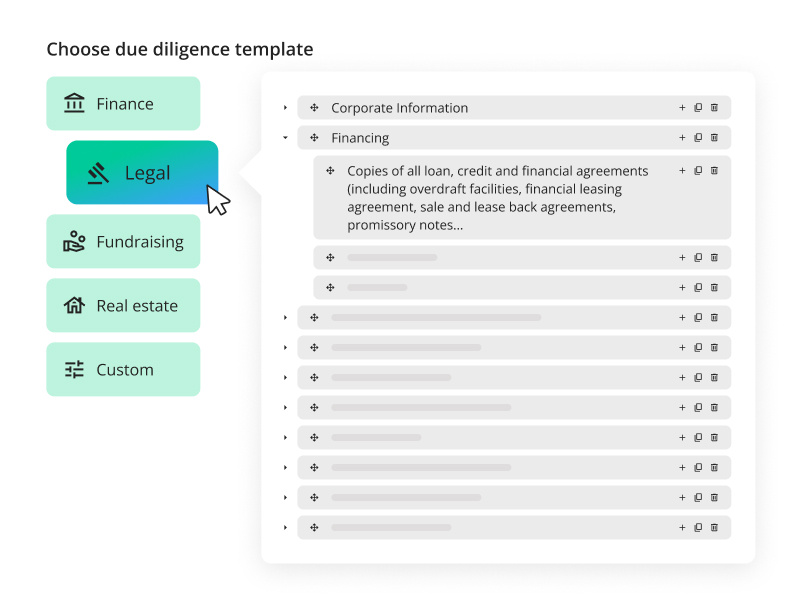
Europe’s leading M&A data room gives you greater control with less effort—backed by exceptional 24/7 customer support.

04 folder wizard
Prepare a Successful Due Diligence and Transaction

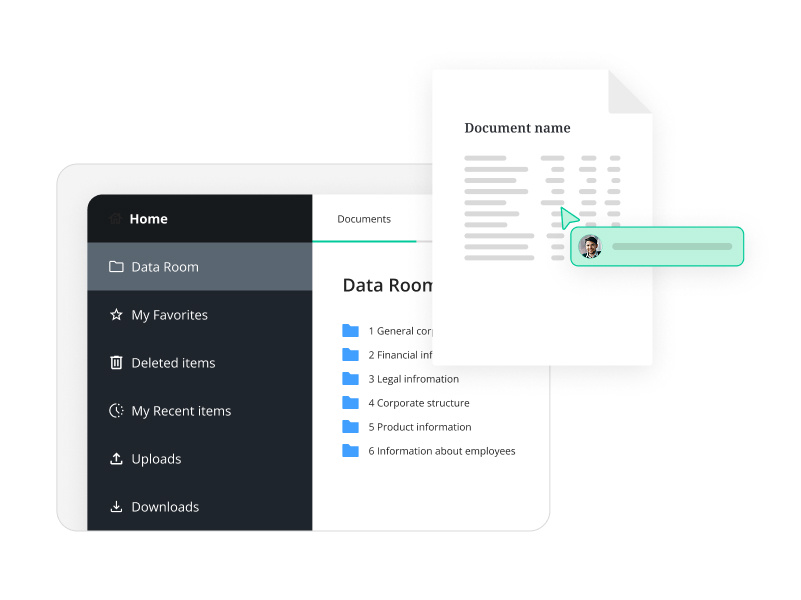
The pre-due diligence data room helps you easily organise and prepare for due diligence ahead of time.

Project overview
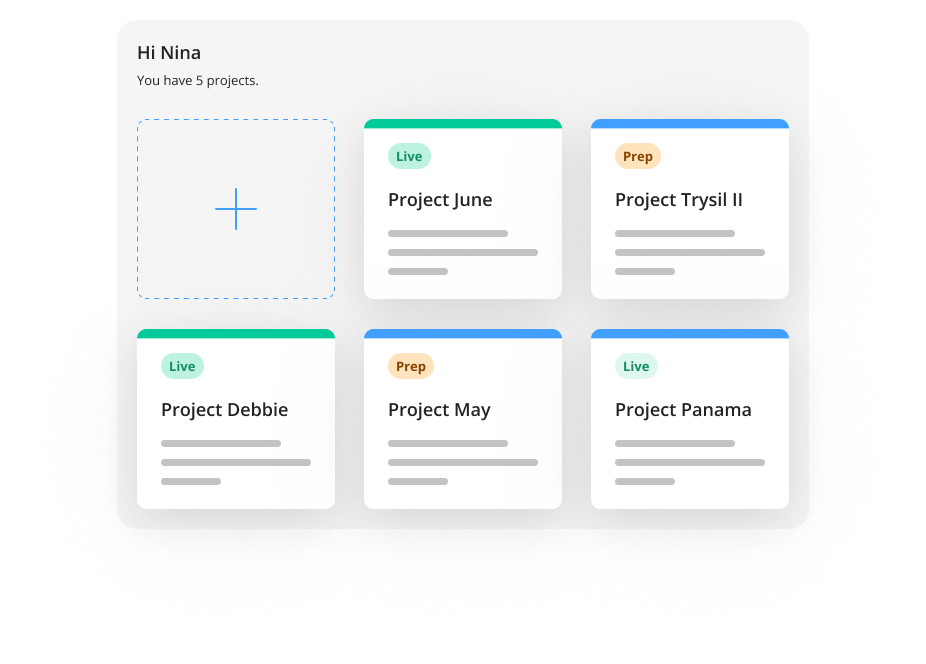
Create and manage all data rooms in one place

Deal Hub combines self-service and project management to make operations for M&A teams and advisors easier.

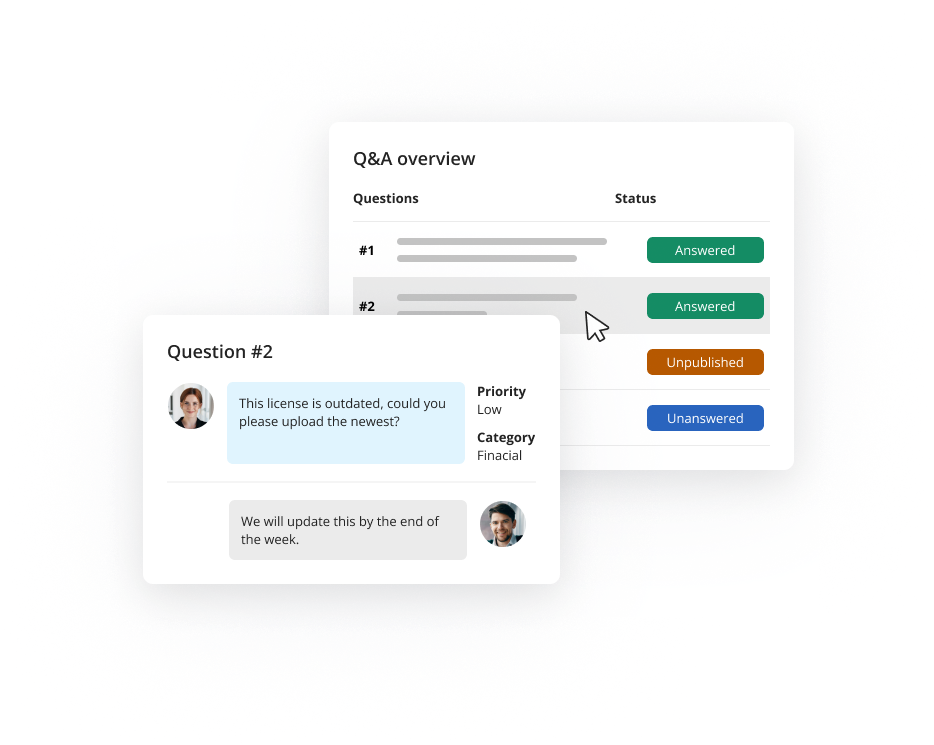
Q&A with text

Recently released

Good governance start's here

More than 7500+ companies and more than 140 000 board members and executives trust Admincontrol.

Book a 15 minute call

Get in touch with our sales representatives so we can better understand how to accommodate your needs

Secure transactions start's here

Trusted in more than 10.000 M&A transactions

In need of a custom deal?

Get in touch with our sales representatives so we can better understand how to accommodate your needs

Success stories

Our customers are at the heart of everything we do. Explore their journeys and see how we’ve helped turn challenges into lasting success.

people look at ipad

More valuable articles here

Explore the latest insights on board governance, M&A and strategic transactions, and board trends. Stay ahead with emerging trends, key predictions, and expert knowledge to drive strategic success.

Community & Learning

Stay up to date with our upcoming events, webinars, and participation in external conferences.

styreledermiddagen2026_mari

Webinar ad (Presentasjon) (1)

Security & Privacy

Learn more about how we keep your data secure, private, and handled responsibly, because trust is at the heart of everything we do.

AdminControl-134

Untitled design (1)-Jul-03-2026-06-32-50-9626-AM

Product updates & news

Stay up to date on our latest product updates and news

In the spotlight

Preparing for meeting

See upcoming meetings

If your administrator has prepared and published meeting(s), you can find an overview of these upcoming meetings on the Home page under Upcoming meetings. You can click directly on a meeting in the list to open the meeting.

If you have all portals selected, this overview will show you the upcoming meetings for all the portals you have access to. You can click on the portal selection drop down to change between portals that you have access to.
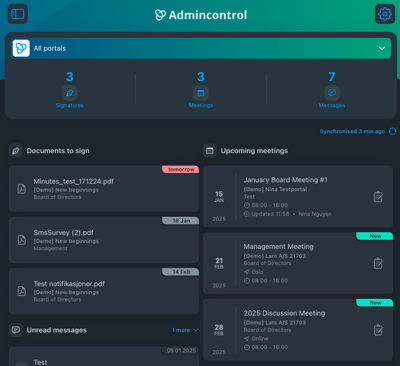
dashboard view of all upcoming meetings

Synchronizing the app

If you have received a notification regarding a meeting, but you are unable to see this meeting in the upcoming meetings list - your app might not be fully synchronized. To trigger resynchronization you can:

1. Click on the blue Synchronised (🕓) ago.
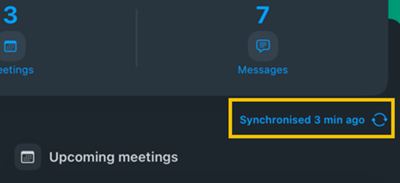
syncronize app highlighted

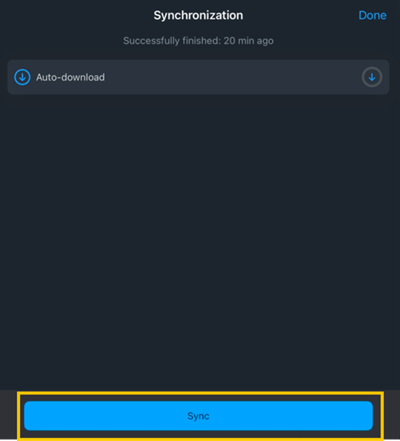
2. Click on the blue Sync button

sync button highlighted

3. When the app has successfully synchronized, you will be able to see that the time since the last synchronization will be updated.

Navigate to the meetings tab

To navigate to the meetings tab, click on the menu icon and click on Meetings in the menu list. In the meetings tab, you will see an overview of the meetings in the portal. You can click directly on a meeting in the list to open the meeting.

Filtering by area

You can choose to filter the meetings list by areas in the portal by clicking on All areas and choosing which area you would like to view the meetings for.
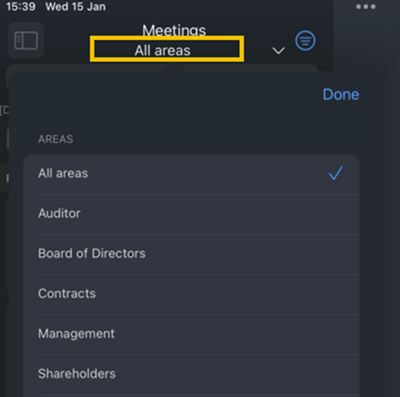
filtering by areas

Additional filter settings

You can find additional filter settings allowing you to further customize the meeting list results by clicking on the blue filter button in the top right in the Meetings menu.
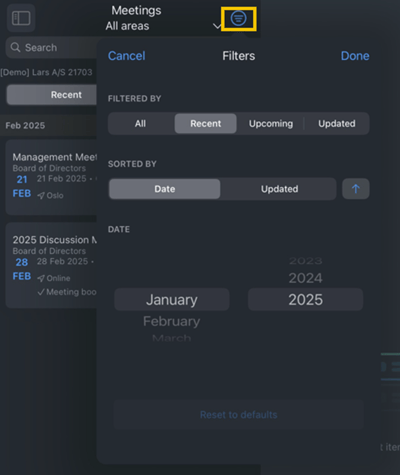
filtering by date and month

Viewing and working in a meeting

To open a meeting, click directly on the meeting in the meeting list. The meeting overview has three tabs:
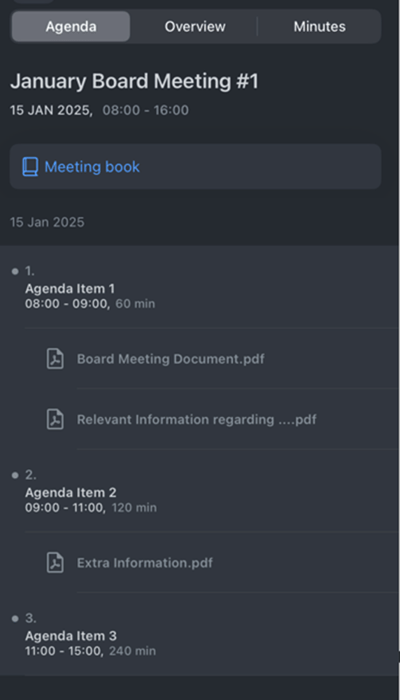
viewing and working in a meeting

  • Agenda: If the administrator has created a meeting book for the meeting, you can open the meeting book here by clicking on Meeting book. You can use the left-hand menu to easily navigate to different sections of the meeting book.
  • Overview: View details regarding the meeting.
  • Minutes: If meeting minutes have been created and shared with you, you can open the minutes here by clicking on Meeting minutes.

Take notes

You can also take personal notes in the document by clicking on the annotation tool in the toolbar. The annotation tool is indicated by a pen icon in the toolbar. These notes are only visible to you and other members will not see your personal notes even if they have access to the same document.
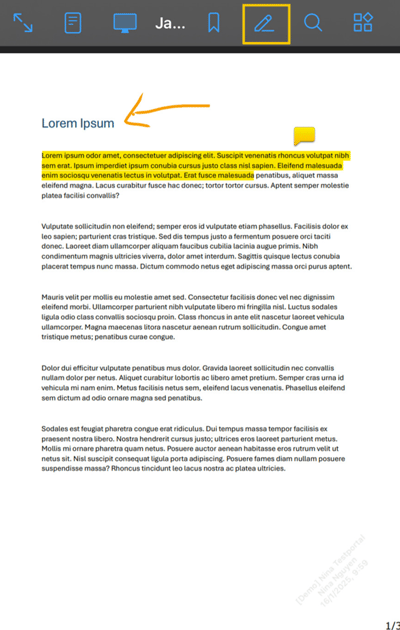
take notes annotations highlighted