
 Boards & Governance
 M&A & Transactions


.png)



.png)
 Board Management Software
 Customer stories
 Insights
 Events & Webinars
 Security & Privacy
 Product updates

.jpg)




-Jul-03-2026-06-32-50-9626-AM.png)
 Login
Login
An authenticator app is a great way to secure your online accounts, and it's becoming increasingly popular as people realize the importance of protecting their digital identity. In this article, we'll guide you through the process of getting started with an authenticator app.
What is an authenticator app?
An authenticator app is a software application that generates unique one-time passwords (OTPs) for two-factor authentication (2FA). 2FA is a security measure that requires two forms of authentication to access an account, typically a password and a code generated by an authenticator app. This extra layer of security makes it much harder for hackers to gain access to your accounts.
Step 1: Choose an authenticator app
There are many authenticator apps available, both for iOS and Android. Some popular choices include Google Authenticator, Microsoft Authenticator, and Authy. Research the different options and choose the one that best suits your needs.
Step 2: Install the authenticator app
Once you've chosen an authenticator app, install it on your phone or tablet. The app should be available in your app store, and installation should be straightforward.
Step 3: Enable two-factor authentication
Now that you have the authenticator app installed, it's time to enable 2FA on your Admincontrol account. Log in to Admincontrol, go to Login and Electronic ID settings and enable two-factor authentication. Note that for some portals, 2FA is mandatory. If that is the case, you can skip this step.
Step 4: Choose 2FA method
When enabling 2FA, your default method will be set to SMS. Under the Two-factor authentication section choose Authenticator app from the drop-down list. After selecting the 2FA method click on the blue Set up button.
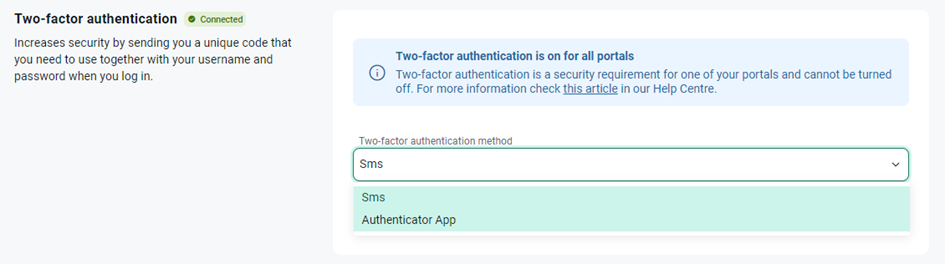
Step 5: Setting up your authenticator app
Open the authenticator app on your phone, tap the + and then follow the instructions to scan the QR code. Once you've done this, the app will begin generating one-time passwords.
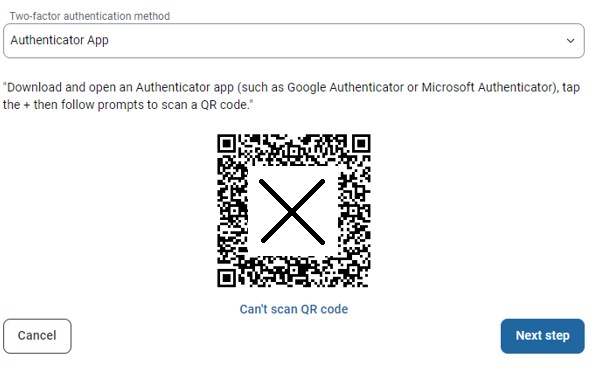
Step 5: Verify your authenticator app
After the authenticator app has successfully started generating one-time passwords click on the Next step button and enter the one-time password into the verification code field to verify your authenticator app.
How to use the authenticator app when logging in
When you log in to an Admincontrol account that has 2FA with an authenticator app enabled, you'll be asked to enter a one-time password in addition to your password. Open the authenticator app and find the Admincontrol code. Enter the code in the appropriate field and you'll be logged in.
If you have lost access to your authenticator app, you can contact your portal administrator or Admincontrol support to change the two-factor authentication (2FA) method and revert it back to SMS verification.
Alternatively, if your account has electronic ID enabled, you can log in using this method to regain access. Once logged in, you can adjust your 2FA settings under your profile settings.
Note: If you choose to contact Admincontrol support for assistance, please ensure you send a written request via email from your registered email address. Your portal administrator may also reach out to support on your behalf.