
 Boards & Governance
 M&A & Transactions


.png)



.png)
 Board Management Software
 Customer stories
 Insights
 Events & Webinars
 Security & Privacy
 Product updates

.jpg)




-Jul-03-2026-06-32-50-9626-AM.png)
 Login
Login
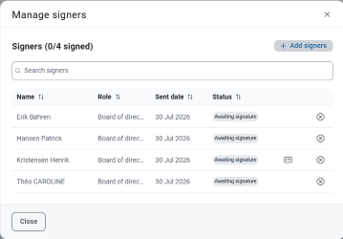
You can add additional signers to a signature request at any time before the due date has passed. Similarly, you can also remove signers from a request if someone has been added by mistake.
The list of the signers invited to sign a document is always accessible from the signature details accessed by going to the Signatures tab > Pending requests and clicking anywhere on the request in question.
Adding additional signers
- Click Manage > Add signers.
- In the Add users field, start typing the name of the signer you want to add.
- Select the signer from the drop-down list.
- Repeat the process if you need to add multiple signers.
- Click Update request.
The new signer will receive an email notification and can immediately sign the document.
Removing a signer
- Click Manage.
- In the Signers overview, locate the signer you would like to remove. You can do this either by using the search function or by looking directly at the user overview.
- Click on X, to the outer right of the users name.
- Complete the action by clicking on Remove signer.
Note that a removed signer cannot be added back to this request again later. If you remove a signer by mistake in which need to sign the document, you will have to cancel the request and create a new one from scratch.