
 Boards & Governance
 M&A & Transactions


.png)


.png)
 Board Management Software
 Customer stories
 Insights
 Events & Webinars
 Security & Privacy
 Product updates

.jpg)




-Jul-03-2026-06-32-50-9626-AM.png)
 Login
Login
When you have a final version of the Meeting minutes, the next step is to have them Approved. There are three possible ways of approving minutes:
- Send to electronic signing
- Download and sign manually
- Approve without signing
Send to electronic signing
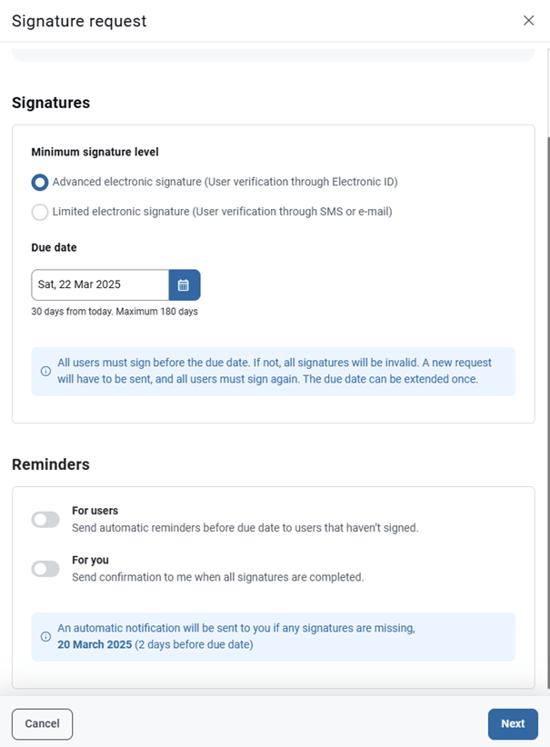
If the Meeting minutes are to be signed electronically, you can use the option Send to electronic signing. You will be able to create a signature request, according to the create signature request process. Please note that the secretary must be an administrator or a content administrator to be able to create a signature request.
You will also be able to edit the meeting minutes document name before the signature request is sent for signing. Please note that the document title is maximum 65 characters due to limitations in the signing service.
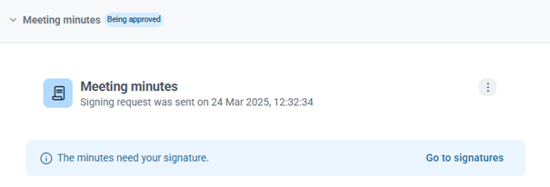
When the signature request has been sent, the Meeting minutes status will be changed to Being approved and will be available to everyone who have access to the meeting. There is an information bar in the Meeting minutes with a shortcut redirecting the users to the signature request if they are requested to sign, or to the signature request details for the secretary.
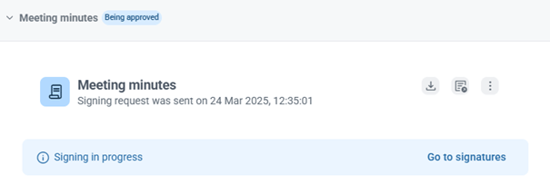
As long as there is an active signature request for the Meeting Minutes it is not possible to change the status of the minutes from the Meeting minutes, the signature request must be changed or deleted from the signature tab. Read more about canceling a signature request from minutes here.
When the Meeting minutes have been signed by all users requested to, the status of the minutes will be set to Approved, you will see an indication that the minutes were signed in brackets behind the Meeting minutes title, and the document will be available in the default Meeting minutes folder.
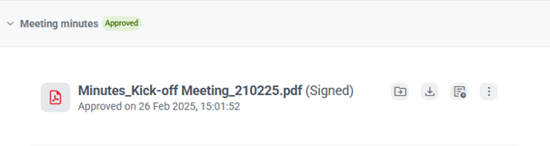
Download and sign manually
If the Meeting minutes are to be signed manually on paper, you can use the option Download and sign manually. The minutes will be downloaded and the watermark from Draft state will be removed.
To include the signature area, toggle on the option Signature area from the top section menu bar before downloading the minutes.
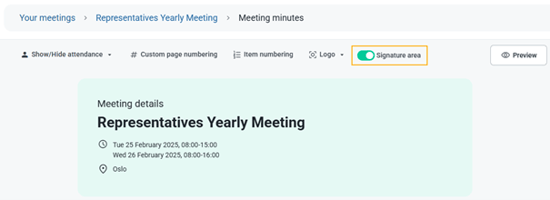
The Meeting minutes status will be changed to Being approved and will be available to everyone who have access to the meeting.
Upload the signed minutes
When the paper version of the minutes has been signed, you can use the shortcut in the information bar in Meeting minutes to upload your signed Meeting minutes.
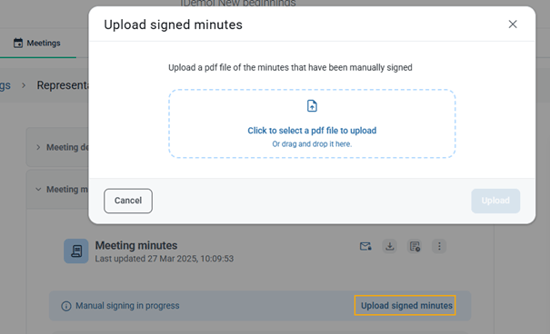
The status of the minutes will be set to Approved, you will see an indication that the minutes were signed in brackets, and the document will be available in the default Meeting Minutes folder.
Approve without signature
If the Meeting Minutes need no signatures you can chose to approve them, by using the selection Approve without signatures. The status of the Meeting minutes will be set to Approved and the document will be available in the default Meeting Minutes folder. You will be able to edit the Meeting minutes document name before the approval.