
 Boards & Governance
 M&A & Transactions


.png)


.png)
 Board Management Software
 Customer stories
 Insights
 Events & Webinars
 Security & Privacy
 Product updates

.jpg)




-Jul-03-2026-06-32-50-9626-AM.png)
 Login
Login
Access, review and sign documents from your PC, Mac or iOS device when you have received a signature request.
How to locate your pending signature requests
You will find your pending signature requests through a shortcut on the homepage or in the signature area within each area of use in your portal.
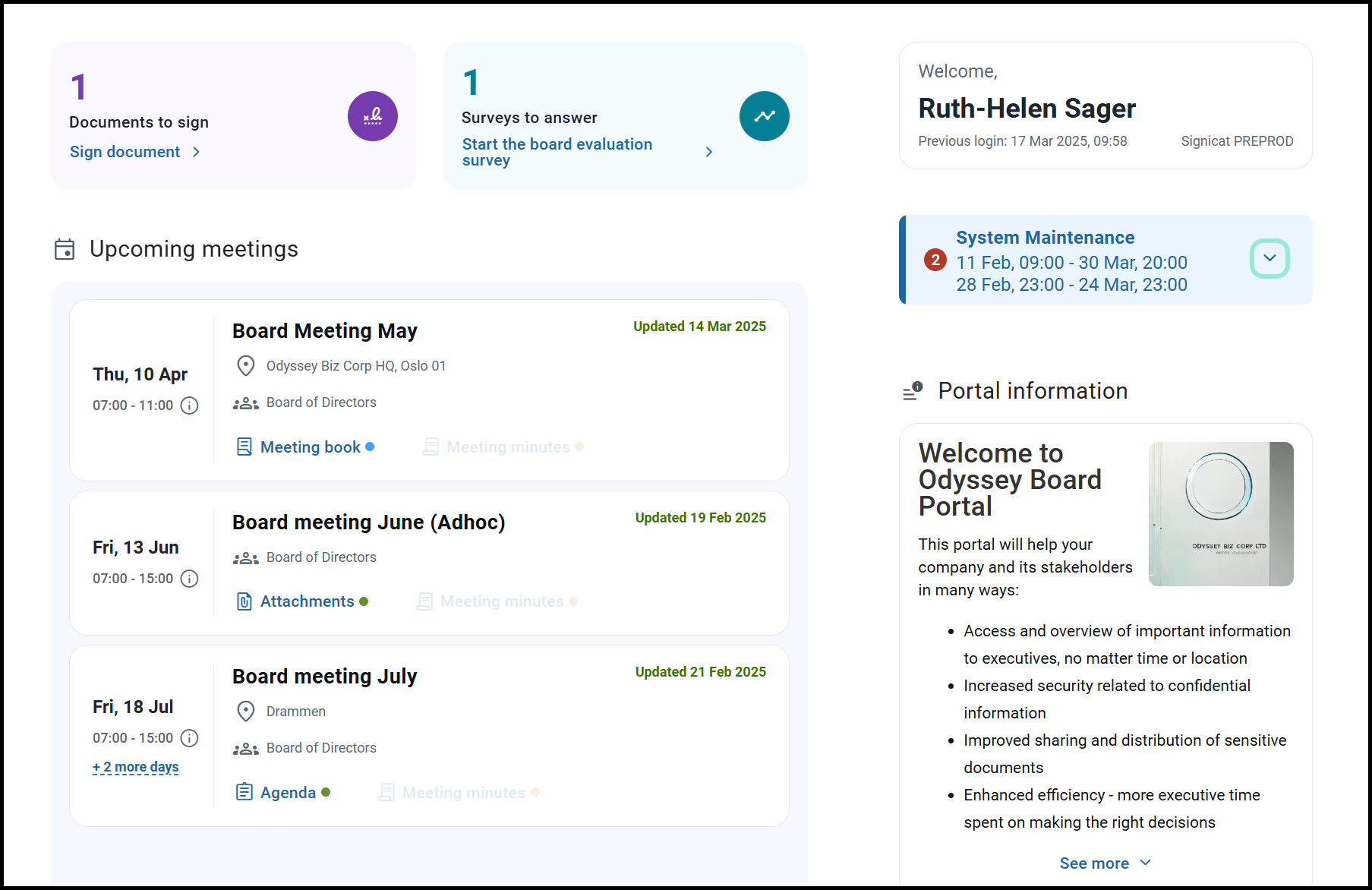
If you have access to more than one area of use and electronic signature is enabled on your portal, the shortcut from the home page will direct you to a quick sign page that will list only the signature requests not yet signed or rejected.
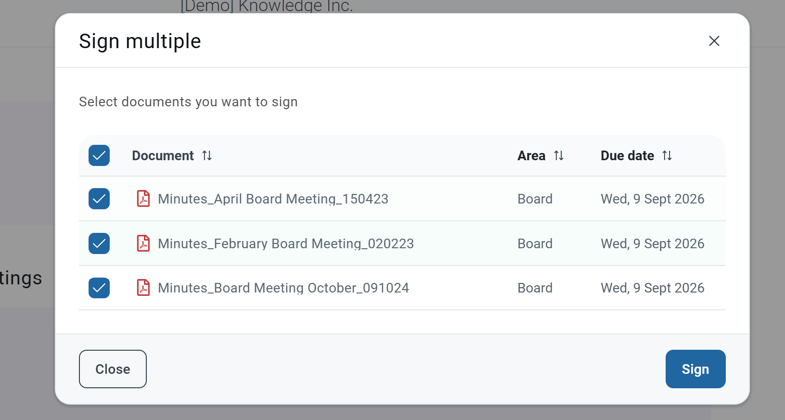
In the list of signatures, you can select one or more documents to sign.
Signing documents
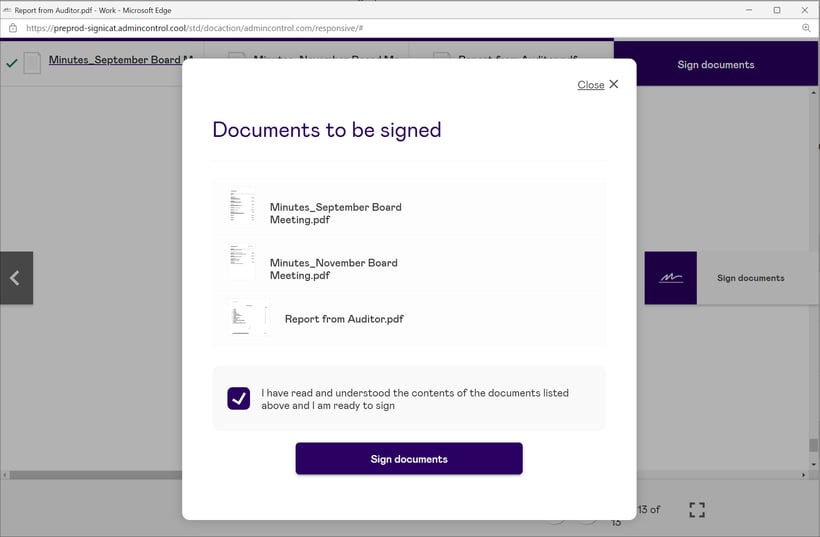
To sign a document, click on Sign or the sign documents button after selecting multiple documents.. The documents will then open on the screen, so that they can be read and signed.

You will need to confirm that you have read and understood the content of the documents before you are able to sign the documents with a valid signature method.
You may also choose to reject signing the document, by clicking the Reject button in the list of pending signatures. A window will then appear where you will need to provide a reason for the rejection to the administrator.
Read how to set up advanced electronic ID here and limited electronic signature here.