 Boards & Governance
 M&A & Transactions

.png)

.png)
 Board Management Software
 Customer stories
 Insights
 Events & Webinars
 Security & Privacy
 Product updates

.jpg)


-Jul-03-2026-06-32-50-9626-AM.png)
 Login
Login
Share a draft
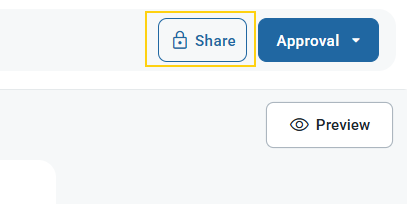
Once the Meeting Minutes draft is ready, you can share the draft with i.e. the Chairman of the board or other attendees who should review the draft by clicking Share from within the minutes page.
From the sharing modal you select the users that you want to share the minutes and have a conversation with from the drop-down menu, then write your desired message for your recipients.
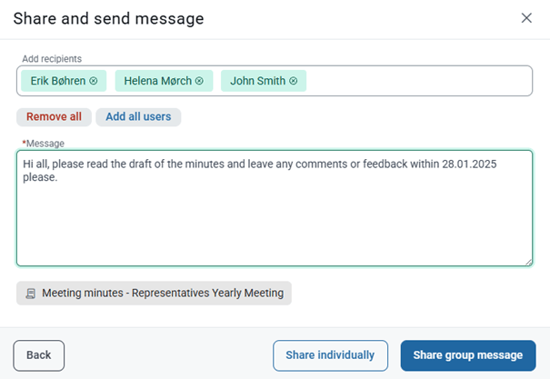
When two or more recipients are selected you will be presented with two options for sharing the minutes:
- Share individually: a one-to one conversation with each selected recipient, only the recipient and secretary will be able to see each other’s feedback.
- Share group message: a group conversation where everyone will see each other’s feedback and input to the minutes, and can respond to both the content of the minutes and other board members input.
If you want to write different messages to your recipients, you will have to repeat the steps for each of your recipients.
Notification for shared meeting minutes
The recipients will receive an email notification informing them that the secretary has shared the draft minutes and sent a message if the user has subscribed to receive e-mail notifications for secure messages.
This is a personal setting that users can manage by going to Emails and notifications in Settings. You can read more about secure messaging notifications here.
View and respond to feedback
When you have a new message in a conversation for the shared minutes, this will be indicated on the meetings overview page and in the meeting details under the Meeting Minutes modal with a green dot on the secure messaging icon.
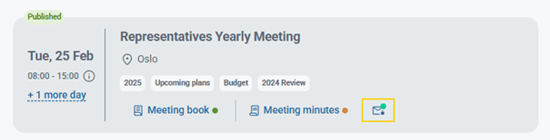
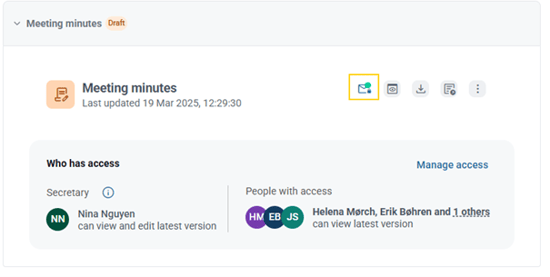
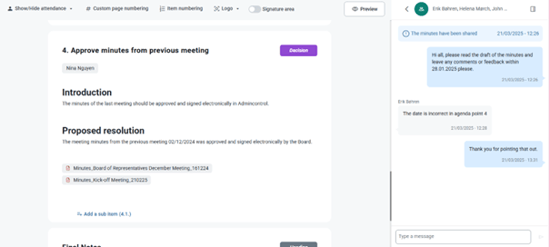
You can click on the secure messaging icon to open the minutes page with the conversation automatically opened on the right-hand side. In the conversation thread you can read messages from the people in the conversation and reply to messages.
Publish updates
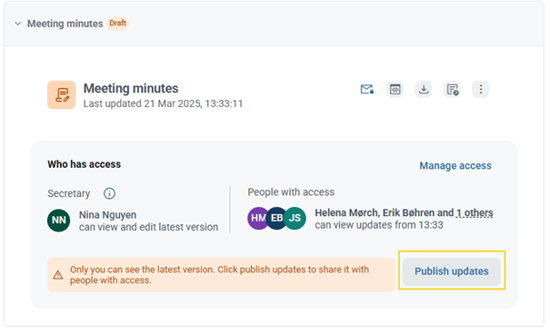
If you have made changes in the minutes after you have shared the minutes, the latest version will not be available to the users you have shared the minutes with until you publish the updates.
When changes have been made after sharing the minutes, you can publish the updates by clicking on Publish updates in the prompt at the top of the page within the minutes page.
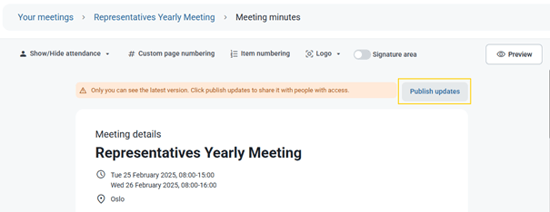
Updates can also be published from the meeting page from within the Meeting Minutes modal by clicking on Publish updates.
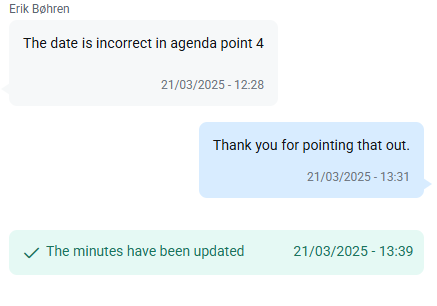
A status update will appear in the secure messaging message to inform users when minutes have been updated.
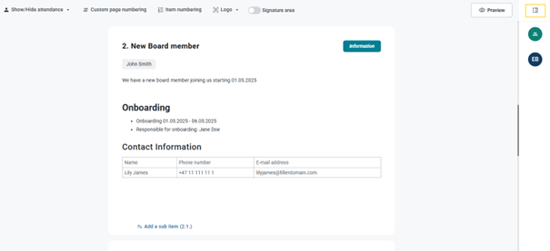
Toggle the secure messaging view
While working on the minutes you can toggle between minimizing the secure messaging view on the right-hand side by clicking on the collapse icon located in the top right corner of the secure messaging view.
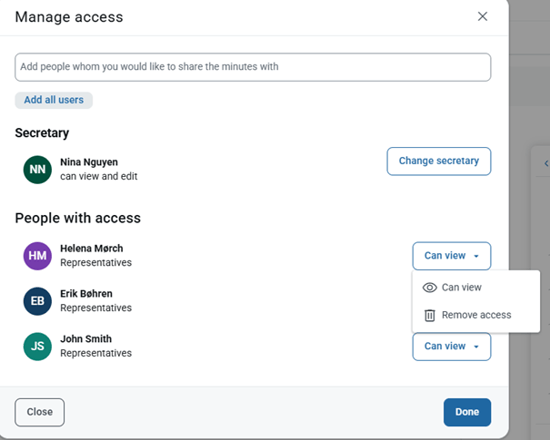
Manage access
From the meeting page you can manage access to the Meeting Minutes by clicking on Manage access. You can remove a user’s access to the minutes and add people whom you would like to share the minutes with.